
Ethernet is better for working from home when your desk is fixed and your day involves video calls, big uploads or a corporate VPN. Wifi is better when you move around, work from a rental where cable is impractical, or your wifi is already fast and stable. The right answer for most homes is both: a wired link for the machine you sit at all day, wireless for everything else.
That conditional verdict matters more than a headline speed number. A 100 Mbps wired connection often produces cleaner calls than a 300 Mbps wireless one, because calls care about how consistent the connection is, not how fast the fastest burst is. Last reviewed for 2026, with current Wi-Fi standards and gigabit port speeds in mind.
Table of Contents
- Ethernet vs Wifi: Which Is Better for Working From Home at a Glance
- How Do Ethernet and Wifi Affect Internet Speed?
- Which Connection Is More Reliable for Calls and File Transfers?
- Ethernet vs Wifi for Latency and Video-Call Quality
- Which Is More Secure: Ethernet or Wifi?
- How Do Setup and Maintenance Requirements Compare?
- What Does Ethernet vs Wifi Cost for a Home Office?
- Ethernet vs Wifi for Specific Working-From-Home Situations
- How Can You Get the Best Results From Either Connection?
- Which Should You Choose?
- Frequently Asked Questions
- Conclusion
Ethernet vs Wifi: Which Is Better for Working From Home at a Glance
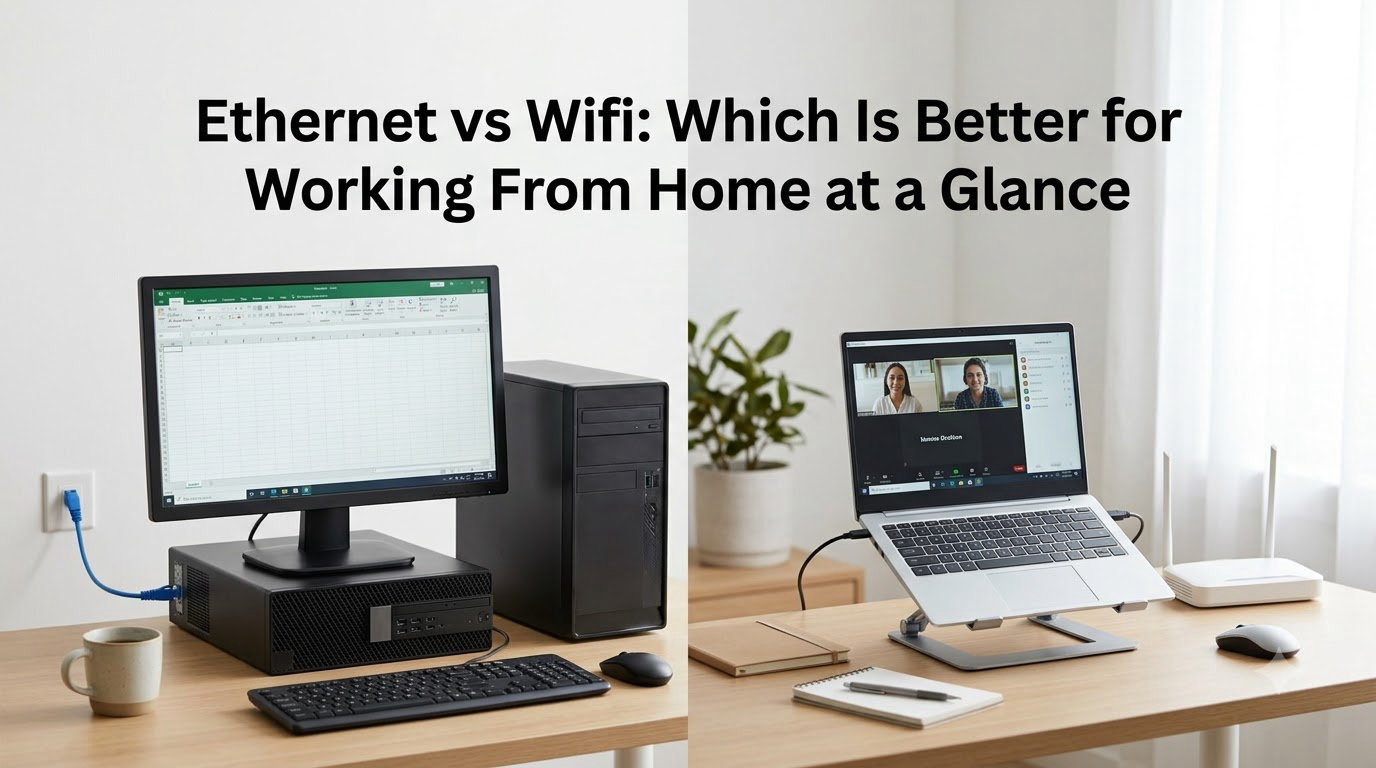
Here is the honest breakdown of ethernet vs wifi for a home office, criterion by criterion.
| Criterion | Ethernet | Wifi |
|---|---|---|
| Typical latency added at the desk | Under 1 millisecond | 2 to 20 milliseconds depending on band and congestion |
| Latency stability (jitter) | Near zero, effectively constant | Varies with airtime contention, walls and neighbours |
| Real-world throughput | Matches the port and the plan | Shared, so it rarely matches the link rate |
| Interference risk | None from radio | Microwaves, Bluetooth, neighbouring access points |
| Through walls | Unaffected by wall material | Signal drops with each wall, especially thick or metal ones |
| Setup effort | Route a cable, possibly drill or use a raceway | Type a password |
| Mobility | None | Laptop moves room to room |
| Security model | Needs physical access to plug in | Encrypted radio open to anyone in range |
| Ongoing cost | Same plan, plus one-time hardware | Included with the router |
| Best fit | Fixed desk, calls, transfers, a home business | Shared walls, shared rooms, many devices, quick setup |
Read the top two rows first. They are why a wired link feels better even when a speed test says the wireless number is bigger.
How Do Ethernet and Wifi Affect Internet Speed?
Your internet plan sets the ceiling. Nothing at your desk can go faster than the line coming in, so a 200 Mbps plan will not deliver gigabit to a laptop over any connection type. That is where the ethernet vs wifi argument often collapses into a non-question.
Below that ceiling, the two behave very differently. Ethernet under IEEE 802.3 gives each device a dedicated point-to-point link over twisted-pair copper, so throughput is limited only by the port speed and the cable. Wifi under IEEE 802.11 shares one radio channel among every device in range, so measured speed is a share of the airtime available.
What actually limits your wifi speed
- The band. 2.4 GHz travels furthest but is crowded and slower. 5 GHz is faster with shorter range. 6 GHz is fastest and least crowded, but 6 GHz signals are poor at penetrating walls.
- Distance and walls. Each wall and floor costs signal. A desk two rooms from the router sees a fraction of the speed a desk beside it sees.
- Neighbours. In dense housing, access points stacked in nearby flats compete on the same channels.
- Other devices. Streaming TV, video calls and cloud backups on the same network take their share.
- Client hardware. An older laptop adapter can halve a fast router’s practical speed.
What limits your ethernet speed
Cable category, port speed and length. Cat5e carries 1 Gbps to about 100 metres. Cat6 carries 10 Gbps to roughly 55 metres. Cat6a carries 10 Gbps to about 100 metres. Older Cat5 or Cat5e runs that has been crimped badly will lose speed on a gigabit link, and that is one real reason people report wired speeds lower than wireless.
Which wifi standard is worth having in 2026
| Standard | Band | Where it fits a home office |
|---|---|---|
| Wi-Fi 5 (802.11ac) | 2.4 and 5 GHz | Fine for calls if the desk is close to the router |
| Wi-Fi 6 (802.11ax) | 2.4 and 5 GHz | Better behaviour when many devices share the link |
| Wi-Fi 6E (802.11ax) | Adds 6 GHz | Fast in open rooms, weaker through walls |
| Wi-Fi 7 (802.11be) | 2.4, 5 and 6 GHz | Newer gear, useful in open-plan homes with many devices |
Even the newest wireless standard does not change the physics. Wired 2.5 Gbps and 10 Gbps ports are now common on mid-range routers and switches, so a gigabit broadband plan has somewhere to go on the wired side.
Which Connection Is More Reliable for Calls and File Transfers?
Reliability means the connection holds steady under load, not that it is fast when the house is quiet. A wired link keeps the same latency from an idle morning to the evening when three other people are streaming. Wireless latency climbs as the channel fills, which is exactly when you are most likely to be on a call.
Large file transfers expose the same gap. Uploading a video project or a design archive means holding a steady upstream stream for minutes rather than seconds, and wireless contention shows up as a transfer that stalls and restarts.
Where wireless reliability breaks down
The most common cause is not the wifi itself but a repeater. A repeater adds a second wireless hop, so the link between the router and the repeater becomes the weak link. In a two-storey home where the router sits downstairs and cannot be moved, that hop is often the whole problem.
One r/HomeNetworking thread describes exactly this: a gigabit plan, a router and modem that cannot be relocated, and an upstairs office where the signal stayed weak and unstable no matter what was tried. A second thread from the same community shows the other common starting point, where a remote worker on a good plan found the desk wifi unusable and the first question was which cable to buy for a run of about 100 feet.
Two further r/techsupport threads exist purely on wired speed coming out below wireless, which usually points to a damaged run, a poor wall-socket termination or an older port rather than anything to do with the standard itself. Worth knowing before you blame the router.
Ethernet vs Wifi for Latency and Video-Call Quality
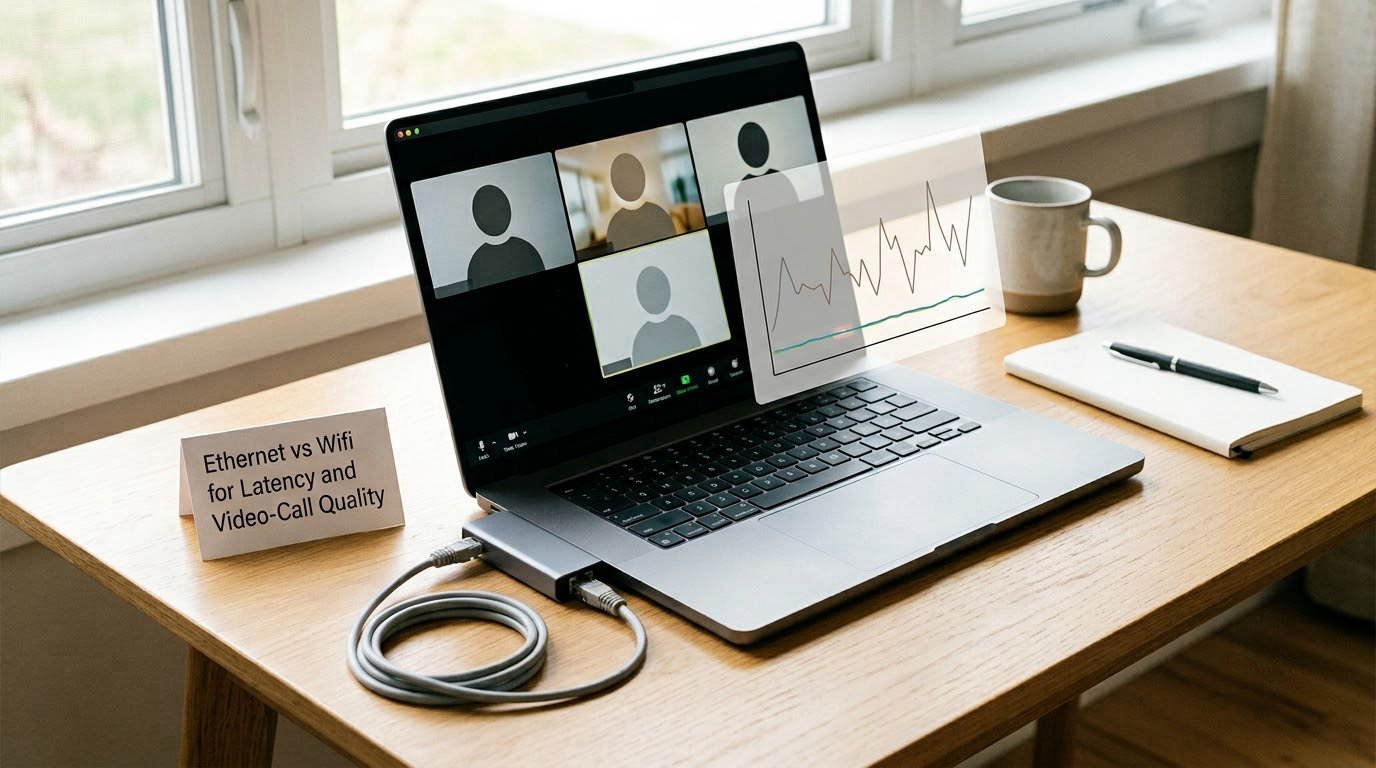
Latency is the delay between sending data and getting a response. Jitter is how much that delay varies from moment to moment. Video calls are far more sensitive to jitter than to raw speed, which is why audio turns robotic and video freezes on a link that still reports plenty of bandwidth.
A published test from a networking guide on a 100 Mbps home connection recorded 8 ms ping and under 1 ms jitter on the wired link, against 12 to 18 ms ping and 5 to 15 ms jitter on a congested 2.4 GHz wireless link at 40 to 55 Mbps. The wireless number was usable for browsing and only marginal for calls, while the wired link handled both comfortably.
That is the practical answer to whether connection type affects video call quality. On a quiet 5 GHz or 6 GHz link close to the router, wifi latency can be good enough for daily calls. Across a floor or two, through thick walls, or while the rest of the household is online, wired wins clearly.
Jitter matters more than the speed test for three specific jobs: Remote Desktop into an office machine, live cloud applications such as translation or transcription, and any interactive tool where your input has to arrive on time. Uploads and backups care more about steady throughput. Browsing and email do not care much either way.
Which Is More Secure: Ethernet or Wifi?
Ethernet has the smaller attack surface because an intruder needs physical access to a port in your home. Wifi signals can be captured from outside, so the security burden sits in your router configuration instead.
That does not make wireless unsafe by default, it makes it configurable. What matters:
- Use WPA3 where your devices support it, WPA2 otherwise. Avoid WEP and open networks entirely.
- Change the router’s admin password from the default, and use a long wifi passphrase with WPA2 or WPA3.
- Update router firmware on a schedule, since patches close real holes.
- Put guests and smart devices on a separate guest network so they cannot reach your work laptop.
- Run a VPN for work traffic if your employer requires it, especially on any shared or public network.
- For wired connections, keep the modem and router in a sensible spot and do not leave an unused port accessible to anyone who walks in.
For day-to-day work from home, the practical security difference is smaller than most articles claim. Both are fine when configured properly. Wired removes one category of risk entirely.
How Do Setup and Maintenance Requirements Compare?
Wifi needs a password. Ethernet needs a route from the router to your desk, which is where most of the effort sits.
A typical wired install means running cable along a wall, baseboard or floor, adding a wall plate or keystone jack, and checking that the run is under about 100 metres for the category you chose. A small network switch handles the case where you want to wire a desk, a printer and a NAS but the router has only one or two free ports.
Without a wired port on the laptop, a small usb-to-ethernet adapter solves it. Older ultrabooks and some tablets are the main cases.
Maintenance differs too. Wireless problems usually mean channel selection, router placement, firmware or an overloaded channel. Wired problems usually mean one physical thing: a cable, a jack or a port. Diagnosing is easier when the link is physical.
What Does Ethernet vs Wifi Cost for a Home Office?
Your monthly internet cost is identical either way. The connection type does not change what you pay your provider, so ethernet adds nothing recurring. The difference is one-time hardware and your time.
Wifi is included with the router you already have. If the desk gets a strong 5 GHz or 6 GHz signal, the cost of going wireless is zero, which is a genuine and often overlooked point.
Wiring adds a short run of Cat6 cable, a wall plate or jack, and depending on the building, a raceway, a flat cable along a doorframe or a powerline adapter. Tool rental or an electrician is an option in rented or shared housing. For most single-room offices the material cost is small; the time is the real expense.
Ways to get a wired path to the desk
| Method | Effort | Result |
|---|---|---|
| Cat6 along a baseboard or existing trim | Low | A proper dedicated wired link |
| Flat cable under a doorframe or along a skirting board | Low | Dedicated link, no drilling, less tidy over time |
| Surface raceway or conduit | Medium | Neat and permanent, needs care at corners |
| MoCA adapters over existing coaxial outlets | Low | Wired speed using coax already in the walls, needs compatible adapters |
| Powerline adapters over the electrical wiring | Low | Speed depends on your wiring and the outlets used |
| A second access point or mesh unit wired back | Medium | Wireless everywhere, wired backhaul instead of repeating |
MoCA deserves a note because it is the most commonly missed option. Most houses built with cable or fibre already have coaxial outlets in several rooms, and one r/HomeNetworking user facing exactly this situation asked whether the coax in each room could carry the connection instead, because running cable across the house was not practical. Adapters can, with caveats about coax quality and old splitters.
Ethernet vs Wifi for Specific Working-From-Home Situations
| Work task | What it needs | Connection that handles it well |
|---|---|---|
| Daily video meetings | Low jitter, steady upload | Ethernet at the desk |
| Screen sharing and demos | Consistent throughput both ways | Ethernet, wifi acceptable on 5 GHz |
| Large uploads and backups | Sustained upstream speed | Ethernet |
| Corporate VPN and Remote Desktop | Low, stable latency | Ethernet |
| Browsing, email, documents | Very little | Either |
| Streaming a smart TV or console | Bandwidth only | Ethernet if available, otherwise wifi on 5 GHz or 6 GHz |
| Smart home and IoT devices | Many low-bandwidth clients | Wifi, on their own network |
A few situations in plain terms. If you work in a single room with the router nearby, wifi is likely fine and wiring may not be worth it. If your job is back-to-back calls, wire the machine you sit at. If the whole household shares one connection, the wired link also protects your calls from everyone else’s downloads.
If you work from a dorm or a rental you cannot alter, a flat cable, powerline adapters or a wired-back mesh unit solve it without touching the walls. For a home business with a server, a NAS or several staff devices, wired throughout is simpler to support and simpler to trust. If you carry your laptop between the sofa and the desk, wireless wins by miles and there is no point fighting it.
How Can You Get the Best Results From Either Connection?
Run these checks before buying anything.
- Test at the actual desk. A speed test at the router tells you nothing about the office. Ping the router address from the desk on both connections and compare the round-trip times.
- Move or elevate the router if you can. Off the floor, away from metal, microwaves and TV units, with the desk in line of sight where possible.
- Pick the right band. Use 5 GHz or 6 GHz for the desk and leave 2.4 GHz for distant devices and smart home kit. A separate network name per band makes that easy to manage.
- Use a suitable cable. Cat6 is the sensible default for a home office run, not an extravagance. Very long runs need a solid, well-terminated cable rather than the thinnest one available.
- Prioritise work traffic. Most routers have QoS settings that favour calls and screen sharing over streaming and downloads. A few minutes in the settings can remove most evening congestion.
- Keep firmware current on the router, adapter and any wired-back access point.
- Add a wired adapter or access point when one device at the desk is the bottleneck, rather than rebuilding the network.
One last diagnostic worth knowing: if speed improves when you plug the cable in, your wifi was the bottleneck. If it does not, look at the port, the cable and the plan before changing anything else.
Which Should You Choose?
Choose ethernet for a fixed desk, sensitive transfers, frequent calls, Remote Desktop, or a home business. Choose wifi for mobility, temporary setups, and homes where running cable is not practical. If both are possible, wire the machine you use most and leave the rest wireless.
If you are starting from a bad day on calls, test at the desk first. Ten minutes with a ping test tells you whether the problem is the network or the plan, and it costs nothing. If the desk is fixed and you spend real hours on calls, a single cable run is the least expensive upgrade left in home working.
Frequently Asked Questions
Is ethernet faster than Wi-Fi for working from home?
Usually yes on latency and consistency, not always on headline speed. A wired link adds under a millisecond of latency and near-zero jitter, while a wireless link adds several milliseconds and varies as other devices compete for the channel. On a quiet 5 GHz link close to the router, wifi can be fast enough for daily work. Across walls or on a busy network, wired wins for calls.
Is Wi-Fi good enough for video calls every day?
It can be. A modern router on 5 GHz or 6 GHz, positioned well, with the desk close by will handle standard video meetings comfortably. Problems appear when several walls sit between you and the router, or when the rest of the household streams at the same time. If audio breaks up or video freezes while your speed test still looks fine, jitter is the likely culprit and a wired link fixes it.
Do I need an ethernet cable for stable remote work?
Only if your work depends on the connection holding steady. Browsing, email and documents do not need one. Calls that run for hours, large uploads, corporate VPN sessions and Remote Desktop all benefit. There is also a practical test: ping the router from your desk over wifi and then over a cable. A large gap in round-trip time tells you the cable is worth running.
How can I improve slow Wi-Fi without changing my internet plan?
Start with placement. Move the router off the floor and away from metal, TVs and microwaves, ideally with a clear path to your desk. Then split the bands so your machine uses 5 GHz or 6 GHz, update the firmware, and enable QoS so work traffic is favoured over streaming. If you use a repeater, a wired-back access point usually fixes the second hop that repeats keep adding.
Should a home business use ethernet or Wi-Fi?
Ethernet, wherever you can. A home business usually runs a server, backups and several connected devices, and wired keeps those stable and easier to support. A sensible pattern is a wired router and switch with the server, NAS and main workstations connected, and wifi reserved for phones, tablets and guests. Add QoS so backups do not disrupt daytime calls.
Conclusion
Ethernet vs wifi for working from home comes down to one question: does your computer stay on one desk? If it does and your day includes calls or transfers, run a cable and the difference shows up in every meeting. If you move around or cannot alter the space, spend your effort on router placement, band choice and QoS instead.
Either way, test at the desk before you spend. Run a ping test over both connections, compare the numbers, and let the result decide. Wired is still the most reliable choice for fixed, high-stakes work in 2026, and wifi is still the right answer everywhere the cable cannot go.