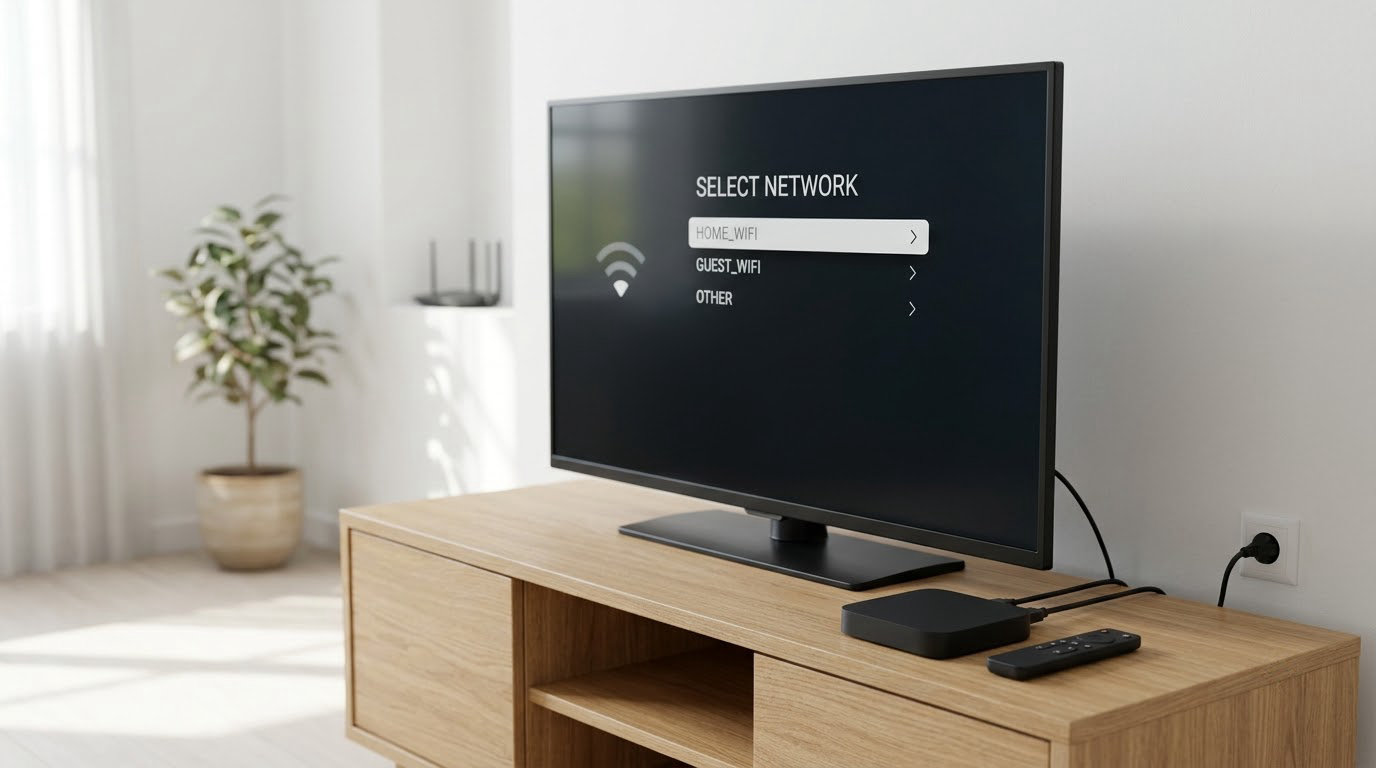
You do not need cable to use a smart TV. Connect the TV to your home Wi-Fi, sign into a streaming account, and install the apps you want. For free local channels, plug an over-the-air (OTA) antenna into the ANT IN or RF port and run a channel scan. The whole job takes about 15 minutes and no tools.
That is the whole answer, and it covers most people. The confusing part starts when a manual asks you to pick an input source, or a streaming service says your TV is unsupported, or the channel scan comes back with zero stations. Learning how to set up a smart TV without cable means knowing which of those problems you actually have.
Two hardware details decide everything. First, a smart TV needs an ATSC tuner, which is the built-in receiver that decodes digital broadcast signals — every TV sold in the last decade has one, and your flat-leaf antenna depends on it. Second, a non-smart TV still works as a display: plug a streaming stick into its HDMI port and you get the same apps plus antenna channels.
Table of Contents
- What You Need
- Step-by-Step
- 1. Unpack, stand, and turn it on
- 2. Pick a language, then join Wi-Fi
- 3. Sign in and install apps
- 4. Update the software, then check the picture and sound
- How to set up a smart tv without cable using an antenna
- Connect a streaming device or smart-TV apps
- Choose picture, sound, and accessibility settings
- Common Mistakes
- Frequently Asked Questions
- Do I need cable or internet to use a smart TV?
- Can I get local TV channels with an antenna?
- What streaming device should I use if my TV has limited built-in apps?
- Why are my antenna channels missing or fuzzy?
- Do I have to pay monthly for a smart TV?
- How do I fix a smart TV that is stuck on the wrong input?
- Conclusion
What You Need
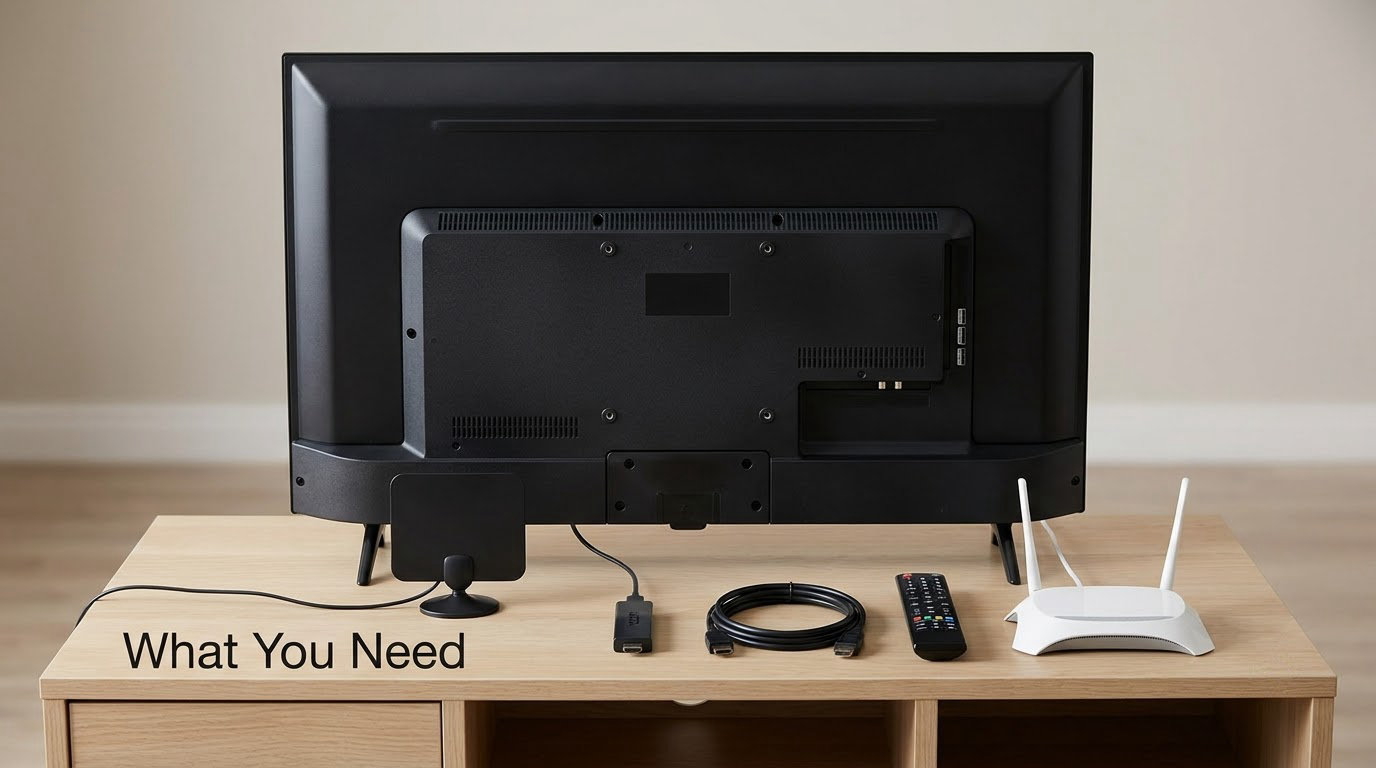
Gather these before you start, because half of all setup frustration comes from discovering a missing cable after the box is open.
- A smart TV, or any TV with an HDMI port plus a streaming stick or box if it is not smart
- An HDMI cable, usually included in the box, for the streaming device and for a soundbar
- Your Wi-Fi network name and password, typed or scanned with a phone app on some platforms
- An optional OTA antenna with a coaxial connector for free local broadcast channels
- The TV remote and fresh batteries, since setup wizards often fail on a weak battery signal
- An optional soundbar if the built-in speakers sound thin to you
The antenna is the only optional piece. Skip it if you never plan to watch local news, and the rest of this guide still works.
Step-by-Step
1. Unpack, stand, and turn it on
Set the TV on its stand or mount it, plug in the power cable, and press the remote’s power button. Most sets take 30 to 60 seconds to show the brand logo before the home screen appears.
If the remote does nothing, replace the batteries before you dig further. That fixes a surprising share of “TV won’t turn on” reports.
2. Pick a language, then join Wi-Fi
The first-run wizard asks for language and time zone, then shows a list of nearby networks. Choose yours, enter the password, and wait for the confirmation screen.
Wi-Fi speed matters more than people expect. A rough guide:
| What you watch | Comfortable minimum | Notes |
|---|---|---|
| Standard definition streaming | 5 Mbps | Fine for older shows and YouTube at low quality |
| HD streaming, one stream at a time | 25 Mbps | Works for most households |
| Two or more people streaming in HD | 50 Mbps | Keeps evening use from stalling |
| 4K HDR streaming or sports | 25 Mbps per stream | Sports spikes above the average rate |
If the TV sits far from the router, a mesh node or an ethernet cable through the wall will fix most stalls. The TV’s ethernet port is usually on the same input panel as the HDMI ports.
3. Sign in and install apps
Create or sign into an account on the TV, then open the app store. Add the services you actually watch, not everything that looks interesting, because each subscription adds to the monthly bill.
Several apps are free with ads and need no subscription: Pluto TV, Sling Freestream, Tubi, and the free tiers of YouTube and Amazon Prime. For a first month, those plus an antenna cover a lot of ground.
4. Update the software, then check the picture and sound
Install any pending firmware update before you judge performance. Budget TVs ship with heavy ad-supported software, and a large share of the complaints about “slow TVs” trace back to an update that was never installed.
After the update, run the built-in picture test and sound test, then set the picture mode to the one that matches your room. Daylight rooms suit Standard or Movie mode; dark rooms suit Movie or Filmmaker mode.
How to set up a smart tv without cable using an antenna
An over-the-air antenna receives free broadcasts from your local ABC, CBS, NBC, Fox, and PBS affiliates. There is no subscription and no cable box, and those channels cover local news, network shows, and most weather alerts.
- Find the port labeled ANT IN, RF, or AIR on the back or side of the TV. It is a round threaded coaxial connector and it is almost always next to the HDMI ports.
- Screw the antenna’s coaxial cable into that port until it feels snug. Hand tight is enough; do not use pliers.
- Open the input list with the Source, Input, or Home button on the remote and choose TV, Antenna, or Air. On some sets this reads Live TV.
- Open Channel, Tuner, or Auto Tuning in settings and start an automatic scan. It takes two to five minutes and stores every station your area broadcasts.
- Rescan any time you move the antenna, after a big storm, or when a channel disappears.
Before you buy an antenna, check which stations reach your address. Most antenna makers host a free channel lookup where you enter your ZIP code and see the station list and signal strength for indoor versus rooftop reception. That single check prevents most of the frustration people post about antennas.
Placement matters more than price. Users on r/cordcutters repeatedly report that a cheap rabbit-ear loop or even a length of coax finds more stations than an expensive amplified flat-leaf antenna, because the amplification boosts noise along with signal. Start near a window, move it a few feet at a time, and rescan each time.
Connect a streaming device or smart-TV apps
If your TV is not smart, or you want to avoid its built-in software entirely, a streaming stick or box turns any HDMI television into a streaming set. Using the TV as a dumb display with an external device also means a software update never becomes your problem.
- Plug the streaming device into any free HDMI port on the TV.
- Plug the device into a wall outlet if it has a power brick; Roku and Apple TV units draw enough power that the TV’s USB port is unreliable.
- Turn on the TV, press the Source or Input button, and select the matching HDMI number. The port label on the TV or the sticker above it tells you which number it is.
- Finish the on-screen setup with the small remote that came with the device.
Menu names differ by platform, so here is where the three settings you need live on each major system. Labels shift between model years, so treat these as the path rather than exact wording.
| TV platform | Connect to Wi-Fi | Choose antenna input | Run a channel scan |
|---|---|---|---|
| Samsung (Tizen) | Menu then All Settings then Network then Wi-Fi | Input then Source then TV | Menu then Channel then Auto Tuning |
| LG (webOS) | Settings gear then Network then Wi-Fi Connect | Input then Live TV then Antenna | Settings then Channels then Auto Tuning |
| Sony and other Google TV sets | Home then Settings then Network then Wi-Fi | Input then Live TV then Antenna Setup | Settings then Channels then Add channels |
| Roku TV | Home then Settings then Network then Set up connection | Home then TV Inputs then Antenna then Start | Home then Settings then TV then Tuning then Auto-scan |
| Fire TV | Settings then Network then Select network | Input then Live TV on Fire TV Edition sets | Settings then Channels then Automatic Tuning |
| VIZIO SmartCast | Settings then Network then Choose network | Input then TV then Antenna | Settings then Tuner then Auto Scan |
For live sports and news channels that no affiliate broadcasts, a live-TV streaming service such as YouTube TV, Hulu with Live TV, or Fubo carries them over the internet. They cost a monthly subscription, and regional sports blackouts apply, which is the single biggest reason cord-cutters keep an antenna alongside one.
Running channels on more than one TV takes one of three routes. A simple coax splitter feeds two TVs but degrades the signal, so it works only when both are close to the antenna. A network tuner, such as an HDHomeRun device, sends antenna channels over your home network to any device or TV with a suitable viewing app. An HDMI extender carries one source down a cable to a second room, which is useful when the second TV has no antenna of its own.
Choose picture, sound, and accessibility settings
Picture mode lives in the settings menu under Picture or Picture Mode on every major platform. Sound lives under Sound or Audio. Both are worth ten minutes because factory defaults rarely suit a specific room.
For audio, two ports matter. HDMI ARC or eARC is a single-cable connection that carries sound from the TV back to a soundbar. Connecting the soundbar to the same ARC port you use for video is a common mistake, and the result is no sound at all.
Accessibility settings are worth finding before you need them. Turn on subtitles and closed captions, raise the caption text size, set the TV’s contrast and text zoom, and enable voice guides where available. Most platforms also include a simple or senior mode that strips the home screen back to a handful of large buttons. On Samsung it is Accessibility then Simple Mode, on LG it is Accessibility then Audio Guidance with a simplified launcher, and Google TV and Roku expose their equivalents in Settings then Accessibility.
Set the parental controls last. On most sets they live under Safety or Parental Controls and use a PIN you create during setup, so write it down somewhere other than the sticky note on the stand.
Common Mistakes
The TV is stuck on the wrong input. Press the Source or Input button and cycle through every HDMI port one at a time instead of guessing. If a port produces no picture and no sound, move the cable to another port. A failed port explains a lot of phantom problems.
The channel scan found zero stations. Confirm you chose Air or Antenna and not an HDMI input, confirm the coax connector is actually screwed in, then move the antenna near a window and rescan. If it still returns nothing, check your ZIP code on an antenna channel lookup. Some areas are genuinely hard for indoor reception.
Channels appear but look frozen or fuzzy. This is a signal-strength problem, not a TV problem. Reposition the antenna, rescan, and if you must use a long amplified antenna with a booster, place it as high and as close to a window as you can. Attic mounting works too, provided the roof is not metal or foil-backed insulation.
The menu feels slow. Install the pending software update and delete apps you never open. A TV with three years of unused streaming apps installed is doing a lot of work for nothing.
Streaming apps buffer or drop quality. Move the TV closer to the router, or connect by ethernet. Check that nobody is running a large download on the same network at the same time.
A cable-provider app says the TV is unsupported. Most provider apps now block non-smart hardware entirely, which is one of the better reasons to drop them. Use the antenna plus a streaming device instead.
After you cancel, send the equipment back with a tracking receipt and check the final bill for surcharges. Leave the coax wall outlets alone; an antenna can use them as a fixed connection point if you ever want to stop moving the antenna around.
Frequently Asked Questions
Do I need cable or internet to use a smart TV?
No cable subscription is ever required. You do need internet for streaming apps, because apps like Netflix, YouTube, and Hulu stream over your Wi-Fi network. Antenna channels are the exception: they arrive from local broadcast towers over the air and keep working even if your internet goes down. A smart TV with no internet and no antenna will still play whatever is connected by HDMI, such as a game console or a disc player.
Can I get local TV channels with an antenna?
Yes, and the set you get depends on your address, not on your cable package. An OTA antenna receives local affiliates of ABC, CBS, NBC, Fox, and PBS free of charge, plus any subchannels and independent stations in range. Enter your ZIP code on an antenna maker’s channel lookup before buying to see what is actually reachable from your location with indoor reception.
What streaming device should I use if my TV has limited built-in apps?
Choose a device that runs its own platform rather than depending on the TV’s app store. Roku and Amazon Fire TV Stick cover most people with simple remotes and broad app support. Chromecast with Google TV suits households already using Google services, and Apple TV fits anyone deep in the Apple ecosystem. Any of these works through HDMI on a non-smart TV, turning it into a streaming display.
Why are my antenna channels missing or fuzzy?
Weak signal, and in most cases the antenna is in the wrong spot. Move it within a few feet of a window, higher up, and rescan after each move. Amplified antennas often make weak reception worse by boosting noise, so a cheap loop or a length of coax can outperform an expensive flat-leaf model. Rescanning also helps after storms or when the TV is moved to another room.
Do I have to pay monthly for a smart TV?
The television itself is a one-time purchase, and OTA channels are free forever. Streaming subscriptions are optional, and each one is a separate choice: Pluto TV, Sling Freestream, and Tubi carry free ad-supported channels, while paid services such as Netflix or a live-TV bundle are month-to-month and cancellable any time. Your broadband bill is separate and unaffected by the television you own.
How do I fix a smart TV that is stuck on the wrong input?
Press the Source or Input button on the remote and cycle through the HDMI ports one by one, waiting a few seconds on each until the picture appears. A TV with no signal usually shows a blank screen, a colored static pattern, or a no-signal message, so keep pressing. If one HDMI port shows nothing, move your streaming device to a different port to rule out a failed connector.
Conclusion
Start with the Wi-Fi connection and the apps. That alone turns a smart TV into a working streaming setup in about 15 minutes, and it costs nothing beyond your existing internet.
Add an antenna next if you want local news, network shows, and weather alerts, and check your ZIP code on a channel lookup before buying anything. Work through the antenna steps in order the first time you learn how to set up a smart TV without cable, because the port choice and the scan are what trip people up.
Test the setup for a week before you sign up for anything else. A single antenna and a couple of free ad-supported apps often cover more of what you actually watched than a full streaming lineup does.