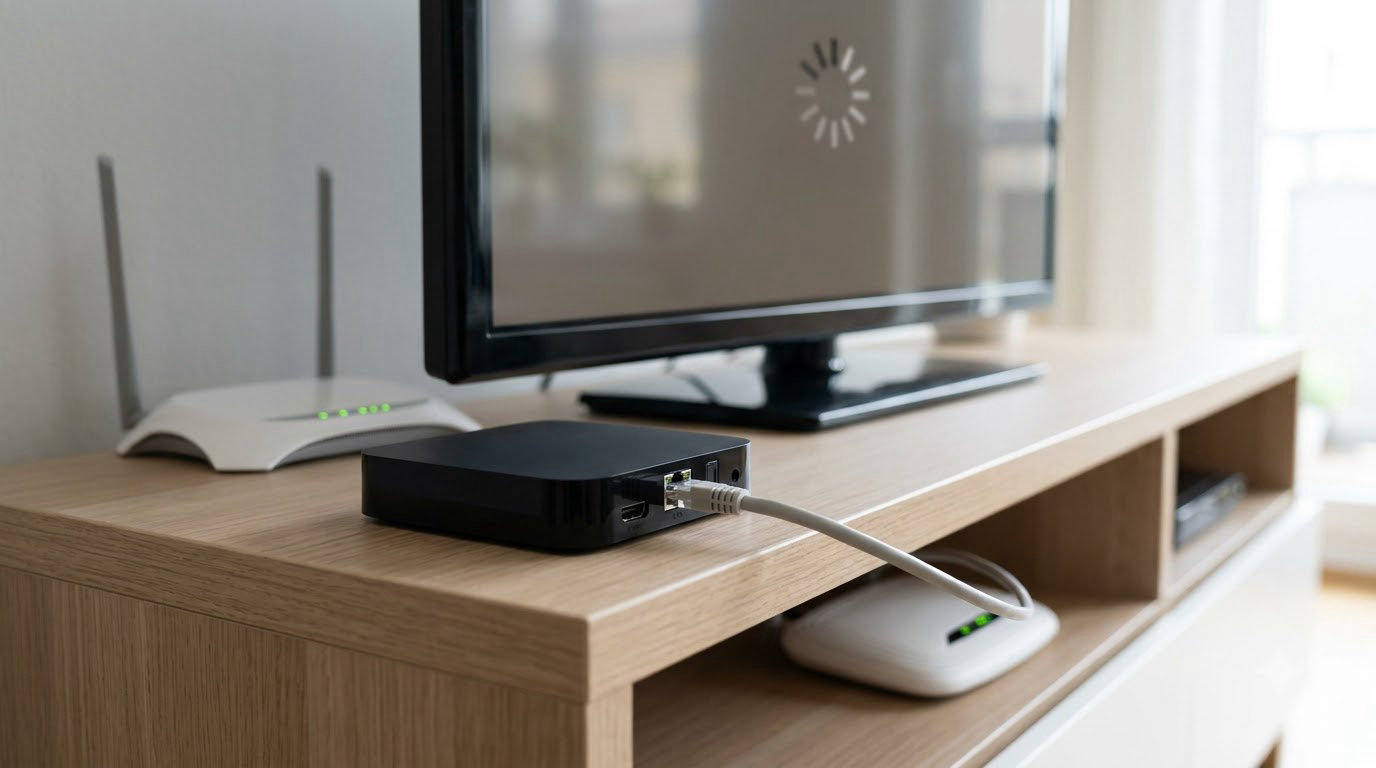
Buffering happens when your streaming device downloads video slower than it plays it back, so the player pauses to refill. How to fix buffering when streaming video usually comes down to four things: bandwidth contention, weak Wi-Fi, a stale app or device, or a problem on the service’s side. Most people solve it in under ten minutes with the eight steps below.
The order matters. Work from cheapest to most involved, and change one thing at a time, because the fix that works tells you where the problem actually was.
Table of Contents
- What You Need
- How to Fix Buffering When Streaming Video: Step by Step
- Step 1: Pause Other Downloads and Streaming Activity
- Step 2: Check Your Internet Speed and Connection
- Step 3: Restart the Streaming App or Browser
- Step 4: Lower the Video Quality Drop the quality one notch and watch for a minute. On Netflix, tap the gear icon in the corner of the player and pick Medium or High. YouTube uses the gear icon too. In a browser, YouTube and most sites offer a quality menu under the player. On Apple TV and Roku, the setting lives under Settings, then the app, then Quality or Streaming Quality. Lowering quality is not a defeat. If it removes the buffering, you have proven the link can not hold the higher bitrate, and that is genuinely useful information. It is also the fix a self-hosted Plex user landed on: one r/Plex thread ended with someone converting files to a lower quality so the server stopped transcoding, which removed the buffering entirely. The bottleneck there was never bandwidth. Step 5: Clear the App Cache or Browser Data
- Step 6: Update or Reinstall the Streaming App
- Step 7: Check Device Storage, Background Apps, and Power Settings
- Step 8: Test Another Service and Contact Support
- Common Mistakes
- Frequently Asked Questions
What You Need
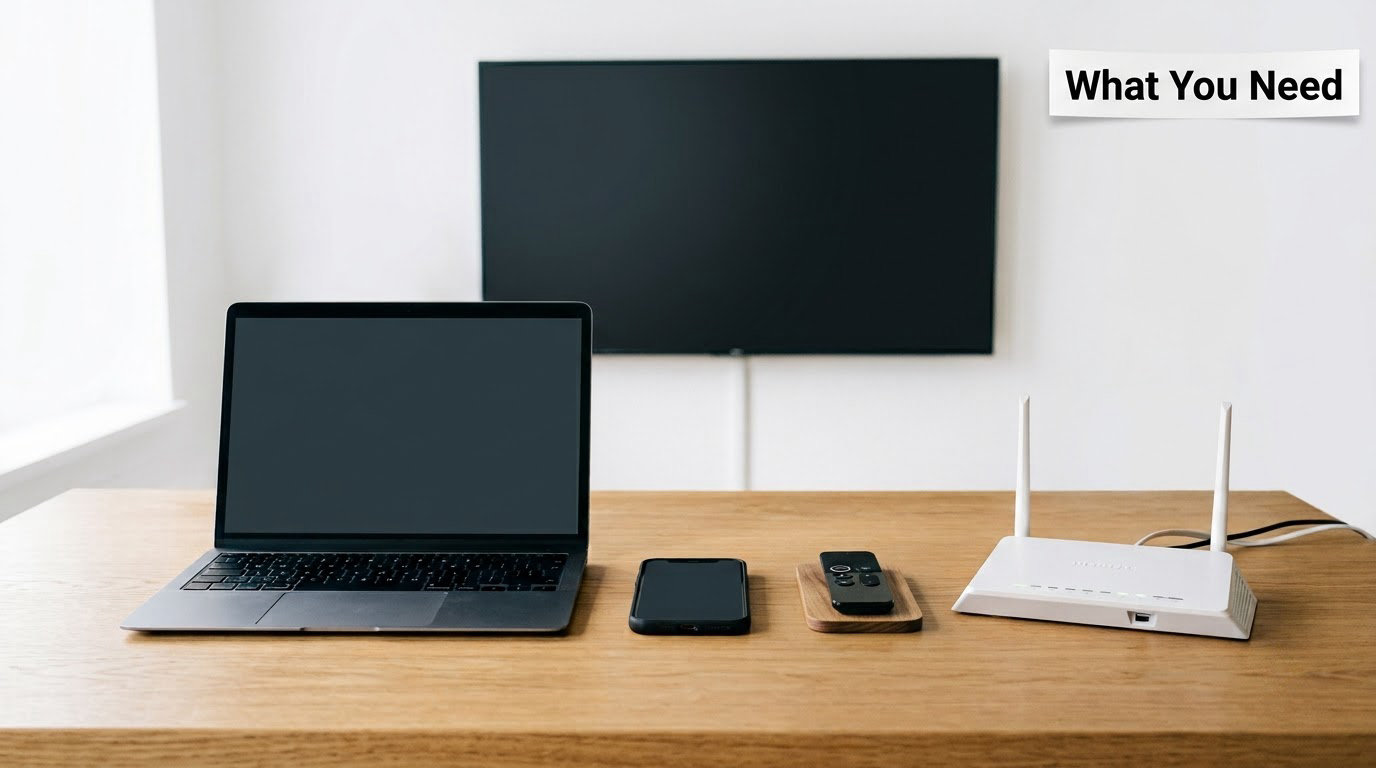
You need access to the device you actually watch on, the router and modem in your home, and roughly fifteen minutes. That is the whole toolkit.
Before you touch anything, note four things. Which app or site you saw the buffering in, which device it was on, whether it happens every time or now and then, and whether it is worse in the evening when everyone is online. Write them down in your phone. Support will ask for all four, and half of all diagnosis is really just noticing what you already know.
How to Fix Buffering When Streaming Video: Step by Step
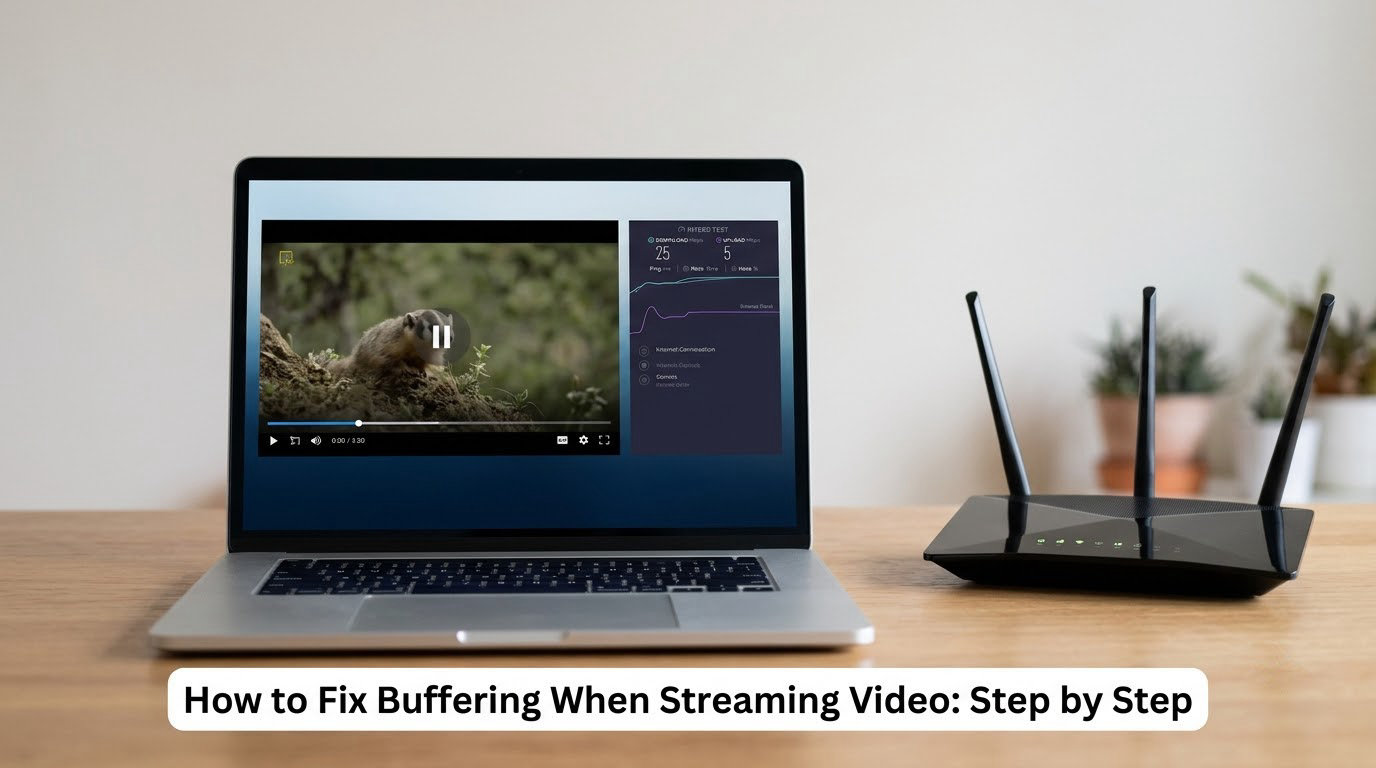
Step 1: Pause Other Downloads and Streaming Activity
Stop anything else using the internet before you change a single setting. Cloud photo backups, console game updates, a Windows or phone update running in the background, video calls, an antivirus scan, and other streams in other rooms all compete for the same pipe.
Check your phone first. Most phones sync photos and download app updates silently, and a single 4K stream elsewhere in the house can take a large share of your bandwidth. You will know this step worked if the same episode plays through without a single pause.
Step 2: Check Your Internet Speed and Connection
Run a speed test on the device you watch on, not on your phone, and run it while nothing else is downloading. Compare the result against what the resolution needs.
| Video quality | Bandwidth needed | Comfortable plan |
|---|---|---|
| SD | 3 Mbps | 10 Mbps |
| HD (720p) | 5 Mbps | 25 Mbps |
| Full HD (1080p) | 10 Mbps | 50 Mbps |
| 4K Ultra HD | 25 Mbps | 100 Mbps |
Those are per-stream numbers. A household with four people watching at once needs several times that, which is why a plan that looks enormous on paper can still fall over at 8pm.
If the number looks fine and the video still stalls, the raw speed test is telling you less than you think. It measures a burst of throughput to a nearby server, not sustained delivery to your television, and it says nothing about packet loss, latency, or Wi-Fi signal strength at the far end of the room. People on r/Spectrum report a steady 350 to 425 Mbps on 5 GHz while the TV stalls constantly, with a wired PC in the same house playing flawlessly. The gap is the Wi-Fi link to the television, not the internet plan.
So test both ways. Play the stream on a phone connected over Wi-Fi, then again over a mobile hotspot or a phone on Ethernet. If it is smooth everywhere except the TV, you have found your answer: it is the TV’s connection or the TV itself.
Step 3: Restart the Streaming App or Browser
Quit the app completely, then power-cycle the device. On a Firestick, Roku, or Chromecast, go to Settings, choose Restart or Restart app, or unplug the device at the wall for 30 seconds. On a phone or tablet, force-close the app from the app switcher. On a browser, close every tab and reopen the one you were watching.
This is the fix people repeat most often on the Amazon forums, close the app, unplug for 30 seconds, reopen, and it usually holds for weeks. The step worked if the spinner in the corner of the player stops appearing.
Step 4: Lower the Video Quality
Drop the quality one notch and watch for a minute. On Netflix, tap the gear icon in the corner of the player and pick Medium or High. YouTube uses the gear icon too. In a browser, YouTube and most sites offer a quality menu under the player. On Apple TV and Roku, the setting lives under Settings, then the app, then Quality or Streaming Quality.
Lowering quality is not a defeat. If it removes the buffering, you have proven the link can not hold the higher bitrate, and that is genuinely useful information. It is also the fix a self-hosted Plex user landed on: one r/Plex thread ended with someone converting files to a lower quality so the server stopped transcoding, which removed the buffering entirely. The bottleneck there was never bandwidth.
Step 5: Clear the App Cache or Browser Data
A corrupt cache makes a player download the same broken segment over and over. On Android TV, Firestick, and most smart TVs, go to Apps, pick the streaming app, then Clear Cache. Clear Data is the stronger option but it signs you out, so start with the cache.
In a browser, type chrome://settings/clearBrowserData or about:preferences#privacy in Firefox and clear cached images and files for the last month. Leave cookies alone unless you want to sign in again.
Browser extensions deserve a look too. One user on the Mozilla forum found every YouTube video stuck buffering in Firefox while Edge played the same videos perfectly, which pointed at the browser’s own state or an add-on rather than the network. If only one browser misbehaves, that is your first clue.
Step 6: Update or Reinstall the Streaming App
Outdated apps get quietly throttled by their own service, and services retire old playback components without telling you. On a smart TV, check Settings, then Support, then Software Update. Streaming sticks usually update automatically but will prompt you on launch if you say yes.
If the app is current and still stutters, remove it and reinstall it from the store. You will need to sign in again, so have your password ready. If buffering appeared right after an update, this is the step that fixes it.
Step 7: Check Device Storage, Background Apps, and Power Settings
TVs and streaming boxes are sold with very little storage free, and a nearly full drive slows down everything, including video decode. On Android and Google TV, open Settings, then Apps, then see how much storage is used and clear old ones. On iPhone and iPad, check Settings, General, iPhone Storage.
Battery saving modes throttle processing and can cause dropped frames that look like buffering. Turn off Low Power Mode on the watching device. On a phone, close every other app first: a browser with 30 tabs open will happily eat the whole connection.
Step 8: Test Another Service and Contact Support
Play something on a different streaming service. If only one app buffers, the network is fine and the service is having a bad day, which is not something you can fix from your couch. If every service buffers at the same time, keep going.
| What you see | Likely cause | Where to look |
|---|---|---|
| One app buffers, others are fine | Service-side issue | The app’s status page and support |
| All apps buffer on Wi-Fi, fine on Ethernet | Weak or congested Wi-Fi | Router placement, 5 GHz band, channel |
| Only in the evening | Household bandwidth contention | Pause other devices, then plan headroom |
| Speed test is fast, video still stalls | Packet loss, latency, or device limit | Test on a phone hotspot to isolate |
| Fine everywhere except the living room TV | Device firmware or storage | Update firmware, clear cache, free storage |
| Mobile data only, not Wi-Fi | Data cap reached or throttled | Your plan’s data usage |
Wi-Fi is worth one more paragraph because it is the most common culprit. 5 GHz carries more speed but a shorter range, so it struggles through walls. 2.4 GHz reaches further but shares a crowded band with neighbours. Move the router off the floor and away from microwaves, and if your provider supplied a basic router and you are paying for speed you never see on the television, a better router or a mesh system is a reasonable purchase. Test before you buy, though.
One more optional fix, borrowed from Sony’s Android TV procedure: change your DNS to Google Public DNS, 8.8.8.8 and 8.8.4.4. On Android TV, that is Settings, Network, Advanced, then Static IP and DNS. It sometimes fixes a stream that stalls at start while everything else looks healthy.
When you contact your ISP, give them specifics: the date and time, which devices and services buffer, your speed test numbers, and what you already tried. Ask them to check line quality and provisioned speed, and to flag the local node for congestion. Buffering that happens only in the evening is almost always peak-hour congestion, and that is their problem, not yours.
Common Mistakes
Downloading repeatedly instead of pausing. If a cloud backup or a console update is stalled and your video is buffering, fix the stalled thing first. Retrying a stalled download usually means competing with your stream again.
Paying for a faster plan before testing. People on ISP forums report upgrading and seeing no change at all, because the problem was Wi-Fi to the television, not the line into the house. Test with a phone hotspot first. It costs nothing and tells you in two minutes whether your money belongs with your ISP or your router.
Changing five settings at once. If you clear data, switch to Ethernet, update firmware, and change DNS together, and the buffering stops, you have learned nothing about the cause and it will probably come back.
Trusting one speed test. A single number from one moment proves very little. Test at the time the buffering happens, on the device that buffers, and compare Wi-Fi against Ethernet.
Ignoring the household. A 100 Mbps plan sounds generous until three people are watching 4K and a video call is running. Evening buffering is contention almost every time.
A few habits prevent this from coming back. Keep the streaming device on the 5 GHz band or on Ethernet. Leave 5 Mbps of headroom above the quality you actually watch. Restart your router and modem once a month, unplugging each for a full minute before powering back up. Keep one app free on your phone for streaming when the house network gets crowded. And update your TV’s firmware when it prompts, because the old versions are the ones that get throttled.
Frequently Asked Questions
How to get rid of video buffering?
Start with the cheapest fix: pause downloads, cloud backups, game updates, and video calls, then restart the streaming app and power-cycle the device for 30 seconds. If that fails, lower the video quality by one notch and clear the app cache. Most buffering disappears within these five steps.
Why is my internet speed good but still buffering?
A speed test measures a short burst of throughput to a nearby server, not steady delivery to your device. It ignores packet loss, latency, and Wi-Fi signal quality. A television two rooms from the router can receive a fraction of the speed your phone reports. Test on a phone hotspot to isolate whether the network or the device is at fault.
Why is my TV buffering when internet speed is good?
TVs are almost always on Wi-Fi, and the wireless link to the screen is weaker than the wired link to a laptop. The TV is also often several years behind on firmware with little free storage. Move it to the 5 GHz band, get it closer to the router, update its firmware, or connect it with Ethernet if the television has that port.
Why is my video buffering even with high-speed internet?
High advertised speed is the fastest line, not a guarantee of consistent delivery. Real causes include peak-hour congestion at your provider’s node, packet loss on a weak Wi-Fi link, a data cap that has throttled you, a VPN consuming bandwidth, and one device unable to decode the stream smoothly. Buffering only in the evening almost always means peak-hour congestion.
Does a VPN cause video buffering?
Yes, often. A VPN routes all your traffic through a remote server, adding latency and consuming bandwidth, and some services block or throttle VPN addresses entirely. If buffering started when you turned a VPN on, turn it off and watch the same episode. If it plays fine without it, leave it off while streaming.
Why does one streaming app buffer while others do not?
It points away from your network. If every other app streams smoothly on the same device and connection, the bandwidth and Wi-Fi are adequate and that specific service is struggling with load or an outage on its end. Check the service’s status page, try a different title, and wait. Nothing on your side will fix a server-side problem.
If you do one thing tonight, pause every other download and video call, then close the app and unplug your streaming device for 30 seconds. If the problem survives that and a speed test on the watching device, the answer is almost always weak Wi-Fi, and you now know where to spend your money.