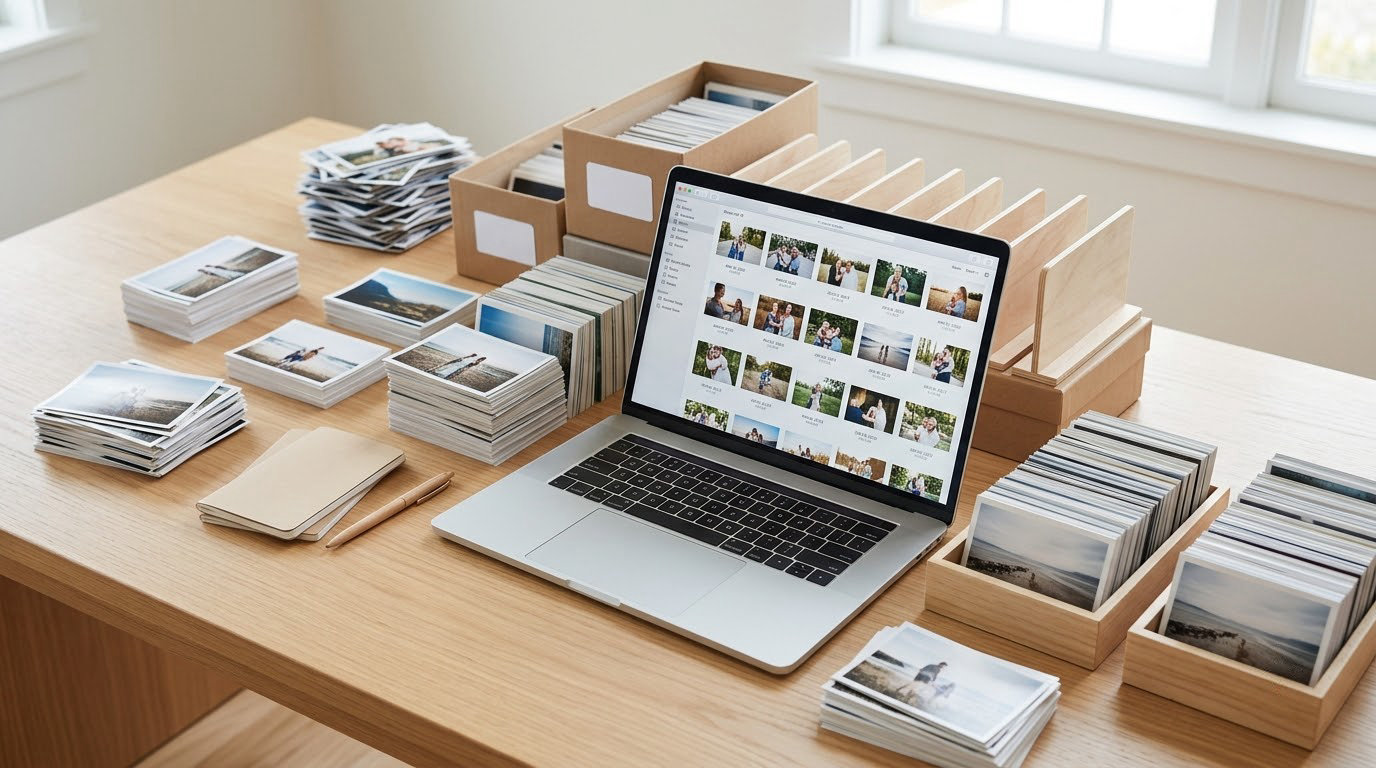
To organize thousands of photos on your computer, you do four things: gather every scattered image into one master folder, give it a predictable folder structure and file naming convention, remove duplicates and duds, and keep three copies of the result. The honest part is that the sorting is not the slow bit. Copying 80,000 files off three old hard drives is.
A realistic first pass takes a weekend. Most of that time goes to moving files, not deciding anything. Once the structure exists, finding a specific photo takes seconds instead of an hour of opening folders.
Table of Contents
- What You Need
- Step-by-Step: Build a Simple Photo Organization System
- 1. Make a safety backup before moving anything
- 2. Choose one folder structure and one naming convention
- 3. Move photos in manageable batches
- 4. How a photo app helps when you organize thousands of photos on your computer
- 5. Remove duplicates and clean up poor-quality files
- 6. Create more storage without losing the original library
- Common Mistakes When You Organize Thousands of Photos on Your Computer
- Frequently Asked Questions
- What is the best program to organize photos on my PC?
- How do I organize 30 or 50 years of digital photos?
- What is the 3-2-1 rule for backing up photos?
- How do I find duplicate photos on my computer?
- Can I organize my photos on a Mac the same way as on Windows?
- How do I recover a photo I moved to the wrong folder?
What You Need

You need three things before you touch a single file: confirmed knowledge of where your photos currently live, an external drive with enough free space to hold a full copy, and one photo app installed on the machine where the library will live.
On the space question, do some rough math first. A typical JPEG from a phone runs 3 to 6 MB, so 10,000 photos is roughly 40 to 60 GB. Scanned prints are smaller, around 200 KB to 2 MB each. RAW files from a camera are the outliers at 25 to 120 MB apiece. Check how much room your destination actually has before copying, because a copy that dies halfway is worse than no copy at all.
The app depends on your machine and how much control you want. Windows users generally pick one of three free options, and Mac users usually start with the built-in Photos app:
- Windows Photos is built in on Windows 10 and 11. It indexes a folder, builds a timeline, and searches by date and place. Free, no install.
- digiKam (Windows, Mac, Linux) is a free digital asset manager that reads your files in place and never moves or renames them behind your back. That non-destructive behavior is why it keeps coming up in photography forums.
- FastStone Image Viewer (Windows, free for personal use) is the fastest way to batch-rename thousands of files by the date they were taken.
- Google Photos works everywhere and does face grouping well, but it will not hand your organized library back to your PC in bulk. That limitation matters a lot here.
- Apple Photos on macOS does timeline, search, and face grouping for free, with the same bulk-export caveat.
- Lightroom Classic is the paid professional standard. Worth it only if you shoot regularly or need real keyword and metadata search.
Install or open the app before you start sorting, not after. Knowing which tool will handle the renaming saves you from reorganizing twice.
Step-by-Step: Build a Simple Photo Organization System
1. Make a safety backup before moving anything
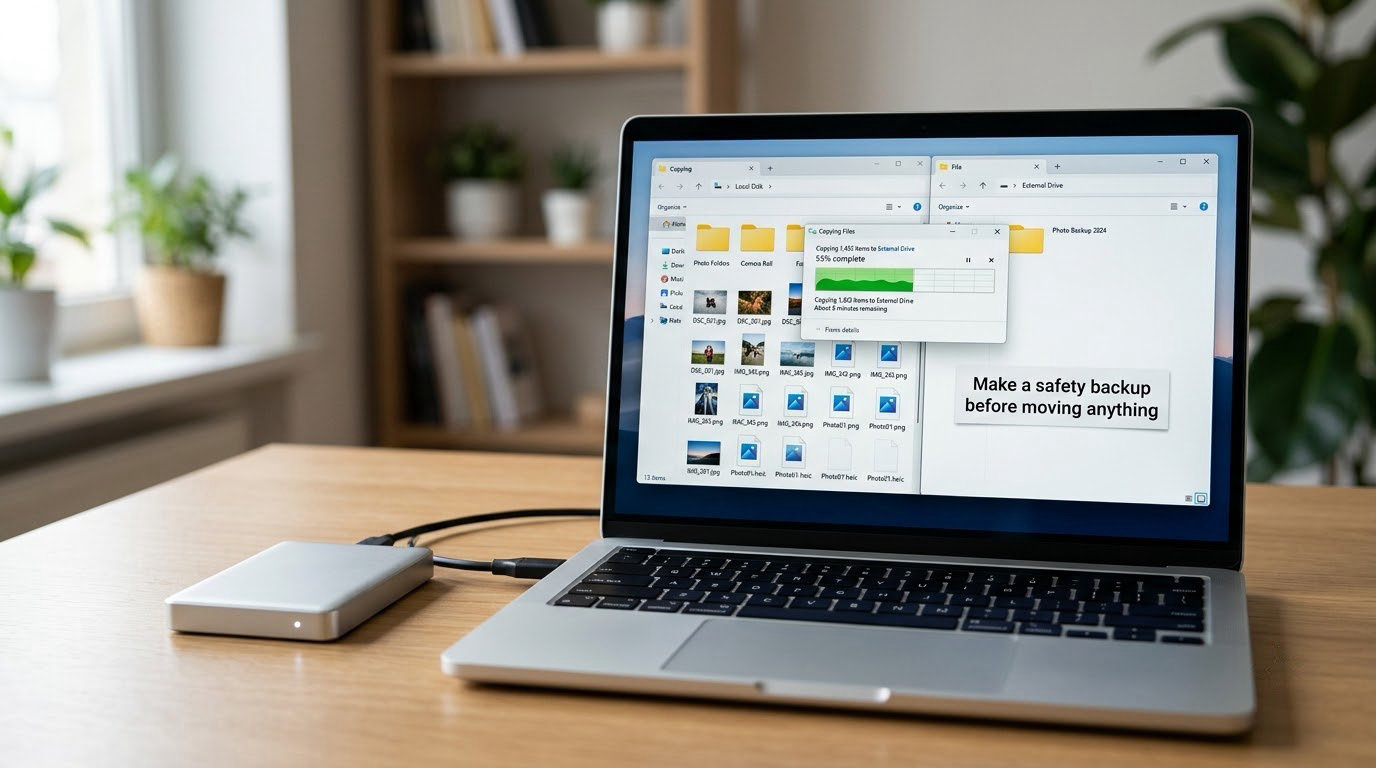
Copy your entire existing photo library to a separate drive before you move, rename, or delete anything.
Drag the whole folder rather than selecting files piecemeal. A transfer window showing an item count is how you verify it worked: note the number of files before and after, and if they do not match, run the copy again. On a folder tree in File Explorer or Finder, the status bar gives you a file count for the selection.
Keep that untouched copy for the whole project. You are allowed to clean up and reorganize aggressively only because a pristine original exists somewhere else. Skipping this step is what turns a two-hour chore into a recovery job.
2. Choose one folder structure and one naming convention
Pick a single structure and commit to it. Four approaches work in practice:
- Year and month —
Photos/2019/2019-07. Best for people who remember roughly when a photo was taken. - Event-based —
Photos/2019/2019-07-14_SummerHoliday_CostaRica. The most common family and travel scheme, and the easiest one to keep tidy. - Topic or genre —
Photos/Animals/Birds/2019. Suits anyone who cannot recall dates, such as nature or wildlife shooters. - Database-first — one flat folder, with the app cataloging by date, place, camera and keywords. Sensible above roughly 100,000 images, not before.
For naming, use the date the photo was actually taken, not the date it was imported. A pattern like 2019-07-14_costa-rica-beach_0142.jpg sorts correctly everywhere, reads as human speech, and survives being copied to a system that ignores metadata.
Batch rename by EXIF date and the work takes minutes. In FastStone Image Viewer, open a folder, select all, choose Batch Rename, and insert the EXIF date variables for year, month, day, hour, minute and second, plus a two-letter camera code. IrfanView does the same thing on Windows. On Mac, digiKam’s batch rename reads EXIF the same way. Note that the macOS Preview app renames one open file at a time, so it is not a batch tool.
Screeners deserve their own folder rather than a naming pattern, because a screenshot is not an event. Split videos out too. And add a camera code to every filename: when two cameras shoot at the same second, plain date stamps collide and one file silently overwrites the other.
3. Move photos in manageable batches
Dragging 80,000 files in one action is how people lose an evening to a frozen Finder or Explorer window. Work in batches of a few hundred files, per year or per event.
Cut and paste, do not drag, so you can watch where each batch lands. Paste into the destination, confirm the file count matches, then open five images and check the dates look right before moving the next batch.
Keep the original capture dates intact. On Windows, open the folder’s Properties dialog, clear Read-only, and set the Created date; on Mac, Finder’s Get Info has the same field. If your photo app can read EXIF and you leave the files untouched, dates survive a move anyway. Do not use tools that flatten images or recompress them during the move.
4. How a photo app helps when you organize thousands of photos on your computer
A photo app indexes your files into a catalog so you search by date, place, camera, keywords or faces, instead of opening folders and hoping.
On Windows 11, open Photos from the Start menu, choose Import, and point it at your master folder. It builds the catalog in the background. In digiKam, use File and then Configure Database, point it at the same folder, and it reads the library in place without moving a file. On Mac, open the built-in Photos app, then use File and Import to bring in the folder.
This solves the problem forum users hit constantly: you remember the photo, not the date. Search by a face, a city, or a camera model and you get there in seconds. It also gives you timeline browsing, which makes a large chronological archive feel navigable rather than overwhelming.
One caution. Catalog apps index where the files are; they do not own them. Moving or renaming files outside the app breaks its links. Do the file organizing first, then build the catalog, and from then on let the app handle it.
5. Remove duplicates and clean up poor-quality files
Mark first, delete later. Do not delete a single photo during this pass; flag candidates and clear them once the new system is working.
Duplicates come from three places: importing from phone and camera for the same event, re-downloading from the cloud, and copying entire folders that already existed elsewhere. The built-in apps handle the common case. Windows Photos flags near-identical shots for review in one click. Google Photos and Apple Photos both show duplicate stacks under a cleanup area.
For visual similarity across formats, digiKam offers duplicate detection, and FastStone Image Viewer can sort by image size and date to surface near matches. Before deleting a pair, compare file dates, pixel dimensions and thumbnails. The one with the later timestamp and a higher resolution is almost always the keeper.
Screenshots, accidental camera snaps of a dark frame, and video files usually account for a big share of what nobody wants. Sort by file size ascending and the junk surfaces fast.
6. Create more storage without losing the original library
Move the working library to an external drive or NAS when the internal disk gets tight, but keep the archive copy elsewhere.
Format the drive to a filesystem both operating systems can read (exFAT is the usual choice), move the master folder there, then point your photo app at the new location. On Windows, right-click the drive and choose Pin to Quick access, or assign it a drive letter in Disk Management so the path stays stable. On Mac, drag the drive to the sidebar under Favourites so it mounts in the same place every session.
A NAS is the better long-term answer if a family is generating photos continuously. A yearly folder structure on top of a NAS, queried through its own photo app, is the setup that survives a decade of imports without anyone having to reorganize again.
The rule that keeps this safe: never delete originals from the computer until a second verified copy exists somewhere the computer cannot reach. Full disk, dropped laptop, ransomware, a coffee spill. A second copy is the whole point.
Common Mistakes When You Organize Thousands of Photos on Your Computer
Organizing before backing up. Move, rename and delete operations fail in ways that copies do not. Copy first, always, and confirm the file count.
Running several naming systems at once. A library with IMG_1234 files beside 2019-07-14_final_v2 files is worse than no scheme, because you cannot predict any of it. Pick one pattern and apply it to everything, including the files you are certain are already fine.
Trusting folders alone past about 50,000 images. Deep year, month and day trees work for years and then collapse. One person on a photography forum described a per-day structure that had already become unwieldy at a fraction of that size. Above roughly 100,000 images, switch to shallow year folders and let a catalog app search the metadata.
Renaming files one at a time. You will not finish. Batch renaming by EXIF date is a five-minute job with the right tool and a two-week job without one.
Deleting duplicates before reviewing them. Visually identical is not the same as identical. The burst of ten frames from one shot has one keeper and nine near-misses, and an automated pass sometimes picks the blurred one. Mark, review, delete.
Backing up once and forgetting. A backup you made three years ago has missed every photo since. Set a recurring reminder, or use a tool that syncs automatically. The 3-2-1 rule: three copies, on two different kinds of media, with one copy off-site.
Trying to migrate a whole Google Photos or iCloud library back to a PC. Both services download folder by folder, file by file. There is no bulk export of an organized library. If the originals live there, plan on re-downloading or on keeping the local library you already have as the master.
One habit keeps all of this from coming back: import new photos straight into the year and event folders, run the duplicate scan weekly, and re-run the backup on a schedule you will actually keep.
Frequently Asked Questions
What is the best program to organize photos on my PC?
For most Windows users, digiKam is the safest free choice because it catalogs your files in place and never renames or moves them behind your back. Windows Photos is the zero-install option and handles timeline, dates and places well. FastStone Image Viewer is the fastest tool for batch-renaming thousands of files by the date they were taken.
How do I organize 30 or 50 years of digital photos?
Treat it as a digitizing project rather than a sorting project. Scan or copy everything into one flat master folder first, then sort by whatever knowledge you actually have, which is usually a family member, a year or a location. Add keywords as you go, because the person who knew the context is you today and you will not in ten years. Back up continuously from the first day.
What is the 3-2-1 rule for backing up photos?
Keep three copies of your library, on two different kinds of media, with one copy stored somewhere separate from your computer. In practice that means your working library, a copy on an external drive or NAS, and an encrypted cloud copy. It protects against accidental deletion, drive failure and theft or ransomware at the same time.
How do I find duplicate photos on my computer?
Start with the built-in tools. Windows Photos groups near-identical images in a cleanup area, and both Google Photos and Apple Photos flag duplicates for you. For cross-folder and cross-format matches, digiKam runs a duplicate finder that compares image content rather than file names. Review each group by thumbnail before deleting anything, since the larger or later file is usually the keeper.
Can I organize my photos on a Mac the same way as on Windows?
Mostly yes. The folder structure and naming convention are identical, and both platforms read EXIF dates, so the same batch-rename logic applies. The difference is the app: Mac users get the built-in Photos app for timeline and face grouping, while digiKam and FastStone cover cross-platform users who want full control of the filesystem.
How do I recover a photo I moved to the wrong folder?
Use your file history tool rather than searching manually. On Windows 11, right-click the folder, choose Restore previous versions, or search Recent items. On Mac, check the Trash first, then use Time Machine to restore the folder as it existed before the move. If your photo app cataloged the file before you moved it, the app may still be pointing at the old path.
Start with the copy. Everything else, the folder structure, the renaming, the catalog, the duplicate pass, is much easier once you know a pristine version of your library exists somewhere your computer cannot reach.