To fix broken links on your website, find them with a crawler or Google Search Console, then update, redirect, or remove each bad URL. A broken link is a hyperlink that returns a 404 Not Found instead of the page it promised, and most of them come from three places: a page that moved, a typo in a URL, or a file someone deleted.
Here is the order I work in. Find the broken links, check whether the destination really is gone, choose the right fix for each one, verify it took, then set a routine so fewer appear next time.
On a small site the whole job takes an afternoon. On a store with a few thousand products, expect a spreadsheet and a week of evenings. Either way the mechanics are the same.
If your site is new, the basics of publishing pages live in how to start a blog and publish your first post. Hosting and upkeep costs are covered in how much it costs to run a website per year.
Table of Contents
- What You Need
- Step-by-Step
- Common Mistakes
- Frequently Asked Questions
- Do I need to redirect a broken link, or just update it?
- How long does it take for Google to see fixed broken links?
- Can I fix broken links that are on other websites?
- What do the common HTTP status codes mean for broken links?
- Do a few broken links hurt my search rankings?
- How do I fix broken links in WordPress?
- Conclusion
What You Need

You need five things, and three of them you already have if the site is live.
- Administrator access to the website, including the CMS login and the hosting control panel.
- A current backup of your files and database, taken before you change anything.
- A spreadsheet or tracking tool to hold every broken URL, its source page, and the fix you chose.
- Google Search Console, or a crawler such as Screaming Frog or Sitebulb if the site is not verified there yet.
- Server access for
.htaccessor Nginx config edits, needed only if you will be setting redirects by hand.
The backup matters more than people expect. Redirects are small edits but they go wrong quietly, especially on a site with hundreds of pages, and a restore takes minutes when you have one.
Step-by-Step
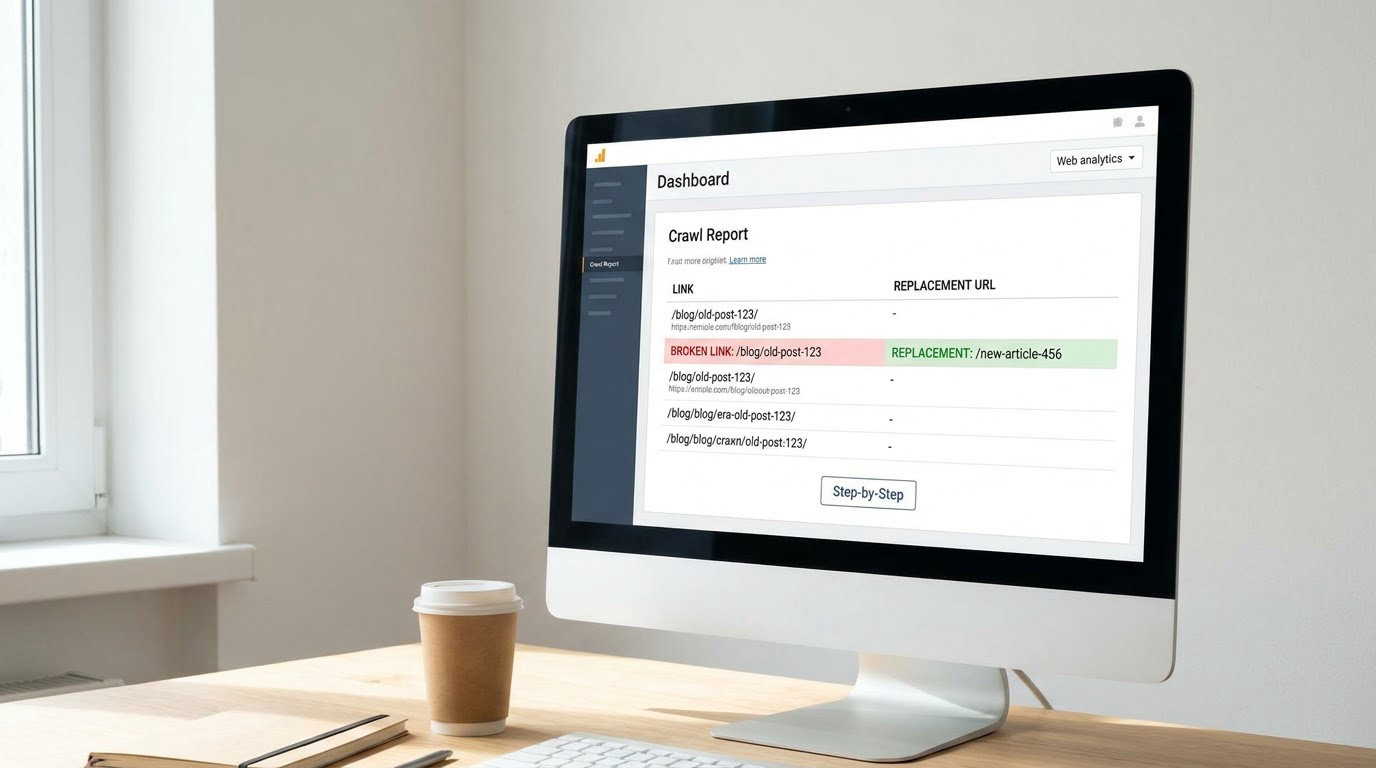
Five steps, in this order. Skipping to step three before you have an export is how people end up fixing the same link three times.
Find and Export Every Broken Link
Start with Google Search Console if the property is verified. In the left sidebar, open Pages, filter the status to 404, then use the Export button to download the list as a spreadsheet. That export gives you the URL that failed and the referring page that pointed at it, which is exactly the two columns you need.
If the site is not in Search Console, or the errors are ones Google has not crawled yet, run a crawler. Screaming Frog and Sitebulb both crawl a site the way a search engine does and list every 4xx response they meet. Online checkers such as Dead Link Checker handle a single page at a time, which is handy for testing one post rather than auditing the whole site.
Server access logs are the last resort and the most complete. They show every request the server received, including ones no crawler reached. They are also the least pleasant file you will ever open, so save them for when the other two come up short.
Whichever source you use, record four fields for every broken link: the source page, the destination URL, the status or error returned, and the date you found it. Without the source page you cannot fix the link itself, and without the date you cannot tell a new error from an old one you already handled.
Check Whether the Destination URL Is Really Gone
Open the failing URL before you edit anything. A 404 is a starting signal, not a verdict. Nine times out of ten the page moved during a redesign, lost a trailing slash, or swapped an http for an https prefix, and the correct replacement exists.
Search the site for the page title. If a near-identical page exists at a new address, you have your replacement. If nothing matches, the content was genuinely deleted or was only ever in a draft.
Also read what kind of failure it is. A 404 means missing. A 500 or 503 means the server broke and the page may come back on its own. A soft 404 is a page that returns 200 OK but shows a not-found message, usually an empty search or category result. A redirect chain means one URL bounces through two or more hops before landing, and a redirect loop means they circle forever until the browser gives up.
Chains and loops are worth catching here because no amount of link editing fixes them. They come from redirect rules that point at other redirect rules.
Choose the Correct Replacement or Redirect
Three fixes cover nearly everything, and they are not interchangeable.
Update the link when the target page still exists at a new address. This is the cleanest outcome for an internal link, because the visitor gets the right page and no redirect sits in the way. Change it in the source content.
Restore the page when the content mattered and you deleted it by accident. Putting it back at the original URL beats redirecting, since every link already pointing at it works again with no changes.
Add a 301 redirect when the old page is gone for good and you have a genuinely relevant replacement. A 301 is the permanent signal that tells search engines the address has changed and the ranking signals should follow.
Relevance is the test. Redirect an old pricing page to your new pricing page. Do not redirect it to your homepage because the homepage exists and the rule is easy. Search engines treat a mass of irrelevant redirects as a soft signal, and readers notice immediately when they land somewhere that does not answer what they clicked for.
Update Links in Your Content and Navigation
Broken links hide in more places than posts. Walk the full list: blog posts, static pages, navigation menus, footers, widgets, image captions, embedded media, and any PDF or download file you have published.
In WordPress, open the post in the editor, click the link text, then use the link icon in the toolbar or the Edit link dialog to swap in the new address. For menu links go to Appearance then Menus, hover the item and choose Edit Menu Item, then update the URL field. Updating internal links is the only fix that needs no redirect at all, so it is worth exhausting this route first.
On a site built on something other than WordPress, the same principle applies: change the href in the template, database record, or content file that holds the link. If you use a search-and-replace plugin or a database query to do bulk edits, run it on a copy first, because an unchecked replace can rewrite text inside unrelated posts.
Work through the exported list in one sitting if you can. Half-updated internal linking leaves you with a confusing mix of old and new paths, and that is harder to untangle than either state on its own.
Recrawl and Verify the Repairs
Confirm each repair rather than assume it. Test the destination URL again and read the status code. A repaired link should return 200 OK; a redirected one should return 301 and land on a page that actually contains what the anchor text promised.
Then rerun your crawler over the affected sections and export the results again. The count of 4xx responses should drop by roughly the number you fixed. Nothing dropping usually means the crawler is reading a cached copy, so clear the cache or run the crawl against the live host.
Google Search Console is the source of truth for what Google itself sees. Its report lags real time, and developers in SEO communities describe recovery from a mass fix as a matter of weeks rather than days. So expect the Pages report to lag your own tests, and do not panic when the old errors are still listed a week later.
One last check worth doing: open a handful of the fixed links in a private window. It rules out your own browser cache, which is the most common reason a fixed redirect looks like it failed.
Common Mistakes
Most repairs go wrong in predictable ways, and each one has a simple correction.
- Redirecting everything to the homepage. It hides the errors and sends everyone to a page that does not help them. Redirect to the closest related page, or leave the 404 in place.
- Forcing a redirect where an edit would do. Internal links you control should point straight at the new URL. Redirects are for addresses you cannot change.
- Changing URLs without redirect rules. Every old address that had inbound links needs a 301 the same day it changes.
- Forgetting menus, widgets and PDFs. The post is fixed and the footer still points at a dead page. Search the whole site for the old URL string before you call it done.
- Using 302 for a permanent move. A 302 says the move is temporary, so the ranking signals may not transfer. Use 301 unless the move really is temporary.
- Building redirect chains and loops. Point each rule at a final URL, never at another redirect. Test for chains after every bulk redirect session.
- Rewriting anchor text to something generic. If you update a link, keep the descriptive words that told readers where they were going.
Prevention is mostly habit. Run a link check before you hit publish rather than after. Keep a redirect map spreadsheet, one row per old URL and new URL, so the next person who inherits the site can read it. And give the whole thing a recurring slot: monthly for a small site, more often once you start publishing weekly.
Frequently Asked Questions
Do I need to redirect a broken link, or just update it?
If the link points to a page on your own site and you can edit the source content, update the href directly. That is cleaner because the visitor reaches the page in one hop and nothing has to be resolved first. Use a 301 redirect when the URL is out of your control, such as an inbound backlink from another website, or when old addresses exist in places you cannot edit. The forum consensus among SEO practitioners is the same: edit your own internal links, redirect the ones you cannot reach.
How long does it take for Google to see fixed broken links?
Expect weeks, not days. Search Console refreshes on its own schedule, not when you make an edit, and crawlers may not revisit a page for a while. Developers on SEO forums describe a dip and full recovery taking several weeks after a migration or a large batch of redirects. Check your own fixes directly with a status code tool the same day; treat Search Console as the slower confirmation layer rather than the first check.
Can I fix broken links that are on other websites?
Only partly. If someone else links to a page you deleted, you can restore that page at the same URL or set a 301 redirect so their link still works. You cannot edit the other site’s link yourself. The remaining option is outreach: find the page owner, explain that the link is broken, and ask them to point it at the new address. Many will do it, though some never reply.
What do the common HTTP status codes mean for broken links?
A 404 means the page does not exist and needs a fix. A 410 means it is deliberately gone and will not return, so leave it alone. A 301 is a permanent redirect and 302 is a temporary one. A 500 or 503 means the server failed, which is often temporary rather than a dead page. A soft 404 returns 200 OK while displaying a not-found message, usually an empty search or category page.
Do a few broken links hurt my search rankings?
A handful of 404s on their own is not a direct penalty. Search engines expect some broken links on any site that changes over time. What does matter is scale and pattern: hundreds of errors across your own pages waste crawl budget and cut off internal link equity, and a link pointing at a deleted page sends visitors to a dead end. Fix the ones on pages that get real traffic first.
How do I fix broken links in WordPress?
Open the post in the block editor, select the link text, and use the link toolbar to replace the address. For navigation links go to Appearance then Menus, hover the item, choose Edit Menu Item and update the URL field. For redirects, edit the .htaccess file through your host’s file manager or install a redirection plugin that writes the 301 rule for you. Run a crawl afterward to confirm the errors are gone.
Conclusion
The repair sequence never changes: find every broken URL and export it, check whether the destination is genuinely gone, then update the link, restore the page, or add a 301 to the closest relevant match. Verify with a recrawl, and keep the redirect map so the next person can follow your work.
Start with the export from Google Search Console. Sort it by how much traffic the source page gets, fix those first, and the rest of the list usually shrinks into an afternoon’s work.