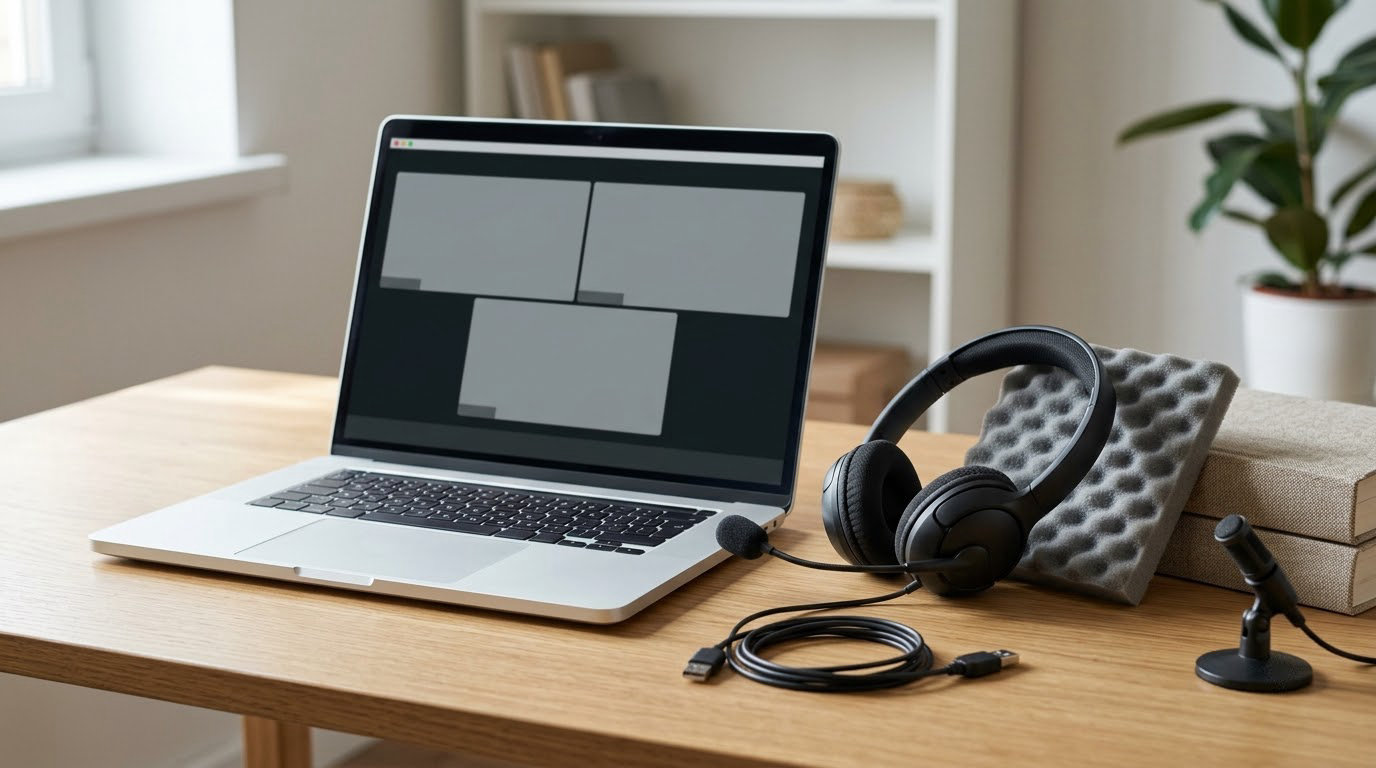
If you want to know how to fix echo and audio problems in video calls, the answer is almost always a settings change rather than broken hardware. Echo happens when your microphone picks up the sound coming out of your speakers and sends it back to the meeting, so other people hear their own voices a second later. Most cases clear up in under two minutes once you know which device is actually in use.
This guide walks through the fixes in the order that works best, starting with the checks that cost nothing and ending with drivers and network settings. It covers Windows and Mac computers, Zoom, Microsoft Teams, Google Meet and Webex, plus iPhone, Android, FaceTime, WhatsApp and Messenger. Where the menu names differ by platform, I have spelled out the exact path so you can follow along without guessing.
Table of Contents
- What You Need
- Step-by-Step: How to Fix Echo and Audio Problems in Video Calls
- How to fix echo and audio problems in video calls by checking the microphone and speakers first
- Use headphones or a headset to stop call echo
- Check microphone permissions and audio settings in the video call app
- Run the built-in audio test and remove conflicting apps
- Update or reinstall the app, microphone driver, and operating system
- Test a second call and improve network-related audio
- Common Mistakes
- Frequently Asked Questions
- Conclusion
What You Need
Gather these four things before you start. Having them ready turns a scattered troubleshooting session into a five-minute one.
- Wired headphones with a microphone. This is the single most reliable echo fix, and it works on every platform without any settings at all. A wired pair with an inline mic costs very little and needs no charging, no pairing and no driver.
- The device actually running the call. Watch out for the classic mistake of adjusting settings on your laptop when the call is running on your phone, or vice versa.
- The call link or app itself. Having the app open means you can test your audio without waiting for another person to join.
- Access to your microphone and speaker settings. On Windows that is Settings > System > Sound. On Mac it is System Settings > Sound. On iPhone and Android it lives under Privacy or Microphone permissions in the app settings.
One optional extra that pays for itself: a second person to join the test call. You cannot always hear your own echo, and a second set of ears is the fastest way to confirm a fix worked.
Step-by-Step: How to Fix Echo and Audio Problems in Video Calls
Work through these steps in order. Each one has a clear signal that tells you it worked, so stop as soon as the problem disappears.
How to fix echo and audio problems in video calls by checking the microphone and speakers first
Start by isolating which device is causing it. Join a test call alone, mute your microphone, and ask someone to speak. If you still hear their voice doubled or with a delay, the problem is on your output side. Unmute, stay silent for a few seconds, and ask them if they hear anything at all. If they hear your speakers playing while you say nothing, your microphone is open and picking up speaker output.
Now open your audio settings and check three things.
- Mute your microphone. On the call toolbar it is the microphone icon at the bottom. If echo disappears when muted, the microphone is capturing speaker sound.
- Lower your speaker volume to about 60 percent. Speaker volume is the most common trigger, and turning it down is a five-second fix. People often crank it up because a quiet microphone makes them turn the speakers up, which makes the echo worse.
- Confirm the input and output are the devices you think. On Windows go to Settings > System > Sound > Input and check the dropdown under Choose your input device. On Mac open System Settings > Sound > Input and Output.
- Disconnect audio devices you are not using. Webcam microphones, conference phone bases, Bluetooth headsets and USB monitors all appear as selectable inputs. Two active microphones in one room is a frequent cause, especially in hybrid meetings where a room microphone and a laptop microphone are both live.
Success signal: no echo in a test call with the input and output you deliberately selected.
Use headphones or a headset to stop call echo

Headphones stop echo because they physically separate the microphone from the speakers. The mic has nothing from the call to pick up, so the feedback loop never starts. If headphones fix it and speakers bring it back, you have your answer for good.
For wired headphones, plug them into the laptop or the headset jack and then pick them in the app’s audio menu, because the app may still be set to the built-in speakers. In Zoom, click the gear icon, go to Audio, and choose your headphones under both Microphone and Speakers. In Teams, click the three dots, choose Settings, then Devices, and set Microphone and Speaker to the headset. In Google Meet, click the three dots, choose Settings, then Audio, and set the input device there.
Wireless headphones work too, with one caveat worth knowing. They use Bluetooth, which adds a delay of roughly 100 to 200 milliseconds, and some cheap headsets switch between handsets mid-call. If you have a wired pair, prefer it for calls that matter. When pairing on Windows, go to Settings > Bluetooth and devices and make sure the headset is connected before you join. On Mac, pair it from System Settings > Bluetooth.
Success signal: a test call with headphones plugged or paired in produces no echo at any volume.
Check microphone permissions and audio settings in the video call app
A microphone that is muted or blocked at the app level behaves differently from one that is simply quiet, and it is easy to confuse the two. Here are the exact paths for the major platforms, and they have all moved over the past couple of versions.
Zoom desktop. Click the gear icon in the top right, then Audio. Check Microphone, Speaker and Background noise. If your mic shows as Not Connected, Windows has lost it. Click the arrow next to Microphone and choose Select Microphone Device to see every input the app can see.
Microsoft Teams. Click the three dots beside the Send button, then Settings > Devices. Under Audio device, choose your microphone and speaker. Below that, Devices has a Test button and a Run audio troubleshooting that will play a test tone and sample your mic for a few seconds.
Google Meet. Click the three dots in the call window, then Settings, then Audio. Each field there is a dropdown. Meet also exposes the same control from the microphone icon in the toolbar, so you can change devices without leaving the call.
Webex. Open the Audio and Video panel from the toolbar, where Microphone, Speaker and camera device each have their own selector.
In a browser. Chrome and Edge show a camera and microphone icon at the left or right of the address bar. Click it to see which devices the page is using, and to unblock a microphone that got blocked by accident. If the site is not allowed, you will need to click the padlock or tune icon and set Microphone to Allow.
On a phone. On iPhone, open Settings > Privacy & Security > Microphone and confirm the calling app is toggled on. On Android, go to Settings > Apps > Special app access > Microphone access and check the same thing for WhatsApp, Messenger or your browser.
While you are in there, look at the noise suppression setting. Zoom has Background noise set to Low, Medium or High, and Teams has Noise suppression with Low, Medium and High too. High suppresses more, which can mask echo but makes your voice sound flat and robotic. Start at Low and work up only if you really need it.
Success signal: the app shows the device you chose, and the level meter moves when you speak.
Run the built-in audio test and remove conflicting apps

Every major app ships with a test. In Zoom, look for the Check for audio issues option in the Audio settings. In Teams, use Test under Settings > Devices. Running the test tells you something a normal conversation cannot: which microphone the app is actually opening.
Watch the level meter while you speak normally. If it sits near zero, your mic gain is too low or the wrong input is selected. If it pegs at the top on every word, the gain is too high and the app is clipping, which is another reason people turn their speakers up and create the loop.
Then hunt for the second microphone. Close every other app that can open audio: a second Zoom or Teams window, a screen recorder, a VPN client with voice features, a game streaming overlay, a voice editor, and a conference phone app. On macOS these often keep their audio session open after you quit, which is why a reboot clears phantom mics that no setting seems to remove.
There is a useful trick here that people in r/MicrosoftTeams describe often: unplug your USB microphone mid-call. If the echo stops the instant you unplug it, you have confirmed the feedback path runs through that mic, and you know the settings change you need is about that device rather than the app. Users report the same result by moving the USB mic to a different port, since some ports share an unpowered hub that drops the audio stream.
Success signal: one microphone, one speaker, and a test that shows your voice at a healthy level.
Update or reinstall the app, microphone driver, and operating system
If the settings all look correct and the echo persists, move to the software layer. Old audio drivers are a genuine cause, particularly on Windows machines that skipped feature updates for a year.
On Windows 10, go to Settings > Update & Security > Windows Update and check for updates. On Windows 11 it is Settings > Windows Update. For drivers, open Device Manager from the Start search, expand Sound, video and game controllers, right click your audio device and choose Update driver, then Search automatically for drivers. Do the same for any USB audio device listed under Audio inputs and outputs.
On a Mac, open the App Store, click the update icon in the top left and install anything pending. Then check System Settings > Sound > Input to confirm your microphone is still selected after the update. macOS also resets input permissions occasionally after a major update, so re-check Privacy & Security > Microphone if your mic goes silent.
Update the calling app itself next. Zoom, Teams, Meet and Webex all push audio fixes regularly, and echo bugs tied to a specific version get patched. If you cannot find an update, a clean reinstall is worth it: quit the app, uninstall it, restart the computer, then install fresh. On Teams, make sure you are not running the old personal desktop app alongside the new one, since both can claim the microphone at the same time.
Success signal: echo is gone on a fresh test call after a restart.
Test a second call and improve network-related audio
Confirm the fix on a real call rather than a solo test, because two things can change with other people in the room. Then check whether your network is adding a delay that mimics echo. A laggy connection makes people talk over each other, and overlapping voices get mistaken for a feedback loop even though the audio path is fine.
Test the connection itself by running a speed test in a browser on the same Wi-Fi you are using for the call. A large upload number matters more than download speed, since your microphone audio travels upstream. If the Wi-Fi is weak, move closer to the router or plug in with a network cable. On a phone, switching between Wi-Fi and mobile data often clears a distorted voice.
Here is how to tell lag from echo. Echo repeats your words back to you a fraction of a second later, and the repetition sounds like a clean copy of the audio. Lag makes the other person sound out of date, choppy or cutting in and out. If people are simply late rather than doubled, you have a network problem, not an audio feedback problem.
One more thing to test: a different app on the same device. If Zoom echoes but Google Meet is clean, the problem lives in the Zoom client. If both echo, look at the device, the room and the microphone.
Success signal: a second call with other people sounds clean at normal speaker volume.
Common Mistakes
These are the mistakes that keep people stuck on the same problem for weeks.
Leaving Bluetooth devices connected. A paired headset sitting on the desk stays available as an input, and the app may switch to it mid-call. Turning Bluetooth off when you are not actively using a wireless headset removes the option entirely. On Windows, go to Settings > Bluetooth and devices and switch it off; on Mac, System Settings > Bluetooth.
Selecting the wrong input. People change the microphone in the app but not in the operating system, or the reverse, so the two disagree and the app keeps reopening the old one. Change it in both places, and pick the same device in the system tray as in the app.
Enabling two audio sources at once. A laptop microphone plus a conference phone or a room video bar is the classic hybrid meeting problem. In a room with a dedicated mic, join with the laptop microphone muted and let the room hardware handle audio.
Using a low-quality microphone. A cheap laptop or webcam mic often adds a delay that makes echo cancellation work harder and fail. Any external mic with a USB connection and a stable sample rate solves this for less than the cost of a single meeting hour.
Changing settings during the call. Adjusting audio mid-meeting while talking tells the app to rebuild its audio stream, and you will hear a gap or a burst of noise. Test in a solo call first, then join the meeting.
Raising noise suppression to High. It hides some echo but produces the robotic voice people complain about, especially on quiet voices. Low is a better starting point, with the gain set properly instead.
To keep audio good permanently: test before joining, keep one microphone active, keep the app and system input device identical, and mute yourself whenever the room around you is loud.
Frequently Asked Questions
Why do I hear echo in video calls?
Echo is audio feedback. Your microphone captures the sound coming out of your speakers and sends it back to the meeting, so remote participants hear their own voices repeated a moment later. It usually means your speaker volume is too high for the mic, two microphones are open at once, or noise suppression is misconfigured. Wearing headphones removes the loop physically, because the microphone has nothing from the call to pick up.
How do I stop echo in Zoom on Windows or Mac?
Click the gear icon in Zoom and open Audio. Confirm your Microphone and Speaker entries point at the devices you actually want, then set Background noise to Low. Lower your speaker volume to about 60 percent. If a USB mic or conference phone is plugged in, unplug it and test again, because two open microphones are the most common cause. Run the built-in audio test and confirm the level meter moves when you speak.
Should I use Bluetooth headphones for video calls?
They work, but wired is better. Bluetooth adds roughly 100 to 200 milliseconds of delay, and some inexpensive headsets switch between devices during a call, which cuts your audio mid-sentence. If you only have wireless headphones, pair them before joining, set them in the app audio settings, and keep your phone nearby since it may try to grab the connection. For important calls, a wired headset with an inline microphone is the more dependable choice.
How do I fix a laptop microphone that sounds quiet or distorted?
On Windows, open Settings u0026gt; System u0026gt; Sound u0026gt; Input and raise the input volume, then run a quick microphone test in the Sound settings to see if the level meter moves. On Mac, open System Settings u0026gt; Sound u0026gt; Input and check the input volume slider. Quiet or distorted audio usually means the gain is too low, the wrong input is selected, or an external USB mic is drawing power from an unpowered hub. Moving the device to another port often fixes it.
What should I try if echo continues after checking microphone settings?
First work out whether the echo is at your end or theirs. Join a call alone, speak, and ask the other person whether they hear you doubled. If they do, it is your setup. If everyone else hears echo but you do not, the problem is on their side and yours is fine. Next, close every other app that can open audio, restart the computer to clear phantom microphone sessions, update your audio driver and the app, and finally test on a second app to see whether the issue is device-specific.
Conclusion
Start by muting and testing one microphone at a time. Lower your speaker volume, unplug the devices you are not using, and check that the app and your operating system are pointing at the same microphone and speakers. Then put on wired headphones, which removes the feedback loop outright and tells you in seconds whether the problem is the audio path or something else. Only after that is it worth opening app permissions, running audio tests, updating drivers and looking at your network. If the echo affects everyone except you, it is not your setup.