If you have searched for how to set up an out of office auto reply, you are in the right place. It takes about two minutes, and the switch lives in your email provider (Gmail, Outlook, Yahoo Mail or iCloud), not in a desktop mail app, so the reply keeps going out after you close your laptop.
That single detail fixes most of the problems people hit. A rule you build inside Outlook or Apple Mail only runs while that program is open. The vacation responder built into your account runs on the provider’s servers, so it works from any device, on any network, including a phone with no signal.
I have set these up on accounts I manage and on my own, and the pattern is always the same: turn it on, add a real end date, name one person who can actually cover you, and test it before you walk out the door. This guide covers all four platforms plus the wording, because a reply that fires correctly but says nothing useful still causes the follow-up emails it was meant to stop.
Table of Contents
- What You Need
- How to Write a Clear Out of Office Message
- Common Mistakes
- Frequently Asked Questions
- Can I schedule an out-of-office reply for a specific date range?
- Does an automatic reply work on both desktop and mobile email apps?
- Should I send an out-of-office message to internal colleagues and external clients?
- How do I turn off an out-of-office reply when I return to work?
- Can I set different automatic replies for multiple email accounts?
- Why am I not receiving the automatic reply I scheduled?
- Turn It On, Then Test It
What You Need
You need three things, and one of them catches most people out: you need access to the account, not just the app. If your work email is a second profile inside Outlook, or you use a company phone with a managed profile, make sure you are signed into the right one before you change anything.
- Login access to the mailbox itself, so you can open its web interface on a computer even if you mostly read mail on a phone.
- The exact name of your provider: Gmail, Outlook with Microsoft 365, Yahoo Mail, or an iCloud Mail account.
- A decision on your return date and one alternative contact who has agreed to cover.
The web route is the most reliable for setup because every provider exposes the full option set there. Mobile apps usually cover the basics (on or off, dates, message) and hide the advanced choices. Set the whole thing up once on a computer, then check the mobile app only to confirm the toggle looks the same.
How to Set Up an Out of Office Auto Reply in Gmail
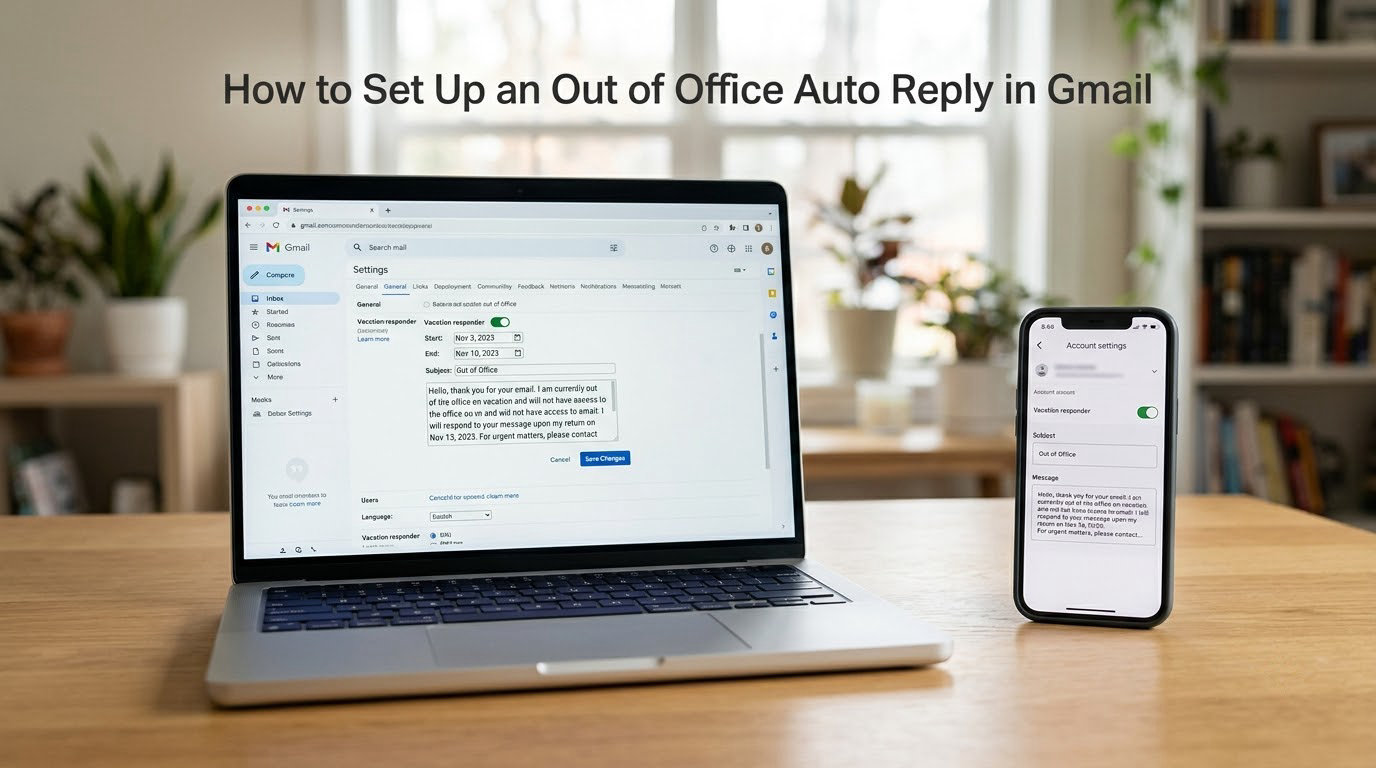
In Gmail on a computer, open Settings from the gear icon at the top right, choose See all settings, then scroll to the General tab. The Vacation responder section sits in the middle of that page.
- Click Settings (gear icon, top right) then See all settings.
- Open the General tab and scroll to Vacation responder.
- Click Enable, then tick Send only to people in my contacts if you want to limit the audience.
- Set Starts and Ends with a date picker rather than typing vague words like “next week”.
- Write the subject and body, click Send Now to preview it, then Save Changes.
On the Gmail mobile app, tap the profile icon, scroll to Add another account settings area, then open Settings, choose your account, and switch on Vacation responder. The same dates and message box appear below the toggle.
Two Gmail behaviours surprise people. It sends one reply per sender and then waits about four days before replying to that sender again, so a colleague emailing you five times hears from you once. And messages that Gmail routes to spam never get a reply at all, which is the single biggest reason a test with certain contacts appears to fail.
How to Set Up an Out of Office Auto Reply in Outlook
On Outlook for Windows (classic and the current Microsoft 365 build), click File in the top left, then Automatic Replies. On a very old build the same panel sits under File then Account Settings, where you double-click the account name and choose Automatic Replies.
- Select Send automatic replies.
- Tick Only send during this time range and set the start and end date and time.
- Write the Inside My Organization message and a separate Outside My Organization message.
- Click OK to save.
Outlook is the only major provider with a built-in split between internal and external senders, which makes it the right choice if you need a warm message for colleagues and a plainer one for clients or recruiters. If the OK button seems to be missing, it is usually hidden by display scaling; reduce the text size in Windows display settings and the button reappears.
On the web version and in new Outlook, open Settings (gear), go to Mail, then Automatic replies. The same two message boxes and the time range option are there.
On mobile, tap Settings, then your account name, then Automatic replies, and flip the switch to on. You can tap Automatically reply for this time period to add dates. Work email on Microsoft 365 sometimes hides the option behind a policy set by your IT team, so if the panel is greyed out, that is a company setting rather than anything you did wrong.
How to Set Up an Out of Office Auto Reply in Yahoo Mail and Apple Mail
In Yahoo Mail, click the gear icon at the top right, open Settings and choose Vacation response from the left menu. Tick Enable vacation response, add the subject and message, set the start and end date, then save. Yahoo also remembers the last message you wrote, so an old draft from a previous trip can reappear in the box and go out by accident. Read it before you hit save.
Apple Mail needs a word of warning. The Mail app itself has no automatic responder. What it has is a rule, and that rule only runs while Mail is open on that Mac, so it fails silently the moment you close the laptop or the machine sleeps.
For iCloud Mail, open iCloud.com in a browser, go to Mail, open the settings gear, and use the vacation responder built into iCloud Mail. If your Apple Mail account is a Google or Microsoft address, set the reply in Gmail or Outlook as described above, and Apple Mail will behave the same as any other client.
Here is how the four compare at a glance:
| Provider | Where the setting lives | Date range | Separate internal and external message | Works with the app closed |
|---|---|---|---|---|
| Gmail | Settings, See all settings, General, Vacation responder | Yes | No, but can limit to contacts | Yes |
| Outlook | File, Automatic Replies | Yes | Yes | Yes |
| Yahoo Mail | Settings, Vacation response | Yes | No | Yes |
| Apple Mail (iCloud) | iCloud.com, Mail, vacation responder | Yes | No | Yes |
How to Write a Clear Out of Office Message
Most replies get read for about two seconds by someone who wanted something else, so the job is to answer four questions in that window: you are away, when you are back, who covers you, and what counts as urgent. Five elements cover almost every scenario, and the wording matters as much as the setup itself. People who master how to set up an out of office auto reply still get chased down when the message says nothing useful.
- Statement that you are away, in one sentence.
- An exact return date, written out rather than “back soon”. A real date is the single thing that stops “just checking in” messages on your second day of leave.
- One named alternative contact, with their email address, who has already agreed to take it.
- A line defining urgency, so your stand-in is not handed the entire inbox.
- Whether you can see email at all, honestly. Some people read on a phone; many do not. Say which.
For colleagues, keep it short and human:
I’m away until 14 November and won’t be reading email. Priya Raman is covering anything urgent until then ([email protected]). If it’s a deadline that lands before the 14th, she can action it. Happy to pick up the rest when I’m back.
For clients, recruiters and anyone you do not know, keep the tone flat and drop the detail:
Thank you for your message. I am out of the office from 3 to 14 November with limited access to email and will reply after I return. For urgent matters, please contact James Okoro at [email protected]. Thank you for your understanding.
Two habits worth keeping. Ask your colleague before naming them; dumping unexpected work on someone without warning is the most complained-about part of this whole routine. And avoid jokes for external senders, plus any line about deleting unread mail, which lands badly with recruiters and clients.
Common Mistakes
Saving the message but never switching the reply on. The message is sitting in the box, fully written, doing nothing. Open the settings page before you close it and confirm the toggle shows as active.
Leaving the reply on after you return. This is the most common failure of all. Senders assume you are still away and stop expecting anything from you. Outlook deactivates automatically at the end of the date range; Gmail does not, you have to turn it off yourself on your first morning back.
Using a rule in the desktop app. It works until you close the program. Set the responder in the provider’s web settings instead, and the reply keeps coming from a server.
Testing with the wrong account or the wrong sender. Check that you are signed into the mailbox you think you are, and send the test from a personal address outside your organisation. In Outlook, an external test message is governed by the separate “Outside My Organization” box, which people often leave empty.
Checking only your inbox for the reply. The auto-reply you received is proof the sender’s side is broken, not yours. If nothing comes back at all, the message probably landed in spam, since providers do not reply to filtered mail.
No return date, or relative dates. “Back soon” means nothing to a person reading it on a different day, and it invites a follow-up chain that lasts longer than the holiday.
Oversharing. A vacation auto reply goes to every sender including strangers, so skip the destination, the reason for a hospital stay, and anything about an empty house.
Frequently Asked Questions
Can I schedule an out-of-office reply for a specific date range?
Yes, every major provider supports it. In Gmail, tick Only send during this time range under Vacation responder and pick start and end dates. In Outlook, tick the same box on the Automatic Replies pane. Outlook stops sending at the end date on its own; Gmail leaves the switch on, so you need to turn it off yourself when you are back.
Does an automatic reply work on both desktop and mobile email apps?
It works everywhere, because it is set on the provider’s servers rather than inside one app. Whether the sender uses a phone, a laptop or a third-party client, they get the same message. The one exception is a rule you create inside the desktop app itself, which only runs while that program is open.
Should I send an out-of-office message to internal colleagues and external clients?
Send one to both, but write them differently. Outlook lets you set a message for senders inside your organisation and a separate one for everyone outside it. Gmail cannot split them by audience, but you can limit the reply to contacts only or send a single neutral version that suits both.
How do I turn off an out-of-office reply when I return to work?
Open the same settings page you used to switch it on and set the toggle back to off, then save. Outlook does this automatically once the date range ends. If you return early, cancel it manually in both cases, since senders who assume you are away will otherwise stop following up.
Can I set different automatic replies for multiple email accounts?
Yes, you set each one separately in its own provider. There is no single global switch, so a personal Gmail address and a work Outlook account need two visits to their settings pages. Set both before you leave, and check the right one is active if you manage several mailboxes in the same app.
Why am I not receiving the automatic reply I scheduled?
Check four things. The toggle may be on but the message is still empty, so nothing gets sent. You may be testing from inside your own organisation, where Outlook applies the separate internal message. The test mail may have been filtered into spam, and providers do not reply to filtered mail. Finally, Gmail only answers the same sender once every few days, so a second test can look like a failure.
Turn It On, Then Test It
The order that works every time: set the responder up in the web interface, add a real end date, name one person who has agreed to cover you, then send yourself a message from a personal account before you leave. That last step is the one people skip, and it catches almost everything that would otherwise go wrong while you are unreachable. If you are wondering how to set up an out of office auto reply and where to start, this is the start: a browser, two minutes, and a date in the calendar.