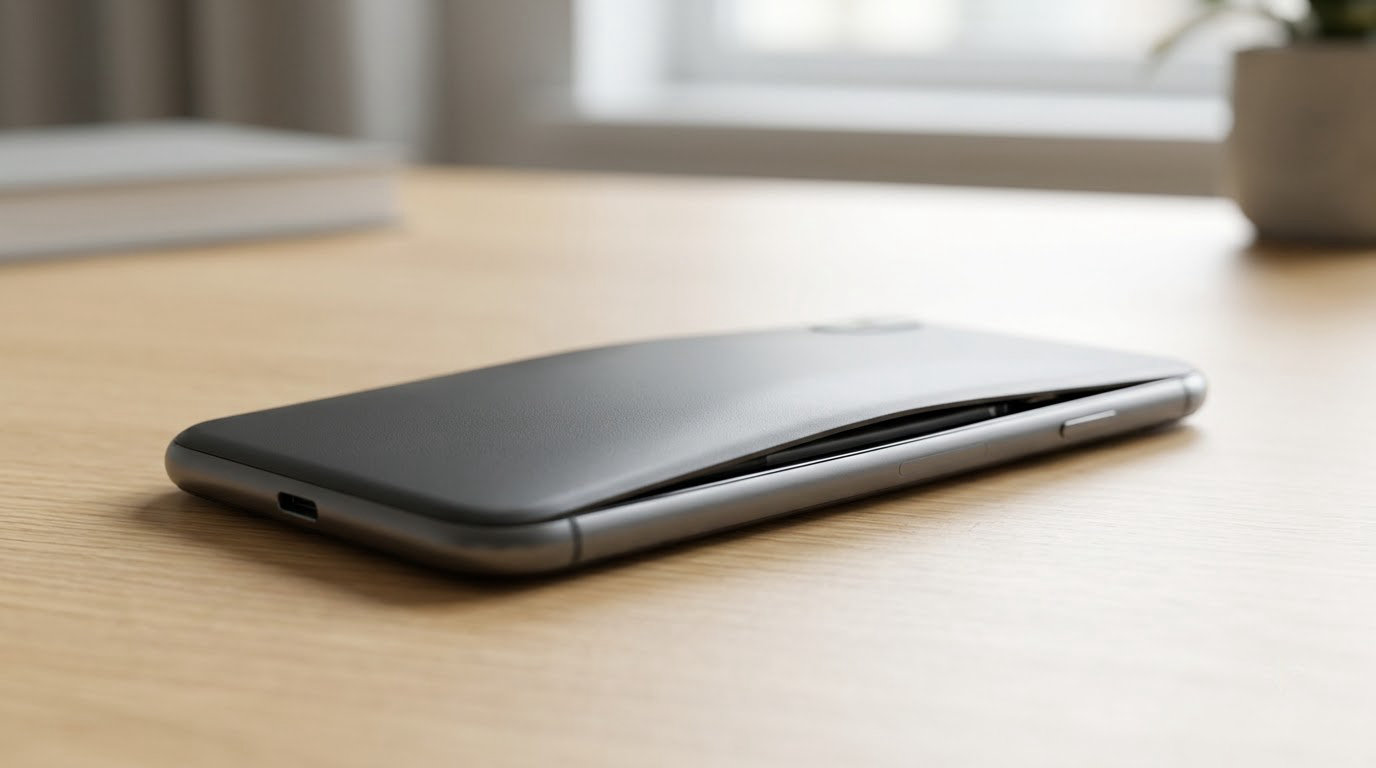
To tell if your phone needs a new battery, read the built-in battery health figure first, then watch how the phone behaves on a normal day. Maximum capacity under 80%, shutdowns at 20% with charge still showing, overheating during normal use or a screen lifting off the frame all point the same way. Most phones that feel old are not broken — they are tired.
The catch is that battery health is not one universal number on one universal screen. Apple exposes a maximum capacity percentage and a cycle count; Samsung exposes a status reading and, on some models, an actual capacity figure in mAh; most other Android phones give you a cycle count and little else without a third-party app. This guide walks through what to check, what the numbers mean, and how to tell a worn battery apart from a software problem.
Table of Contents
- What You Need to Tell If Your Phone Needs a New Battery
- Step-by-Step
- Frequently Asked Questions
- What battery health percentage means a phone battery should be replaced?
- How do I check whether my iPhone battery needs replacing?
- How can I check Android battery health?
- Is it normal for a phone battery to drain quickly overnight?
- Can a swollen phone battery be used safely?
- Should I replace a phone battery or buy a new phone?
- Conclusion
What You Need to Tell If Your Phone Needs a New Battery

You need very little: the phone itself, a charging cable and adapter you know work, and about twenty minutes of quiet. That is enough to check the health reading and run an overnight drain comparison.
Also useful is a rough memory of what the phone used to do. Owners who can say “it lasted until bedtime at 60%” have a baseline; owners who cannot are usually the ones who end up replacing a healthy battery because the new phone felt better.
Know which phone you have and which system it runs. Menu labels move between versions, and an iPhone path will not work on Android at all. Samsung Galaxy, Google Pixel and other Android brands each bury the battery information in a different corner of Settings, and the wording has changed more than once in the last few years.
Step-by-Step
Run the checks in this order. The number comes first because it is free and instant, and because the behaviour tests only mean something once you know what the battery claims to be worth. Then look at symptoms, then test drain, and only then decide.
How to Check Your Phone’s Battery Health
On an iPhone running current iOS, open Settings, tap Battery, then tap Battery Health and Charging. You will see Maximum Capacity as a percentage, a Cycle Count, and — on iPhone XS and later — a line that reads either that the battery is normal or that service is recommended.
Maximum Capacity is the useful number. It tells you how much charge the battery can still store compared with when it was new. At 80% it holds roughly four-fifths of its original energy, which is why a phone that once ran to midnight now dies at 6pm. Apple treats 80% as the point where a battery has aged out of design tolerance, though plenty of owners keep going for a long time after that.
- 90-100%: essentially new. Nothing to do.
- 80-89%: worn but usable. Start planning for a replacement.
- 70-79%: noticeably reduced. Book service soon.
- Below 70%: end of useful life. Get it replaced.
Those bands answer the questions people search for most. An iPhone at 84% is worn, not broken, and most people will not notice a day. At 77% you are in the range where owners report starting to plan a swap rather than waiting for a failure. At 70% the phone is very likely to shut down with charge remaining and to run hot under load.
One thing that confuses almost everyone is the difference between capacity and charge level. Maximum capacity describes what the battery can hold. The percentage on your lock screen describes how full it is right now. A worn battery can still read 100% at the top of a charge and then collapse under load, which is why the two numbers so often seem to contradict each other.
Android is less consistent. On a Samsung Galaxy, open Samsung Members, go to Support, then Phone diagnostics, then Battery status — or use Settings, Battery and Device Care, then Diagnostics. It reports battery status as good, normal or weak, and on some models an actual capacity reading in mAh, which is useful because you can compare it against the capacity printed on the original cell.
- iPhone: Settings > Battery > Battery Health & Charging. Gives you a maximum capacity percentage and the cycle count.
- Samsung Galaxy: Samsung Members > Support > Phone diagnostics > Battery status. Gives you a status label and, on some models, an mAh figure.
- Google Pixel: Settings > Battery, then Battery usage. Gives you per-app usage and charging history rather than a health figure.
- Other Android: Settings > Battery, or a battery monitoring app such as AccuBattery. Gives you a cycle count and, after calibration, a health estimate.
Pixel and most other Android phones ship without a single trustworthy health percentage, which is where the cycle count comes in. One full discharge to a full charge equals one cycle, and roughly 500 cycles is where a phone’s lithium-ion cell typically reaches around 80% of its original capacity. If the phone has been with you three years and charged twice a day, you may be well past that.
Apps such as AccuBattery read capacity and cycle count from the system’s own battery manager, but they need a few charging cycles to calibrate before the numbers mean anything. Treat an uncalibrated reading as a rough guess, not a diagnosis.
Look for These Battery Warning Signs
The number tells you what has happened. These tell you what it feels like, and several of them matter more than the percentage.
- Rapid percentage drops. Losing 20% in the time it takes to walk across a room is not normal wear. Compare it with what the same ten minutes used to cost you.
- Shutdowns with charge still showing. A phone that dies at 20-30% has a battery that cannot hold voltage under load. This is the single clearest sign.
- The percentage jumping around. Dropping from 40% to 10% and back again after a restart usually means the fuel gauge is reading the cell inaccurately, which is a worn-battery symptom rather than a software bug.
- Heat during ordinary use. A phone that is uncomfortably warm in your hand while barely doing anything has a cell with high internal resistance working too hard.
- Charging much more slowly than it used to. A full charge that once took an hour and now takes two, using the same charger and cable, points at the cell.
- It only works plugged in. Some users describe phones that die immediately when unplugged. That can be a dead battery or a failed charging connector — worth checking the port before you price a new cell.
- The screen lifting or the back bulging. A phone that rocks on a flat table, a gap that has opened between glass and frame, or a soft-feeling screen means the battery has swollen. Stop using it.
- Sluggish performance after an update. iPhones throttle processor speed on a worn battery. It feels like the phone got slower overnight, but the battery is the cause.
- No overnight hold. Starting the morning at 30% instead of 80%, with the phone untouched, is a clear change from your own baseline.
Two of those deserve their own note. Swelling is the only genuinely urgent failure mode, and the earliest signs are cosmetic: a hazy or whitish screen, a screen that feels squishy when pressed, or a back cover that no longer sits flush. If you spot any of them, get the phone assessed before you do anything else with it.
Owners of Galaxy S21 devices commonly describe the trigger as roughly five hours of real use from a full charge, rather than any particular percentage. That is a useful reminder that the practical answer and the numeric answer do not always land in the same place.
Test Charging and Daily Battery Drain
Two simple tests turn a vague feeling into a comparison.
For charging, use a cable and adapter you know are good, start from around 20%, and time how long it takes to reach 80%. Do it once now and note the number. If a colleague or family member has the same model, ask them to time theirs — a difference of an hour or more on identical hardware and identical chargers is meaningful.
For drain, charge to 100%, leave the phone face down, screen off, and untouched for eight hours overnight. Losing single digits is normal. Losing a quarter or more points at background activity, a weak signal or a failing cell rather than overnight use.
The screen-on benchmark helps too. Losing 1% every three minutes works out to about eight hours of screen-on time, which is heavy but not proof of anything on its own. Check Settings > Battery (iPhone) or Battery usage (Android) and see whether one app, location services or a weak cellular signal is eating the charge instead of the whole system.
Run these tests on an ordinary day, not right after an update, and not while the phone is warm. Heat, weak signal, screen brightness, 5G hunting for a tower, a fresh software update and a tired charger will all skew the result. An aging charger that cannot deliver current is a common and much cheaper explanation for slow charging.
Common Mistakes
Judging by age alone. A three-year-old phone with 88% health is fine; a two-year-old phone with heavy gaming use might not be. Check the number, not the calendar.
Treating slow charging as a dead battery. Try a different cable and a different wall adapter first. A frayed cable or a weak adapter is a fraction of the cost of a battery service.
Testing while the phone is hot. A warm battery is throttled and reads poorly. Let it cool to room temperature before you judge anything.
Deciding after one bad day. Most sudden drain follows a software update or a rogue app. Give it two or three days, restart, and check the per-app usage breakdown before spending money on hardware.
Reading the health percentage as a charge level. 80% health does not mean the phone is at 80% charge. It means the cell has lost about a fifth of the capacity it started with.
When to Replace the Battery or Get Professional Help
Replace the battery, or get it assessed, when several of these agree: maximum capacity below 80%, repeated shutdowns with charge remaining, heat that arrives during light use, a full charge that takes dramatically longer than it used to, or a battery that drains during an untouched night.
A swollen battery is not a “when convenient” repair. Stop charging it, stop using it, do not press on the screen or puncture the cell, and keep it away from anything flammable. Lithium-ion cells do not vent like a laptop battery; they can fail hard and fast. Take it to a service provider and describe the swelling so they handle it correctly.
For an iPhone, an authorised service provider is the safe route and keeps the water-resistance seal intact. For Android, the manufacturer service centre is the equivalent, and Samsung runs a self-repair programme for eligible models with genuine parts. Independent repair shops are usually cheaper but the quality varies, and a home repair can leave the phone without a proper seal against water.
Back up before any repair. A battery replacement is normally a straight swap with no data loss, but a screen that has to be removed during the job risks the display, and older phones can lose data during a full service.
Skip the battery replacement when the phone has a cracked screen, water damage, a failing mainboard, or has dropped out of software support. Those problems do not go away with new cells, and a battery swap on a phone that is otherwise finished rarely feels worth it.
If the phone is outside warranty and the repair quote approaches what a decent used phone costs, that is a reasonable moment to stop and switch. Otherwise, most owners who replace at 70-80% get back to a full day of normal use and avoid buying a new device.
Frequently Asked Questions
What battery health percentage means a phone battery should be replaced?
Apple treats 80% maximum capacity as the service threshold, and that is a reasonable line to plan around. Real owners tend to act later, usually between 70% and 80%, because the phone still works. Below 70% most people notice shutdowns, heat or overnight drain and stop tolerating it. Above 85% a replacement rarely feels worth the money or the hassle.
How do I check whether my iPhone battery needs replacing?
Open Settings, tap Battery, then Battery Health and Charging. Read Maximum Capacity as a percentage and check whether a Service Recommended message appears underneath. Compare it against your own history too: a phone at 88% that used to last all day and now dies at 4pm needs attention even though the number looks acceptable. The Cycle Count next to it shows how many full charges the cell has taken.
How can I check Android battery health?
Samsung Galaxy phones go to Samsung Members, Support, then Phone diagnostics, then Battery status, which reports good, normal or weak and sometimes an mAh figure. Other Android phones usually expose a cycle count under Settings, Battery, though names vary by brand. Pixel owners get battery usage data rather than a health percentage. Apps such as AccuBattery add a health estimate once they have calibrated over several charge cycles.
Is it normal for a phone battery to drain quickly overnight?
It depends on how much. An idle phone on Wi-Fi with notifications off might lose 5-10% over eight hours, and that is normal. Losing a quarter of the charge or waking below 50% is not. Check which apps ran overnight, whether a weak signal was forcing the modem to work harder, and whether the phone got hot in the bed or under a pillow. Heat alone can move the needle a long way.
Can a swollen phone battery be used safely?
No. Stop using it and stop charging it as soon as you notice the screen lifting, a gap opening, the back cover bulging or a hazy white screen. Do not press on the display, do not puncture or pry the cell and do not leave the phone in a car or a hot cupboard. A swollen lithium-ion cell has almost no margin left. Power it down, keep it away from anything flammable and get it to a service provider.
Should I replace a phone battery or buy a new phone?
Replace the battery when the phone is otherwise in good condition, supported by software, and the battery is the main complaint. Most phones stay fully usable for four or five years with a new cell, and a swap costs far less than a new device. Buy a new phone when there is water damage, a cracked screen, a failing mainboard, or no software support left — a new battery will not fix any of those.
Conclusion
Open the built-in battery health reading first. On an iPhone that is Settings > Battery > Battery Health & Charging; on a Samsung it is Samsung Members > Support > Phone diagnostics > Battery status.
Then compare that number with how the phone actually behaves — charging time, overnight drain and whether it shuts down early. If the readings and the symptoms agree, get a professional assessment rather than guessing, and treat a swollen battery as urgent rather than annoying. Updated for 2026.