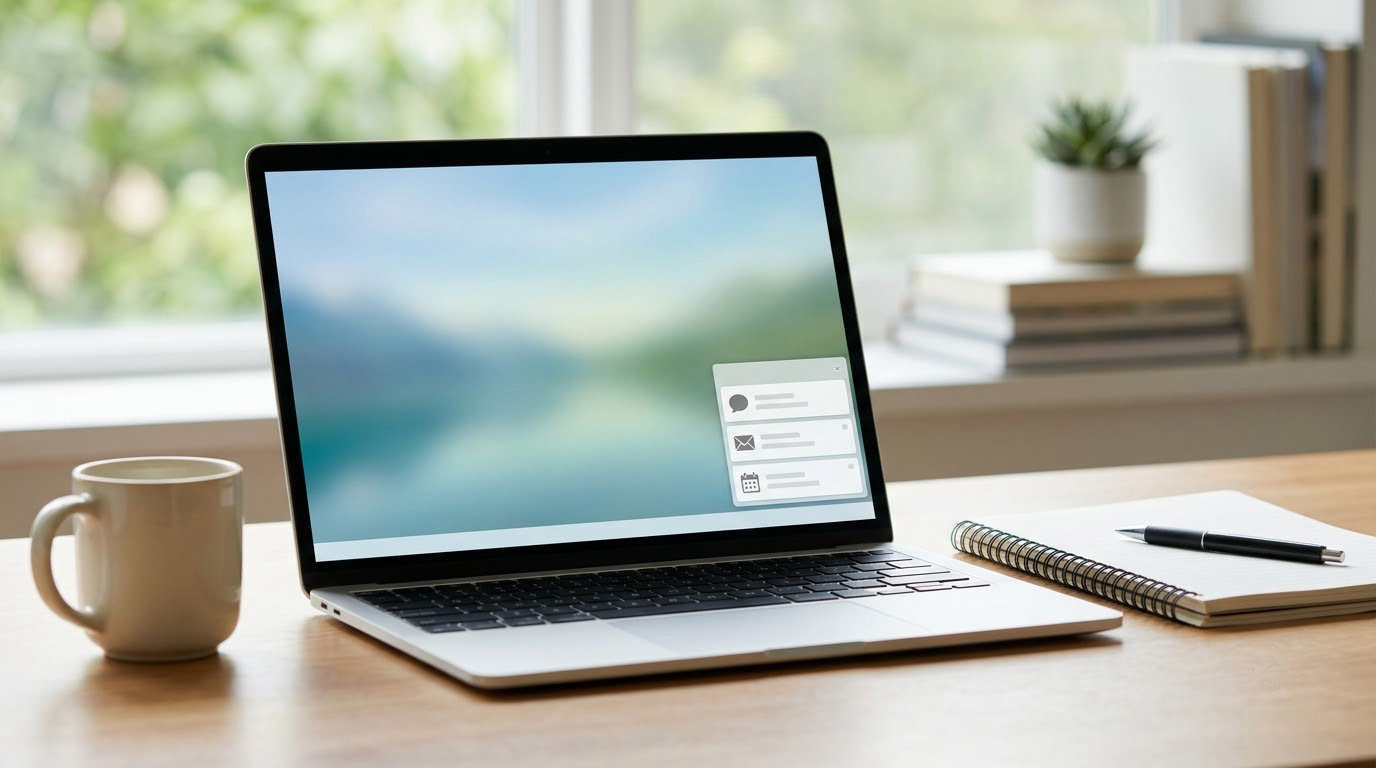
To turn off notifications in Windows while working, press Win + I, open System > Notifications, and switch on Do not disturb — that mutes banners and sounds while keeping your notifications waiting in the notification center. The full setup takes about five minutes and you can reverse every part of it. Most people finish it once and never open it again.
The reason this beats flipping the master Notifications switch is that a total shutdown leaves you blind. You stop seeing the message from the person who needs an answer, and you find out an hour later. Quiet is the goal, not silence.
Table of Contents
- What You Need
- Step-by-Step: How to Turn Off Notifications in Windows While Working
- Common Mistakes
- Frequently Asked Questions
- What is the easiest way to turn off notifications in Windows while working?
- How do I schedule Do Not Disturb in Windows 11?
- Why do notifications still appear when Focus Assist is enabled?
- How do I mute notifications from a specific app such as Outlook or Teams?
- Can I turn off Windows notifications completely?
- Why can’t I change notification settings on my work computer?
- Conclusion
What You Need
Nothing to buy and nothing to install. Every control used here ships inside Windows itself, on both Windows 11 and Windows 10, and the two versions use slightly different labels in the same place.
- A Windows 11 or Windows 10 PC. Check which one you have with
Win + R, typingwinver, and pressing Enter. - About five minutes for the full setup, and five seconds for the on/off toggle you will use daily.
- Administrator access if the computer is managed by an employer or school. Some toggles are locked by policy and greyed out.
One quick thing to check before you start: open your email and see whether the account is a work or school account. If it is, someone in IT may have already decided which notifications you are allowed to change, and the switches will look locked rather than broken.
Step-by-Step: How to Turn Off Notifications in Windows While Working

Set it up once, in this order. The order matters, because scheduling the quiet period only works if Do not disturb is set up before you need it.
Step 1 — Open notification settings. Press Win + I to launch Settings, or click Start > Settings. Choose System in the left column, then click Notifications. On Windows 10 the last stop is called Notifications and actions and sits under System as well.
You can also skip Settings entirely: press Win + A to open Quick Settings in Windows 11, where Do not disturb is the first tile, and click it. That is the switch you will actually use during a meeting.
Step 2 — Decide how quiet you want. At the top of the page sits the master Notifications toggle. Leave it on and work through the steps below. The master toggle is a full shutdown of alerts, and most people regret it within a day of turning it off.
Step 3 — Set a schedule. Turn on Do not disturb, then click into it. You get three options: turn on now, turn on for a set period, or build a schedule with start time, end time, and chosen days. Set it to start before your first meeting and end at lunch, then again for the afternoon block.
Step 4 — Choose the daily toggle. While you are in the schedule settings, leave Show as banner switched off so alerts collect in the corner quietly. Do not turn off Display notification badges on the taskbar — a silent dot that grows is far less disruptive than a pop-up, and it still tells you something is waiting.
Step 5 — Verify it worked. With the schedule saved, lock your screen and unlock it. Your notifications should be sitting quietly in the bottom-right corner with no banner sliding in. That confirms the setting saved before you rely on it in a meeting.
Turn On Focus Assist or Do Not Disturb During Work
Windows 11 renamed this feature. What used to be called Focus assist is now Do not disturb, sitting at the top of the same notification page.
On Windows 11 the path is Settings > System > Notifications > Do not disturb. On Windows 10 it is Settings > System > Notifications and actions > Focus assist, and in Windows 10 you can also reach it from the notification panel by clicking the Focus assist icon in the lower-left corner.
Turn it on manually, then set the schedule so it runs automatically on workdays. If a specific person or app genuinely needs to reach you, add it to the priority list rather than leaving Do not disturb on alone.
Users on Windows forums often report one specific annoyance here: the schedule silently resets after a large Windows update. It is worth re-checking the times once a month, especially after a feature update.
How to Turn Off Notification Banners and Sounds in Windows
Do not disturb handles almost everything, but turning off the visual and audio parts separately gives you finer control, and it is what you want when you still want a silent visual cue.
- Stop the sound: in the same Notifications page, switch off Play a sound when a notification arrives. The banner disappears; the chime is gone; the badge stays.
- Stop the slide-in banner: turn off Show notifications as banners, or set Show as banner to a short time like 5 seconds instead of the default.
- Stop the lock screen leak: turn off Show notifications on the lock screen so a walking past a screen cannot read your message list.
- Stop the taskbar badge only as a last step. It is the quietest remaining signal and usually worth keeping.
For a Pomodoro-style block, Windows has a built-in option worth knowing. In the Clock app, open Focus sessions, pick a session length such as 25 minutes with a 5-minute break, and turn on Do not disturb for the session. It starts and stops the quiet period on its own, so you do not have to remember anything.
Control Noisy Apps, Mail and Browser Alerts
The per-app list is where the real work is done. In the Notifications page, scroll to Notifications from apps and other senders. Each app has its own switch, and a click on any app name opens its detailed settings with separate controls for banners, sounds, and badges.
For Microsoft Outlook, open its entry and turn off the desktop banner and the sound, but leave the badge alone. The badge is how you know an email arrived from someone senior without a window stealing focus mid-sentence.
For Microsoft Teams and similar chat apps, the chat and call settings have their own notification controls inside the app, separate from Windows. The ones in the app usually win, so set the volume to mentions only there as well.
For Chrome or Edge, Windows has no say in site notifications. Open the browser, click the lock icon at the left of the address bar, choose Site settings, then Notifications and block it. This is the single most common reason people think their Windows settings are broken.
Which approach fits depends entirely on how much silence you actually need.
| Method | What it stops | Easily undone | Best for |
|---|---|---|---|
| Do not disturb / Focus assist | Banners and sounds, badges stay | Yes, one click or a schedule | Everyday work blocks and meetings |
| Sounds only off | The chime | Yes, one toggle | Open-plan offices and shared rooms |
| Focus sessions (Clock app) | Same as Do not disturb, on a timer | Yes, it ends by itself | Pomodoro deep work |
| Per-app switches | One noisy app at a time | Yes, per app | Mail, chat and browser spam |
| Master Notifications off | Everything, including badges | Yes, but you lose all alerts | Shared or family computers |
Common Mistakes
The schedule was never set. Most people turn Do not disturb on once, enjoy the quiet, and never realise it switches itself off after the session. Open the schedule and confirm the days and times are filled in rather than left on the default one-time period.
Browser site notifications are not Windows notifications. A Chrome, Edge or WhatsApp Web alert pops up regardless of the Windows toggle. This is the top complaint on support forums. Block them in the browser’s own site settings, as described above.
Urgent notifications are still coming through. Do not disturb lets priority senders and calls through on purpose. If nothing should get through, turn on the option to show only priority notifications, then clear the priority list in the same panel.
The computer is managed by an employer or school. Group Policy re-applies on every sign-in, so a change you make in Settings reverts within minutes and the switch is greyed out. Ask your IT team, or use the browser-level blocking above, which policy usually does not touch.
A Windows update reset your settings. Large feature updates have been known to clear custom schedules and re-enable sounds. Spend five seconds on the first boot after an update.
Quiet hours were mistaken for a real setting. There is no separate Windows quiet hours switch in Windows 11. What people mean by it is the Do not disturb schedule or the Focus sessions feature in the Clock app.
To test the whole setup in under a minute: start a Focus session of two minutes, watch for a banner, a sound, and a badge, and check which of the three you are happy to live without.
Frequently Asked Questions
What is the easiest way to turn off notifications in Windows while working?
Press Win + A to open Quick Settings and click the Do not disturb tile, or press Win + I and go to System u0026gt; Notifications to turn it on there. On Windows 10 the same feature is called Focus assist and sits under System u0026gt; Notifications and actions. Both let you set a schedule so it switches on by itself at the start of your workday.
How do I schedule Do Not Disturb in Windows 11?
Open Settings u0026gt; System u0026gt; Notifications, switch on Do not disturb, then select the schedule option. Set a start time, an end time, and tick the days you want it to repeat. Click Save, and the quiet period will run automatically on those days. Recheck the times after a large Windows update, since some builds have reset custom schedules.
Why do notifications still appear when Focus Assist is enabled?
Three usual reasons. Priority senders and calls are allowed through on purpose, so clear the priority list if nothing should get in. Chrome and Edge site notifications are controlled by the browser, not Windows, so block them in the browser site settings. And a company or school policy can push its own alerts that no user setting can remove.
How do I mute notifications from a specific app such as Outlook or Teams?
Go to Settings u0026gt; System u0026gt; Notifications and scroll to the list of apps and other senders. Click the app name to open its details, then switch off the banner and the sound while keeping the taskbar badge if you still want a quiet signal. Chat apps also have their own notification controls inside the app, and those usually override the Windows setting.
Can I turn off Windows notifications completely?
Yes. In Settings u0026gt; System u0026gt; Notifications, switch off the master Notifications toggle at the top of the page and every app alert stops, including taskbar badges. The tradeoff is that nothing signals you any more, and people who do this usually start missing urgent work messages. Do not disturb gives most of the quiet with far less risk.
Why can’t I change notification settings on my work computer?
If your account is a work or school account, your employer controls notification settings through Group Policy. The toggles will appear greyed out and any change you make reverts at the next sign-in. Ask your IT team to adjust the policy, or block specific apps in the browser, which most policies leave alone. Do not fight the policy; it will win every time.
Conclusion
Start with one thing: turn on Do not disturb and give it a schedule, so the quiet starts before you sit down rather than after you notice the problem. Then run a two-minute Focus session and see what still gets through.
Whatever survives that test, fix it at the source — sounds off in notification settings, browser alerts blocked in the browser, chat apps muted inside the app. What you end up with is a computer that is silent by default and still tells you when something genuinely needs you, which is the balance most people are actually after. Updated for 2026.