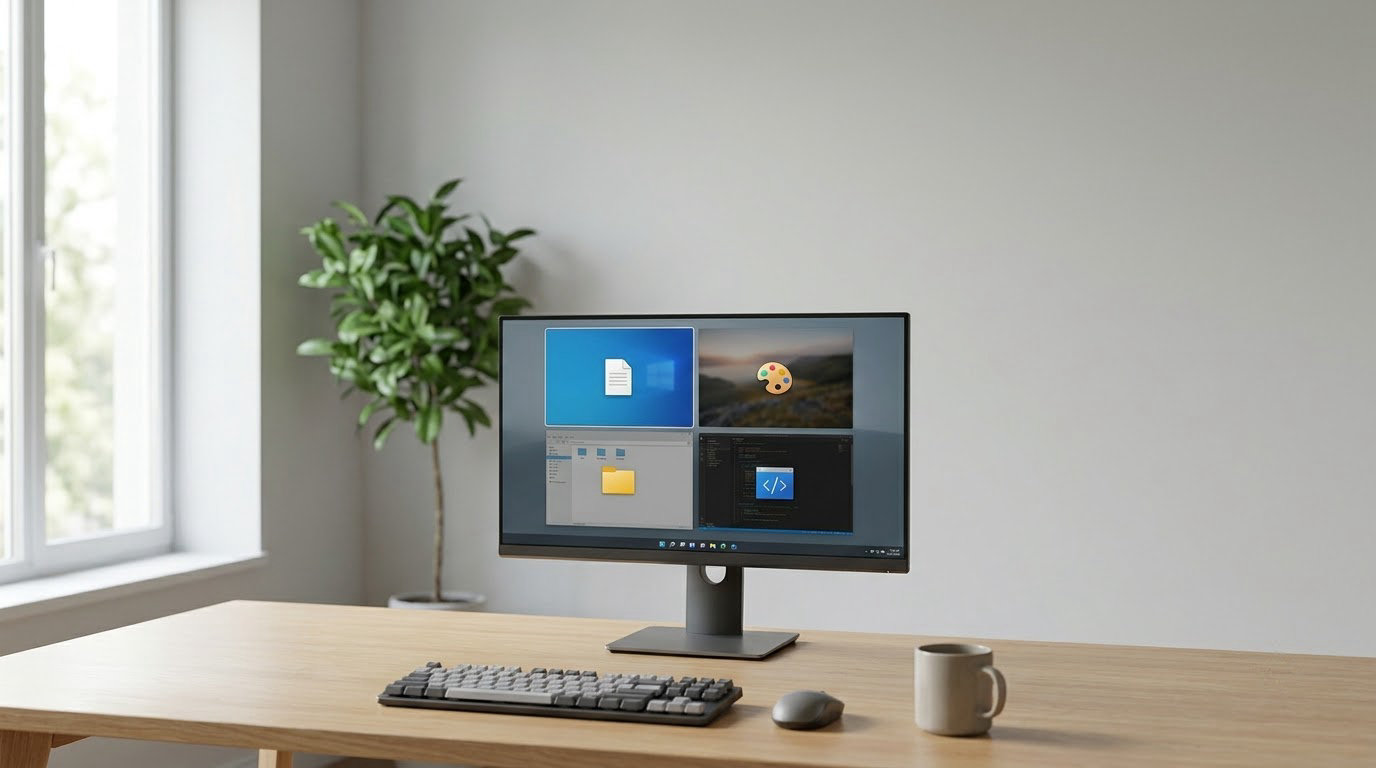
Windows lets you run several separate workspaces on one screen, and you move between them exactly the way you would click over to a second monitor. How to use multiple desktops in Windows comes down to four shortcuts and one button: press Windows Key + Ctrl + D to add a virtual desktop, Windows Key + Ctrl + ← or Windows Key + Ctrl + → to move between desktops, Windows Key + Tab to open Task View, and Windows Key + Ctrl + F4 to close the desktop you are on. The setup takes about two minutes.
The whole thing lives inside Task View, the strip of thumbnails that appears when you press Windows Key + Tab. Each thumbnail is a separate workspace with its own set of open windows and its own wallpaper. The apps on desktops you are not looking at keep running, they are just hidden until you switch back.
Useful when you are on a laptop and want a work set and a personal set without closing anything. Also useful on a big monitor, where a dedicated space for streaming tools or a space for writing keeps the clutter down.
Table of Contents
- What You Need
- Step-by-Step: How to Use Multiple Desktops in Windows
- Keyboard Shortcut Reference
- What Is Shared and What Is Separate
- Windows 11 vs Windows 10 Task View
- Desktop Setups Worth Trying
- Common Mistakes
- Do Multiple Desktops Slow Down Windows 11?
- Frequently Asked Questions
- Does closing a Windows virtual desktop close its apps?
- Can I have a different wallpaper on each virtual desktop?
- Why are virtual desktop previews missing from my taskbar?
- Do Windows virtual desktops increase computer performance?
- How do I move one app to another virtual desktop without switching?
- How do I reset all virtual desktops in Windows 11 or Windows 10?
- Conclusion
What You Need
The feature is built into Windows 11 and Windows 10, so there is no extra software to install. You need a machine with the Task View feature switched on, which is the default on both versions.
- Windows 11 or Windows 10 on a desktop or laptop. Virtual desktops are not a Microsoft 365 feature, they do not need an account or a subscription.
- A keyboard with a Windows key. Every core action has a shortcut, which is faster than hunting for a menu.
- Task View on your taskbar. In Windows 11 it is the icon with two overlapping rectangles, usually to the right of the search box. In Windows 10 it is the far-right button on the taskbar.
- About two minutes for the basic setup. No difficulty beyond that once you know where Task View lives.
If your keyboard is a laptop with a Fn key, the Windows key might be labelled with a Windows logo and sit next to Fn. Nothing special to change, just press it.
Step-by-Step: How to Use Multiple Desktops in Windows
Create Your First Virtual Desktop
New desktops come from Task View, and you can make one without opening Task View at all.
- Press Windows Key + Ctrl + D. A new empty desktop appears and you are switched to it right away.
- Or click the Task View button on the taskbar. In Windows 11 it is the two-overlapping-rectangles icon. A strip of desktop thumbnails appears, with a + button labelled New desktop at the end. Click it.
- Windows 10 users: look at the far right of the taskbar for Add a desktop, or press Windows Key + Tab and click the first thumbnail followed by Add a desktop.
You have succeeded when Task View shows a second thumbnail labelled Desktop 2. That label is the giveaway, and you can rename it later.
Open and Organize a Virtual Desktop
Click any thumbnail in Task View to jump to that desktop, then open the programs you want living there. A new desktop starts empty, which is the point.
Rename it so you know what it is for. Open Task View, hover over the thumbnail, click the More options three dots, choose Rename, and type something like Client work or Streaming. Hovering also gives you Snap group, which saves a set of arranged windows so one click restores the whole layout.
Give it its own wallpaper too. Right-click the desktop, choose Personalize, pick a background, and it applies to that virtual desktop only. In Windows 11 the same thing is Settings > Personalization > Background. Users coming from macOS Spaces usually ask for this first.
Move Windows Between Desktops
Moving a window is how you sort things after the fact, and there are three ways to do it.
- Hover method: press Windows Key + Tab, hover over a desktop thumbnail, then hover over the window you want. A Move to button appears in the top-right corner of that window thumbnail. Click it and choose the destination desktop.
- Keyboard method: click the window to focus it, then press Windows Key + Ctrl + → to send it to the next desktop, or Windows Key + Ctrl + ← to send it to the previous one. The shortcut acts on the focused window, so click the right one first.
- Drag method: in Task View, drag the window thumbnail onto another desktop’s thumbnail strip and drop it there.
Success looks the same in all three cases: the window is gone from the old desktop’s thumbnail strip and sitting on the new one.
You can also right-click a taskbar icon to see its window thumbnails, hover a thumbnail, and use Move to from there. That route works when Task View feels slow.
Switch Between Virtual Desktops
Task View with Windows Key + Tab shows every desktop as a row of thumbnails, and you click the one you want. That is the most obvious way and the best one for learning what exists.
For day-to-day use, the keyboard is faster. Windows Key + Ctrl + → moves to the desktop on the right, Windows Key + Ctrl + ← moves back. At either end of the row it stops rather than wrapping, so you always know where you are.
Hovering the Task View taskbar button gives you a small preview flyout of every desktop, and a quick click jumps straight to one. Some people pin several program windows to the taskbar and use those instead.
One expectation to set early: Alt+Tab only cycles windows on the current desktop. That is by design, not a bug, and it is the single biggest surprise for people switching from a Mac.
Rename, Rearrange, and Close Desktops
Close a desktop from the X on its Task View thumbnail, or with Windows Key + Ctrl + F4 while you are on it. Windows closes every window on that desktop, so anything unsaved gets a prompt first.
Reordering happens in Task View. Drag a thumbnail to the left or right past its neighbour and drop it. The order of your desktops changes and Windows Key + Ctrl + Left/Right Arrow follows the new order.
The desktop you are currently on is highlighted, and its thumbnail is the one at the top of the flyout preview. If two desktops look identical, that highlight is how you tell them apart.
Keyboard Shortcut Reference
These are the ones worth memorising. The mouse alternative is there for when your hands never leave the mouse.
| Action | Keyboard shortcut | Mouse alternative |
|---|---|---|
| Open Task View | Windows Key + Tab | Task View taskbar button |
| New desktop | Windows Key + Ctrl + D | Click + New desktop in Task View |
| Close current desktop | Windows Key + Ctrl + F4 | X on the thumbnail in Task View |
| Switch to the desktop on the right | Windows Key + Ctrl + → | Click a thumbnail in Task View |
| Switch to the desktop on the left | Windows Key + Ctrl + ← | Click a thumbnail in Task View |
| Move focused window one desktop over | Windows Key + Ctrl + → or ← | Hover window thumbnail, click Move to |
| Snap the focused window | Windows Key + Left / Right / Up Arrow | Hover the maximise button for snap layouts |
| Lock the machine | Windows Key + L | Start > Power > Lock |
| Show desktop | Windows Key + D | Click the far-right taskbar strip |
| Rename a desktop | No shortcut; hover thumbnail, three dots, Rename | Right-click thumbnail > Rename |
What Is Shared and What Is Separate
This is the part that trips people up, so it is worth being precise about it.
| Thing | Separate per desktop? | Notes |
|---|---|---|
| Open app windows | Yes | An app belongs to one desktop at a time. Moving it takes it out of the old one. |
| Background / wallpaper | Yes | Set per desktop through Personalize. |
| Desktop icons and folders | No | Icons sit on the real desktop and show on every virtual desktop. |
| Sound output | No | Background audio keeps playing regardless of which desktop you view. |
| Taskbar | Shown on all desktops by default | Right-click the taskbar > Task View, and turn off each desktop you do not want it on. |
| Monitors | No | One virtual desktop spans every connected display. There is no per-monitor assignment. |
| Existence after restart | No | Desktops are recreated on sign-in and your apps reopen only if you set that preference. |
That last row explains a recurring complaint: people close a desktop, sign out, come back, and find Desktop 1 and Desktop 2 waiting for them as empty shells. It is not persistence, just Windows rebuilding the same default pair.
The monitor row is the one worth internalising. Extend your laptop to two external displays and you still get one set of desktops stretching across both screens, not a separate desktop per monitor. People moving from a Mac, where each Space is tied to a display, hit this hard and assume something is broken. Nothing is, the feature simply works at a coarser level than Spaces does.
Windows 11 vs Windows 10 Task View
The shortcuts have not changed, but Task View itself looks different between the two versions, and older screenshots online tend to be wrong for one of them.
- The taskbar button. Windows 10 puts a single Task View button at the far right of the taskbar. Windows 11 replaces it with a two-overlapping-rectangles icon that normally sits near the search box, and the position is configurable in Taskbar settings.
- The desktop strip. Windows 10 stacks desktops horizontally along the bottom edge and opens a full Task View screen behind them. Windows 11 lays them out as thumbnails in a row near the top, and Win+Tab lands you straight on that overview screen.
- New desktop control. Windows 10 uses the Add a desktop button at the end of the strip. Windows 11 labels it New desktop with a plus sign, and Win+Ctrl+D skips the click entirely.
- Rename and snap group. Both versions let you rename from the three-dot menu on a thumbnail. Snap groups are available in Windows 10 and later, but in Windows 11 they pair naturally with the redesigned snap layouts, so a grouped desktop is easier to set up.
Coming from macOS? The mapping is close. Spaces becomes virtual desktops, Mission Control becomes Task View, and Ctrl+Arrow to move between Spaces becomes Windows Key + Ctrl + Left or Right. The one real difference is the monitor behaviour described above, plus Alt+Tab being limited to the desktop you are on.
Desktop Setups Worth Trying
Two desktops is the starting point, not the destination. A few arrangements that hold up in real use:
- Work and personal. Desktop 1 keeps mail, calendar, documents and the work chat. Desktop 2 holds everything else. Switching one becomes a clean break, and nobody on a call sees your personal tabs.
- Meeting mode. A desktop with only the call window and a notes document. Share that single window, close it, and your working set is exactly where you left it. On a laptop this beats minimising everything mid-call.
- Deep focus. An empty desktop with the one app you are working in, no taskbar clutter, no notifications from other windows. Snap it to one side, keep a reference document on the other.
- Streaming or gaming. Capture tools, chat, and scene lists on one desktop, the game or recording target on another. Switching to record is one shortcut instead of a hunt through overlapping windows.
- Testing on several client machines. Remote desktop sessions and admin tools for each client on their own desktop. Switching client becomes a keyboard press rather than a scan through the taskbar.
Give the desktops real names once you have more than two. A row of thumbnails labelled Desktop 3 and Desktop 4 tells you nothing, while Client A and Client B tell you everything at a glance from the flyout preview.
Common Mistakes
Apps vanish after closing a desktop. Closing a desktop closes the windows on it. Anything with unsaved work prompts you first, but a browser with several tabs closes quietly. Move what you want to keep before you close.
Windows keeps opening new desktops by itself. Some software creates one when it launches a full-screen app, and Windows sometimes restores one after an update. Open Task View and close the extras with the X.
Task View button is missing from the taskbar. Right-click the taskbar, choose Task View to switch it back on. If the whole taskbar looks wrong, right-click the taskbar and choose Taskbar settings, then set Task View to On under Taskbar items.
Windows Key + Tab does nothing. Start with the taskbar fix above. If Task View still refuses to open, restart Windows Explorer: open Task Manager, find Windows Explorer, right-click it and choose Restart. Your open windows stay, the shell reloads.
You closed the wrong window. Keyboard move shortcuts act on whichever window has focus. If the window you meant did not move, the other one did, and it is now on the desktop to the right.
Alt+Tab looks broken. It is scoped to the current desktop. Switch desktops first, then Alt+Tab inside it.
An IT policy has disabled virtual desktops. Some managed work machines block the feature entirely. If Task View does not appear at all and you are not admin, that is the reason, and only an administrator can change it.
Do Multiple Desktops Slow Down Windows 11?
Marginally, yes, and usually not enough to notice. Each virtual desktop holds its own set of running windows, so more desktops with more open apps means more memory in use, and on a machine already close to its limit you may see slower switching.
What does not change is your hardware. You get more workspaces, not more processing power, and each extra desktop with heavy apps open is essentially another set of programs competing for the same RAM and GPU. On a modern laptop with a handful of apps, the cost is small. On an older machine with twenty browser tabs per desktop, it shows.
The good news is the overhead is easy to control. Close desktops you are not using, and their windows close with them.
Frequently Asked Questions
Does closing a Windows virtual desktop close its apps?
Yes. Closing a virtual desktop closes every window running on it, which is why apps seem to disappear when you remove a desktop you forgot about was using them. Programs with unsaved changes prompt you first, so you rarely lose work. Anything with no unsaved state closes silently. Move the windows you want to keep to another desktop before closing, or just leave the extra desktop in place.
Can I have a different wallpaper on each virtual desktop?
You can, and it is one of the first things people set up. On the desktop you want to change, right-click the background, choose Personalize, and select a picture; in Windows 11 the path is Settings, then Personalization, then Background. That image sticks to that virtual desktop only, while other desktops keep theirs. Desktop icons, however, are shared across every virtual desktop.
Why are virtual desktop previews missing from my taskbar?
Usually the Task View button itself has been switched off. Right-click an empty spot on the taskbar and choose Task View to turn it back on, or open Taskbar settings and set Task View to On under Taskbar items. If the button is there but hovering does not show previews, restart Windows Explorer from Task Manager, which resets the shell without closing your programs.
Do Windows virtual desktops increase computer performance?
No, they do not add processing power. Each desktop keeps its own windows running in the background, so more desktops with more apps open means more memory and GPU in use, which can make switching feel slower on an older machine. What they do improve is organisation on one screen, which often feels like a speed-up because you stop hunting for the right window.
How do I move one app to another virtual desktop without switching?
Open Task View with Windows Key + Tab, hover over the desktop thumbnail the app is on, then hover over the app’s own thumbnail inside it. A Move to button appears in the corner, and clicking it opens a menu of your other desktops. Pick one and the app moves. You stay on the desktop you were viewing, so nothing else on screen changes.
How do I reset all virtual desktops in Windows 11 or Windows 10?
There is no single reset command, so you close them one at a time. Open Task View with Windows Key + Tab and click the X on each thumbnail except Desktop 1. Closing them one by one matters because apps on those desktops close too, so save your work first. Windows will not keep your extra desktops across a restart, so they reappear only if an app recreates them.
Conclusion
Start with the fastest route: press Windows Key + Ctrl + D, then Windows Key + Tab so you can see both desktops side by side. Rename the new one for whatever you actually juggle, a client project, a writing block, streaming tools, whatever your version of clutter looks like, and move the windows that belong there with Windows Key + Ctrl + →.
Everything after that is refinement: different wallpaper per desktop, a snap group saved to the thumbnail, and an honest look at which desktops you can close. Windows 11 and Windows 10 both handle all of it with no extra software, and 2026 releases keep the same four shortcuts in the same place.