
Writing alt text that helps SEO is a description problem, not a keyword problem. Look at the image, decide what it adds to the page, and write one plain sentence that names the subject and its purpose in roughly 125 characters or fewer.
That takes about thirty seconds per image once you have the pattern. Most advice on this topic is written by people selling alt-text tools, which is why it pushes detail and keywords when what search engines and screen readers actually want is an honest sentence about the picture.
Below is the process I use on my own posts and on client sites, in five steps, plus the mistakes that keep coming up and the questions people ask most.
Table of Contents
What You Need
You do not need specialist software. Alt text is a text field that belongs to the image itself, and everything you need to fill it in correctly is already on the page. What you need is a clear view of the picture, its surroundings, and the point of the page it sits on.
- The image at full size. Open it rather than judging it from a thumbnail in your media grid. Detail you cannot see at 300 pixels is detail no one needs in an alt attribute.
- The context around it. The heading above, the caption below, the paragraph it sits beside. The same photograph means something different next to step three of a tutorial than it does next to step four.
- The page topic. Alt text reads better when it matches what the page is about. If you cannot describe the image without squeezing in a keyword, the image is usually the thing that needs fixing.
- A way to edit it. Any CMS gives you this: the media panel in WordPress or Elementor, the alt field on a Shopify product image, the image settings panel in Squarespace, or the img tag if you write the markup yourself.
- A spreadsheet, once you pass about a hundred images. Tracking what has been described and what has not matters more than the writing itself at that stage.
That is the whole kit. Audit tools are useful later, for finding gaps across a large library, but you do not need one to write a good alt attribute.
How to Write Alt Text for Images That Helps SEO Step by Step
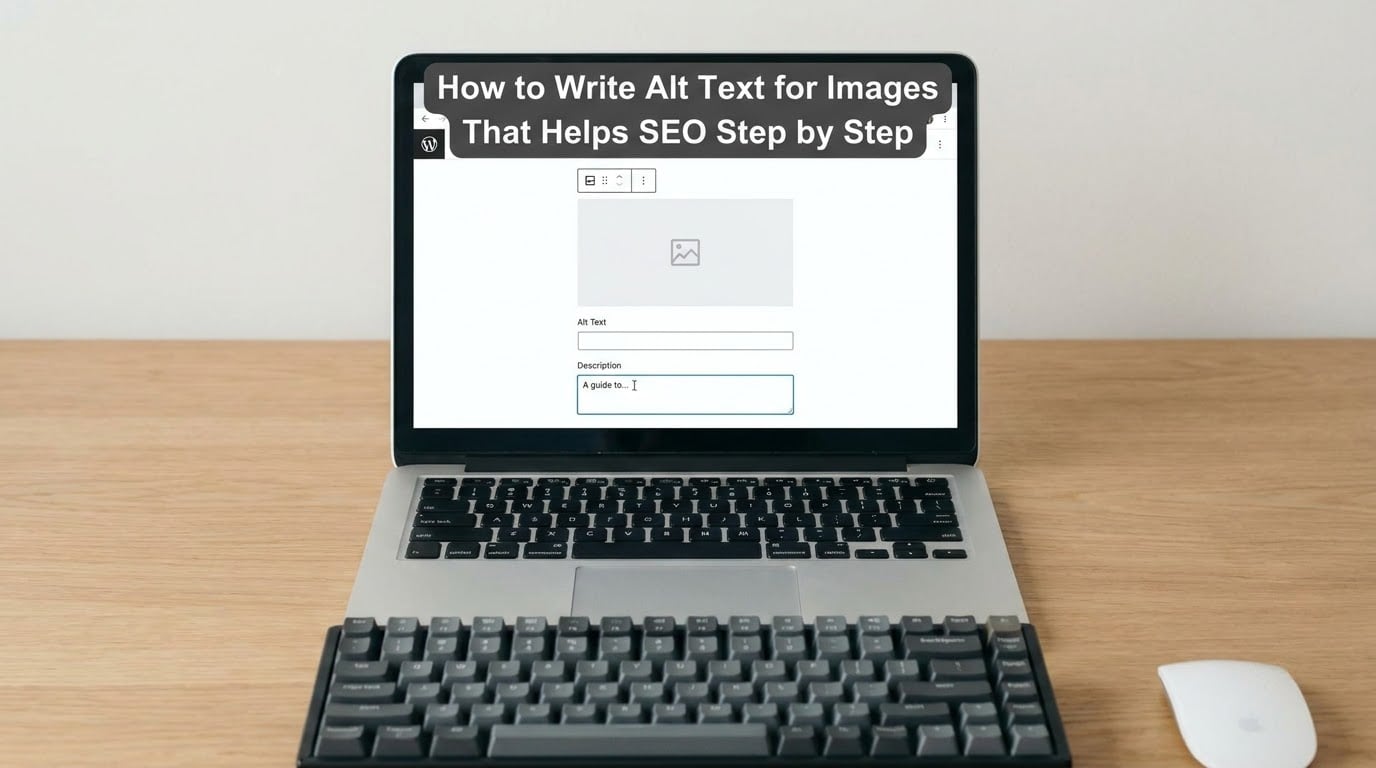
Run these five steps in order for every image: work out why the image is on the page, describe it in plain words, add the one detail only the picture can give you, trim it to about 125 characters, then read it back against the page before you publish.
Step 1: Understand Why Alt Text Matters
Alt text exists in one field and does two jobs at once. Screen readers read it aloud so a blind or low-vision visitor knows what the picture contains, and search engines read the same text to understand what an image shows and where it fits on the page.
It also does two smaller jobs. If an image fails to load, browsers display the alt text in its place, so a visitor at least knows something was there. And if an image sits inside a link, the alt text becomes the accessible name for that link, which means it describes where the link goes rather than what the picture looks like.
Be honest about the SEO side. Google treats alt text as an accessibility feature that happens to give search engines context, not as a ranking lever you can pull. John Mueller has said much the same thing in his own words: write alt text so it is genuinely useful, and the search benefit arrives on its own.
Step 2: Look at the Image and Its Context
Before you type anything, sort the image into one of two groups. Ask one question: if this image disappeared right now, would the page lose information a reader needs? If yes, it is informative and needs real alt text. If no, it is decorative and needs an empty alt attribute instead.
A screenshot showing a setting you are telling readers to change is informative. The background texture behind a section heading, a divider line, a purely decorative icon next to text that already says the same thing — those are decorative.
Then read the surroundings. The nearest heading tells you what the image is meant to prove. A caption tells you what the page already says, so your alt text does not need to repeat it. And a link wrapper tells you whether you are describing a picture or a destination.
Step 3: Write a Specific, Concise Description
Write the subject first, then the action or state, then the detail that matters. One sentence, no preamble, plain words. A usable template is: [subject] [doing or being] [the detail that matters].
Compare these three. A file called DSC_4471.jpg with no description at all gives a screen reader nothing. Alt text reading "image of" followed by the title of the post gives a listener the words "image of" before they get any information. Alt text reading "Alt text field open in the WordPress media panel with a short description typed into the Alternative Text box" gives them the whole picture in one breath.
Skip the openings that waste characters. "Image of," "picture of," "photograph showing" and "graphic of" all add length without adding meaning, because a screen reader has already announced that an image is there. Front-load the subject so the important words land first.
One sentence is the target. Two short sentences are fine for something complex like a diagram, but if you find yourself writing a paragraph, the extra material belongs in the caption or the surrounding copy.
Step 4: Add Context When the Image Needs It
Some images only make sense with a little extra. For a chart, the alt text should give the takeaway rather than list the axes: "Bar chart showing monthly signups rising from 400 in January to 1,900 in June, with the sharpest jump in March." For a screenshot in a tutorial, describe the step and the result rather than the colours and layout.
Product photos want the identifying details a shopper would use to tell two similar items apart. A pair of trainers photographed on a plain background needs more than "red shoe" — colour, material, cut and the view you are showing. For an infographic, name the point it was built to make.
For images inside links, flip the wording. The alt text is the anchor text, so describe the destination: "Read the full alt text audit walkthrough" beats "link to another blog post." For a logo, the brand name is usually the entire answer.
Step 5: Review for SEO, Accessibility, and Clarity
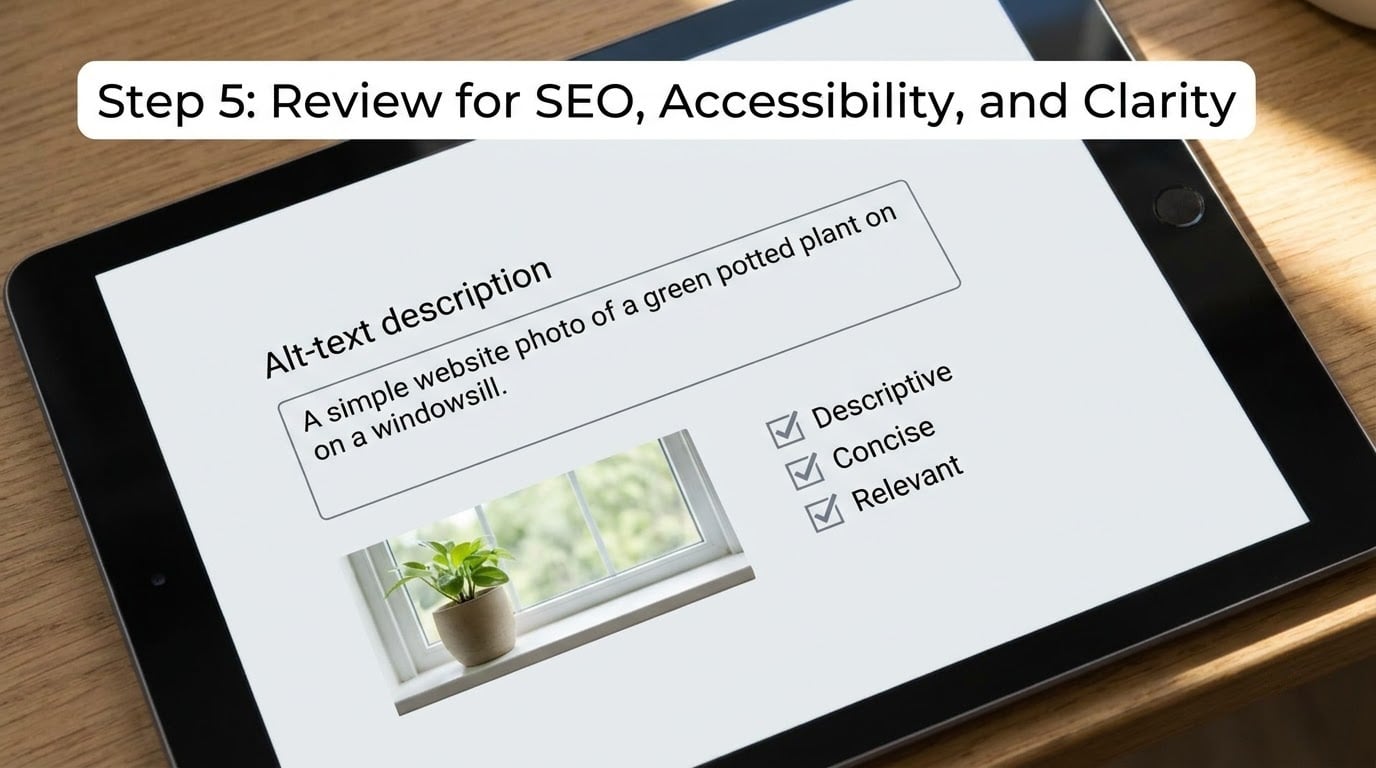
Read the finished alt text back next to the image and the page. This short pass catches almost everything that goes wrong. Work through these checks before you save:
- Is it accurate? Every word describes something actually visible in the picture.
- Would someone who cannot see the image understand what the page is doing here?
- Is it unique on the page, or did you paste the same sentence into five images?
- Is it under about 125 characters and free of keyword repetition?
- Does it say something the caption does not already say?
- Does it start with the subject instead of "image of"?
- Is this image actually informative, or should the alt attribute be empty?
If a check fails, fix that line and move on. Alt text is fast to write, but only worth writing once.
Common Mistakes
These are the errors I see most often, and each one has a straightforward fix.
- Leaving informative images empty. A missing alt attribute is the single most common problem, and the easiest to fix. A screen reader announces the file name instead of a description. Fix: write the sentence from Step 3 for anything that carries information.
- Pasting the file name into the field. "DSC_4471-final-v2.jpg" describes your camera, not your content. Fix: rename the file descriptively in the first place, then write proper alt text separately — the two are not the same job.
- Stuffing the target keyword. Repeating the exact phrase reads as spam to people and to search engines, and it is the reason some alt text sounds like a robot wrote it. Fix: if the keyword genuinely names the subject, it is already there. If you have to force it, the sentence is wrong.
- Writing 300 characters. Long descriptions get interrupted or skipped by screen reader users, so the effort is wasted. Fix: keep the essential clause, move the detail to a caption or adjacent paragraph.
- Copying the caption into the alt attribute. Listeners then hear the same sentence twice. Fix: caption describes the image for sighted readers in context; alt text describes it for someone who cannot see it.
- Labelling decorative images. Alt text on a divider or a background flourish makes screen reader output noisier for no gain. Fix: use an empty alt attribute so the image is correctly skipped.
- Describing a link’s picture instead of its destination. Because the alt text becomes the link’s accessible name, "read more" beats "person pointing at a document." Fix: name the action or the page the link leads to.
- Writing only for the search engine. If a human reading it aloud would stumble, it is too long, too clever, or stuffed. Fix: read it out loud once, then trim.
Frequently Asked Questions
How long should alt text be?
Aim for about 125 characters or fewer, and treat 50 to 125 characters as the practical range. Screen reader users get interrupted or skip anything longer, so a description past that point usually belongs in the caption or the surrounding paragraph instead. Length matters far less than accuracy, but staying inside the range is what makes the difference between alt text people listen to and alt text they skip.
Should I put keywords in alt text?
Only when the keyword genuinely names what is in the picture. If your article is about hiking boots and the photo shows brown hiking boots on a rock, the phrase is already there without effort. Deliberately repeating an exact-match phrase, or listing several keyword variants in one attribute, reads as spam to readers and to search engines. Describe the image honestly and the keyword usually takes care of itself.
Do decorative images need alt text?
Decorative images should have an empty alt attribute rather than no attribute at all. A missing attribute makes some screen readers read out the file name aloud, which is noise for the listener. An empty attribute tells assistive technology to skip the image entirely. Use it for dividers, background textures, spacer graphics and any icon that sits next to text already saying the same thing.
What should alt text be for a logo?
The brand name, on its own, is usually the correct answer. If the logo appears in a spot where the name is not obvious from the surrounding page, add a few words describing the site or company, such as the brand name followed by a short phrase identifying the business. What you should not do is describe the shapes, colours or design of the logo, because nobody needs that information to use the page.
Does alt text actually improve SEO?
It helps, but not in the way most blog posts claim. Search engines cannot read the pixels of an image, so the alt attribute tells them what the image shows and how it relates to the page, which supports image search and topical relevance. It is not a direct ranking factor, and no one can show you a traffic figure proving otherwise. John Mueller at Google has consistently described it as an accessibility feature first, with the search benefit as a side effect.
Should I use AI to write alt text?
Use it as a first draft, never as the final word. Tools produce a plausible description of what they see in the picture, which is a decent starting point, but they will happily invent details, repeat marketing phrases, and miss the part of the image that actually matters in your context. John Mueller has cautioned against relying on AI for this. Read every suggestion, correct it against the real page, and write nothing you would not say out loud.
Conclusion
Start with the next image on your page, not the whole site. Look at it, ask whether the page would lose information without it, and write one sentence under 125 characters that says what it is and what it is doing there. Do that for a single post and the pattern sticks; after that, knowing how to write alt text for images that helps SEO is just repetition.