Preparing for a remote job interview means treating your setup with the same seriousness as your answers: test the connection, camera and microphone a day ahead, build a quiet and well-lit frame, and practice saying more with less. Most candidates spend their preparation time on content and discover a bad microphone twenty minutes before the call starts.
Here is the honest version. The whole preparation process takes about two hours spread over the day before, plus fifteen minutes on the morning itself. If you follow the seven steps below in order, the technical part stops being a source of anxiety and becomes background noise.
One more thing worth saying up front. A video interview is not a filmed in-person interview. You can see the interviewer’s face but you cannot read the room the way you would across a desk, and small nerves read much more loudly on camera. Knowing how to prepare for a remote job interview properly means accounting for that difference.
Table of Contents
- What You Need to Prepare for a Remote Job Interview
- Step-by-Step: How to Prepare for a Remote Job Interview
- Common Mistakes
- Frequently Asked Questions
- What do I do if my internet cuts out during a remote interview?
- Can I use my phone for a remote job interview?
- Should I use a virtual background for a video interview?
- What should I wear for a remote job interview?
- How early should I join a remote interview?
- Do interviewers judge the setup of my home office?
What You Need to Prepare for a Remote Job Interview
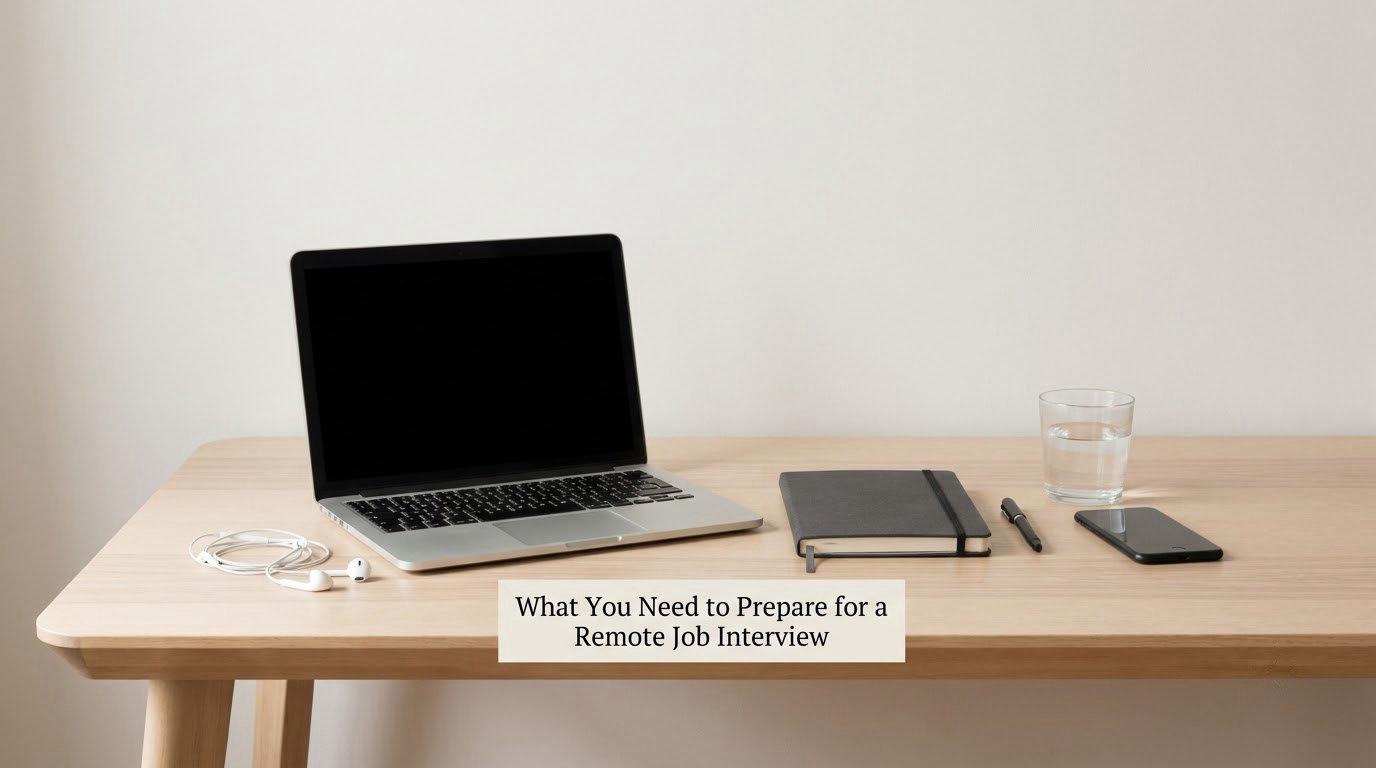
The shortlist is smaller than most guides make it sound. You need a working computer, a connection that holds a video call, a camera and microphone that are good enough to be understood, and the meeting details. Everything else is a nice-to-have that makes things smoother.
Required
- A computer you control. Your own laptop or desktop, with the charger plugged in. A borrowed machine is a gamble you do not need to take.
- A connection that holds video. Aim for 10 Mbps download and 5 Mbps upload. Wired ethernet beats Wi-Fi when you have the option.
- A camera and microphone that work. The built-in ones are fine for a quiet room. A cheap external USB microphone fixes the most common complaint interviewers have.
- Wired earbuds or a headset. These cut echo and background noise better than your laptop speaker ever will.
- The meeting link and platform. Zoom, Microsoft Teams or Google Meet, depending on what the invitation says. Install or update it ahead of time.
- Your resume. On screen for you to read from, not shared on a second monitor where you will end up reading it instead of looking at the camera.
- The job description. Printed or on a second device, with the requirements underlined.
- A backup. A phone number and an email the recruiter can reach you on if the call breaks. A mobile hotspot is the second layer if you have one.
Optional but helpful
- A laptop stand or stack of books to raise the camera to eye level. This is the single cheapest thing you can do for how you look on camera.
- A ring light or a desk lamp pointed at your face, if your room is dim.
- A glass of water and a pen within arm’s reach, so you are not standing up mid-answer.
- A second copy of your resume saved locally as a PDF, in case the email link fails.
The 15-minute pre-interview checklist
Run through this the day before. If every line is ticked, your remaining prep time goes to answers rather than troubleshooting.
- Meeting link opens and the name I join with is professional
- Camera and microphone permissions granted
- Speed test run on the same network I will use on the day
- Camera at eye level, light on my face, background clear
- Resume open on the laptop, job description on the phone or printed
- Phone on silent, notifications off on the laptop, unrelated tabs closed
- Backup phone number and email ready to send
- Household told not to interrupt for the hour
Step-by-Step: How to Prepare for a Remote Job Interview
Work through these in order over the day before, then finish with the short rehearsal on the morning of the call. Each step ends with a way to confirm it worked, because a setup step you never verified is just a guess.
1. Confirm the Interview Details
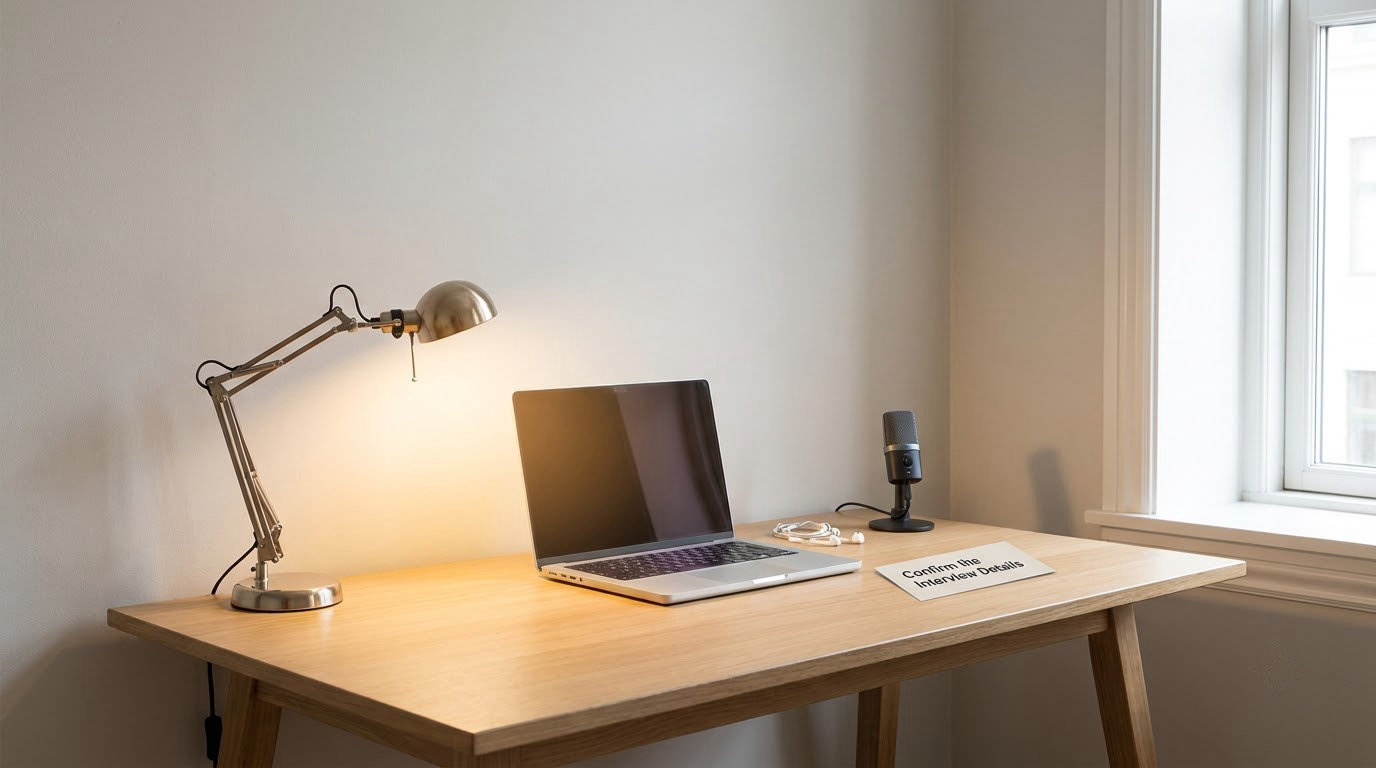
Reopen the invitation and read every line: the date, the time and its time zone, the link or dial-in number, who will be on the call, how long it should run, and whether you are expected to install anything or submit anything in advance.
The time zone is where candidates get caught. If the invitation says 2:00 PM and does not say whose time that is, convert it yourself, write both versions down, and set your phone to show the interviewer’s time zone as a second clock. You will also want to know whether the interview is one-on-one or a panel, because that changes how you prepare your questions and your notes.
Then ask one clarifying question now, before the day. Whether it is about the format, the length, or whether they want a portfolio open, a recruiter will always answer. Add the call to your calendar straight away with a reminder set for ten minutes before, not for the start time itself.
How to confirm it worked: you can state the interview time in two time zones, you know who is attending, and you have a link that opens on the device you plan to use.
2. Test Your Internet and Backup Options
Run a speed test on the exact network you will use, ideally at roughly the same time of day as the interview. Ten megabits per second down and five up is a reasonable target for a stable video call with one other person on screen. Below that, video will start dropping to audio and the call will feel like your fault even though it is the network’s.
If you are on Wi-Fi, get as close to the router as you can, restart it the day before, and check whether anyone else in the house will be streaming or gaming during your slot. Plugging in with ethernet, even for the twenty minutes you need, removes an entire category of problem.
Also update the operating system, the browser and the video app while you are at it. Updates that restart on their own at 10:01 AM are a well-known way to lose a first impression. If your machine has been running for months, restart it now rather than during the interview.
Set up the fallback: a charged phone with the interviewer’s number and the meeting link ready in it, and an email address you can send from another device. Know what you would say if the call drops, which is usually something like “I appear to have lost connection, may I rejoin the link?” Most interviewers have heard it before and will simply wait for you.
How to confirm it worked: the speed test passes, the machine has been restarted, and you could rejoin the call from your phone within a minute if the laptop died.
3. Set Up the Interview Platform
Install or update the platform named in the invitation, then sign in. Use the desktop app where it exists rather than the browser tab, because browser tabs compete with twelve other open tabs for bandwidth and CPU.
Find the audio and device settings for the specific platform you are using, since the labels differ between them. In Zoom it is Audio, Video and then the arrow beside the device name; in Teams it is the device settings menu in the top bar; in Google Meet it is the three-dot menu, then Devices. Set your microphone to the external one if you have it, and turn on noise suppression or auto gain control only after you have recorded a test, because aggressive noise suppression can cut the start of your words.
Check the video preview for a second or two: is the image sharp, is the framing right, is anything on the wall behind you that should not be there. Then check the speaker output, because a silent laptop when you cannot hear the interviewer wastes everyone’s time.
Ask the platform for a test link if it offers one. Zoom, Teams and Google Meet all let you join an empty meeting room and see exactly what the other side will see, which is more reliable than trusting the settings screen.
How to confirm it worked: you have joined a test room, your face and voice came through clearly, and the audio settings show the device you expect rather than the default one.
4. Prepare a Distraction-Free Workspace
Choose the quietest, best-lit spot in your home and clear the frame behind you. A blank wall, a tidy bookshelf or a curtain is plenty. Interviewers are not judging your furniture, but a cluttered background makes it hard for them to focus on what you are saying, and it is the thing candidates worry about most for no reason.
Clear the desk itself too. Put your notes within reach at roughly eye level rather than flat on the desk, so glancing at a keyword does not pull your eyes out of frame. A few large keywords on sticky notes work better than a full paragraph of text.
Tell everyone in the house. That is the unglamorous step that saves the most interviews. If you have children, arrange a specific activity for the interview window rather than hoping. If you have a dog, take the dog out beforehand. If a roommate is home, tell them the exact time and ask them to keep the hallway quiet.
On the computer: silent the phone, switch the laptop to do-not-disturb, close everything unrelated including email and chat, and sign out of anything that might ping you mid-call. Turn off self-view if it makes you stare at your own face instead of the camera, which is a genuine problem for a surprising number of people.
How to confirm it worked: you sat in the spot for five minutes and heard no noise you would not want an interviewer to hear.
5. Check Audio, Lighting, and Camera Quality
Ask someone to listen from another room while you talk for thirty seconds, or record yourself with the platform’s own test and play it back. Echo, a hollow voice, or background noise at low volume are obvious on playback and almost invisible while you are sitting there.
For lighting, the rule is simple and hard to get wrong: put the light in front of you, facing your face, never behind you. A window behind your head turns you into a silhouette, and interviewers genuinely cannot read your expression in that situation. Sit sideways to a window instead, or add a desk lamp or ring light opposite the camera. Close the curtains if daylight creates hard shadows across your face.
For framing, raise the camera to eye level and sit so the camera catches you from mid-chest upward. Most laptop cameras sit far too low, which tilts you into a ceiling-facing angle and makes you look smaller and less confident than you are. A stack of books under the laptop costs nothing.
Skip virtual backgrounds in most cases. The edge detection chews into hair, glasses and shoulders, and interviewers read that artifact as sloppy. If your room is genuinely unusable, a plain wall or a curtain you can hang behind you works better than the effect.
How to confirm it worked: a thirty-second recording sounds clean with no echo, your face is evenly lit and bright, and the camera sits at your eye level.
6. Practice Your Answers and Interview Setup
Video calls reward shorter answers than in-person conversations do. Aim for 60 to 90 seconds for a behavioural answer and about 30 seconds for a simple question. In person you have a room’s worth of body language to fill the gaps; on camera you have a face, so the same answer that took two minutes feels like a monologue.
Prepare the remote-specific questions that in-person interviews rarely ask. Expect to be asked how you stay productive without anyone watching you, how you communicate when a teammate is nine time zones away, how you handle a project when the requirements change, what your availability and overlap hours look like, and what questions you have about how the team works remotely. That last one is not small talk; how a team runs its remote days tells you whether you want the job.
Run at least one practice project through the STAR structure: situation, task, action, result. One well-prepared story beats five vague ones, and it is the story you will need for the follow-up email later.
Then do one short mock interview on the actual platform, ideally with someone else. If you cannot find anyone, record ten minutes of yourself answering four questions and watch it back with the sound on. Almost everyone discovers the same two problems: they look away when thinking, and they talk too fast when nervous.
How to confirm it worked: you can answer “tell me about yourself” in about 90 seconds without rambling, and you have at least two STAR stories ready.
7. Do a Final Rehearsal
About fifteen minutes before the start time, open the link and join the waiting room. Two to 3 minutes early is right. Ten minutes early is fine if the invitation explicitly says to join early, and it does no harm if the room is empty, but sitting in a waiting room for ten silent minutes helps nobody.
Confirm the camera and microphone are the ones you chose, check that your resume is open and your notes are where you left them, and put water and a pen within reach. Turn off anything that could pop up a notification over the top of the call.
During the call itself: stay muted until you are invited to speak, then unmute and say your name first so they know who is there. Look into the camera during introductions and short answers, and glance at the screen when you need to check a detail. Do not read your resume out loud, and do not leave the call when something breaks, because you can only hear half of what is being said.
Send a short thank-you note within 24 hours. Mention one specific thing from the conversation, add anything you forgot to say, and keep it under 150 words.
How to confirm it worked: you joined the room, saw and heard yourself, and had your resume and notes open before the interviewer came in.
Common Mistakes
The most common remote interview mistakes are all technical, and almost all of them are preventable with an hour of preparation the day before. Here is the list, with the fix attached to each one.
- Testing the setup on your phone instead of the computer. Your phone will not run the interview. Test on the exact device and platform you will use.
- Waiting until the last minute to update software. Updates restart at the worst moment. Restart and update the day before.
- Sitting with a window behind you. Backlighting turns your face into a dark outline. Move so the light falls on your face.
- Ignoring echo and room noise. Record a 30-second test and listen back. Wired earbuds fix most of it.
- Keeping the laptop camera at desk level. Raise it to eye level so you are not filmed from underneath.
- Having only one copy of your resume. Keep a local PDF on the laptop and a copy on your phone.
- Wearing something casual below the waist only. Dress fully. People stand up mid-call more often than you would think.
- Looking at the interviewers’ faces on screen the whole time. You will look like you are watching a documentary. Look at the lens for short answers.
- Using a virtual background with a busy pattern. The edge artifact is distracting. A real plain wall wins.
- Leaving notifications on. Silent the phone and switch the laptop to do-not-disturb before you join.
- Giving in-person-length answers on video. Keep behavioural answers to 60 to 90 seconds.
- Using an unprofessional username. Change it to your real name; recruiters see it in the waiting room.
- Skipping the backup plan. Keep a charged phone with the link and the recruiter’s number ready.
- Letting one bad glitch derail you. Say what happened, rejoin, and carry on. Interviewers judge recovery, not perfection.
- Stacking three remote interviews in one day. Interview fatigue is real and it shows. Ask for space between them when you can.
Those mistakes are technical, but two non-technical habits matter just as much. Answer the question that was asked before adding context, and keep your answer length honest about what you actually know rather than padding it.
And do send that thank-you note. A short, specific message the next morning is one of the cheapest advantages available to you, because most candidates do not send one at all.
Frequently Asked Questions
What do I do if my internet cuts out during a remote interview?
Say it out loud so the interviewer knows what happened: I appear to have lost connection, may I rejoin the link. Most people freeze and go silent, which looks worse than a short gap. Keep your phone with the meeting link open, and if the wifi is genuinely down, switch to mobile data or a hotspot. Come back within a minute or two and pick up where you left off.
Can I use my phone for a remote job interview?
Only if the employer confirms it in advance. A phone screen gives a poor view of your face, makes note-taking harder, and puts you at the mercy of mobile signal. If the invitation offers no other option, treat it as a sign to ask whether a computer-based interview is available instead.
Should I use a virtual background for a video interview?
Usually no. Background blur and replacement cut out badly around hair, ears and glasses, and the artifact is visible to the other side. Interviewers do read it as sloppy. If your room is unusable, spend twenty minutes clearing a wall or hanging a plain sheet behind you, which produces a far better result than any effect.
What should I wear for a remote job interview?
Business casual, and dress the full outfit rather than just the top. A solid shirt or blouse with a collar works, plain colours photograph better than busy patterns. You do not need a suit unless the company says so, but you also should not wear anything you would not wear to the office, because you may need to stand up at some point.
How early should I join a remote interview?
Two to three minutes early. Joining ten minutes before is usually unproductive, since you sit in a waiting room with nothing to do. Use those two minutes to confirm your camera, microphone, notes and resume are all in place, and to check that you are in the right meeting rather than a lobby.
Do interviewers judge the setup of my home office?
Some of them do, whether they mean to or not. Candidates repeatedly report that a tidy space and a connection that never dropped moved them forward to a second round. You do not need a dedicated office room, but a clear background, steady audio and steady video signal show that you can work independently, which is exactly what a remote role requires.
Start with the hour that matters most: the day before. Confirm the details, test the platform, check the audio and lighting, and clear the background. On the morning, join two minutes early, mute until you speak, look at the lens for your short answers, and send a specific thank-you note within a day. That is the whole preparation method, and it is enough.