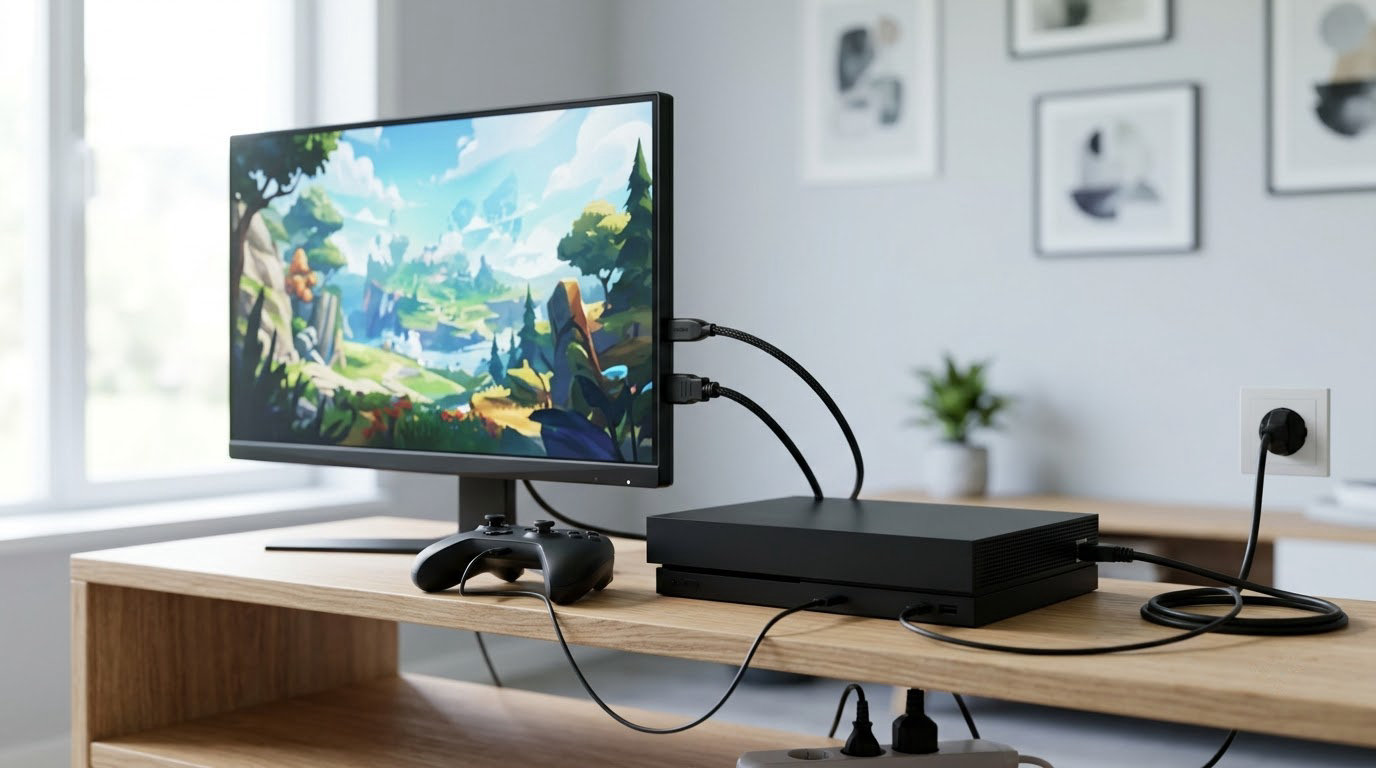
Input lag is the gap between pressing a button and seeing the result on screen, and on a console most of it comes from the television and the controller link rather than the console itself. To set up a console for the lowest input lag, you switch the display into its low-latency game mode, run both the console and the television at the highest refresh rate they share, and use a wired controller connection. The full job takes about ten minutes for most people.
Three levers do most of the work: game mode on the display, a 120Hz output setting, and a wired controller. Everything after that is trimming, and this guide walks through the order that works so you are not switching five menus for a two-millisecond gain and giving up halfway.
A note on expectations before we start. Zero input delay is not physically possible on any setup. At 60Hz each frame lasts 16.7 milliseconds, so a press and its on-screen result can never land in the same frame. Under about 20ms feels sharp, 20 to 40ms is playable for most games, and above 50ms aiming and blocking start to feel disconnected from your hands.
Table of Contents
What You Need
You need the console, the display it connects to, one controller, and ten minutes. That is genuinely the whole list, but each item has a check worth doing before you change a single setting.
- The console and its controller, both on their latest firmware. On PS5, Settings > System > System Software > System Software Update. On Xbox, Power > Quick Settings > Updates. On a controller, most consoles check for pad updates in the same background pass.
- A display that can run at least 120Hz, or at least a display with a game mode you can switch on manually. Console output never exceeds what the panel can show, so a 60Hz television physically cannot give you a 120Hz image.
- A wired controller connection if your pad supports it. Most current pads charge and play over a single USB-C cable.
- The right HDMI port on the display. On most televisions the port labelled HDMI 2.1 or the one marked for gaming is the fastest one, and it is often not port 1.
- An internet connection long enough to pull the firmware, plus a free port if your receiver or soundbar sits between console and screen.
Check the refresh rate label in your television’s specs before you start. If it says 120Hz for the input you plan to use, you can get the full benefit. If it says 60Hz only, the game mode settings in this guide still help, and so does a wired controller, but you are working with less headroom.
Step-by-Step
Step 1: Update the Console and Controller
Update first, because firmware fixes land in patches and an unpatched console is what most people are measuring. Install the console update, let it restart on its own rather than pulling power, and then check the controller again from the same settings screen.
If the console sits in rest mode with automatic downloads enabled, a controller can pick up its own update only when that update has already downloaded. So finish the console update, restart fully, and check the pad afterwards.
Step 2: Connect the Controller and Display Correctly

Plug the controller into the console with a USB cable rather than pairing it over Bluetooth, and connect the console to the television’s fastest HDMI port directly. Skipping the receiver or the switch box removes a device that reprocesses every frame, and that device is often the single largest source of delay in a home setup.
On the television, switch the input to the port you actually used. This sounds obvious, but a console sitting on HDMI 2 while the picture is coming from HDMI 4 is a common reason people conclude their settings change did nothing.
Step 3: Use the Highest-Performance Display Mode

Now set both sides to the fastest mode the hardware supports. On PS5, go to Settings > Screen and Video > Video Output Information and confirm it reads 2160p or 1080p at 120Hz; if it reads 60Hz, the television is not offering 120Hz on that port, or the picture mode is off.
On Xbox Series X|S, open Settings > General > TV and display options, and check that the resolution and refresh rate fields show your panel’s maximum. If your display and the console both support it, set the refresh rate to 120Hz and leave Variable Refresh Rate on.
Switch-family consoles expose high refresh rate output through their display options, and whether you get it depends on the dock, the handheld screen and the display together. A handheld on its own screen runs at that screen’s rate, so the setting changes with the dock.
120Hz halves the frame time from 16.7ms to 8.3ms. That matters most in shooters, fighting games and racing, where you are tracking fast movement, and it does very little for a slow single-player RPG you play on the couch.
Step 4: Check the Console and TV Settings
With the mode confirmed, cut everything the display adds on top of it. Console side: PS5 has no built-in toggle for this, so the work happens on the TV. Xbox has one, at the top of Settings > General > TV and display options, where Game Mode and Variable Refresh Rate sit on newer firmware.
TV side, the menu names move around between brands but the setting is always called something like Game Mode, Game Menu or FreeSync:
- Samsung: Settings > General > Game Mode, plus Game Mode Plus on 2021 and newer sets.
- LG: All Settings > General > Game Mode.
- Sony: Home > Settings > Picture > Enhanced > Game Mode, then Motionflow off.
- TCL and Hisense on Roku or Google TV: TV settings > General > Game Mode.
Inside game mode, turn off motion smoothing, motion interpolation, and any dynamic contrast or picture enhancement. On Sony sets that means Motionflow off rather than Custom. Those features add frames after the console has already sent them, which cannot help a fast-timing game.
Auto Low Latency Mode is the handshake that switches game mode on by itself when the console appears. Leave it enabled unless something odd happens, and if your picture suddenly drops to a lower resolution after turning it on, that is the one situation where a reddit thread is right: turn ALLM off and set game mode manually.
Step 5: Test Wired Play and Wireless Interference
Play the same five minutes wired and then wireless, in the same room, in the same game. Most people find a small but consistent difference, and the wired result becomes your baseline.
Keep the console itself in open air rather than a closed cabinet, and keep large metal objects and cable bundles away from the pad’s line to the console. Wireless interference shows up as a menu that feels sluggish while gameplay feels fine, which is a different fault and usually a pairing or interference problem rather than a picture setting.
If a pad has been paired for a long time, forget it on the console and re-pair it. Replace a controller battery while you are there. A weak battery adds measurable delay before it fails outright, and the low-battery warning arrives late.
Step 6: Test Input Lag and Lock In the Best Setup
Test with something repeatable rather than by feel alone. Many televisions with a game mode include a measured input lag figure in that mode’s own settings, and some consoles include a response-time readout in their test pattern. Use whatever readout your hardware gives you, and record the number before and after each change.
Change one setting at a time and re-test. Batching three changes into one session tells you the total improved but not what did it, and next time the panel updates you will have no idea which setting to revisit.
When a change makes the number worse, put it back. Every display setting is a trade, and a panel tuned for a bright living room is often faster with some processing off and slower with it on. Keep the configuration that measured lowest, then stop fiddling.
Common Mistakes
- The display is stuck at 60Hz. Check the console’s output information screen first. If it reports 120Hz but the picture looks no smoother, the game is running at 60fps and the extra frames never existed.
- A game mode or ALLM change dropped the resolution. Some panels renegotiate to 1080p or 1440p when ALLM switches modes. Turn ALLM off and select game mode on the television instead.
- The console is downloading in the background. A long download fills the cache and makes the system and controllers sluggish. Pause downloads while you are playing and restart the console fully afterwards.
- An unnecessary adapter sits in the chain. Switch boxes, cheap converters and long extender runs all reprocess the signal. Connect straight to the panel.
- Picture enhancements are still on. Motion smoothing and dynamic contrast add frames after the console is finished with them.
- Chasing the wrong advice. Ethernet instead of Wi-Fi changes download speed, not the delay between a button press and a pixel. V-Sync on console manages frame pacing rather than removing delay. And maxing an overdrive setting is the fastest way to create overshoot and inverse ghosting.
Frequently Asked Questions
Does a wired controller always feel faster than Bluetooth?
Not always, but it is the safer baseline. Wireless pads now poll fast enough that the gap is small in most games, so the difference you notice is often wireless interference or a low battery rather than the radio link itself. Test the same five minutes both ways in the same room. If wired feels consistent and wireless feels spiky, keep the cable for competitive games and use wireless for everything else.
Do I need a 120Hz TV to reduce input lag?
No, but it is the single biggest upgrade for console players. A 120Hz panel halves frame time from 16.7ms to 8.3ms, which you feel in shooters, fighting games and racing. On a 60Hz panel you still get real gains from game mode, a wired controller, and removing receivers or adapters from the chain. Those three steps are free and worth doing whatever you own.
How can I measure input lag without buying a hardware meter?
Use what your hardware already reports. Many televisions with a game mode list a measured input lag figure inside that mode’s settings, and several consoles include a response time readout in their built-in test pattern. Write down the number, change one setting, then check again. It is not laboratory precision, but it tells you whether a change moved the figure in the right direction.
Is a small monitor faster than a big TV for console input lag?
Usually, yes. A small gaming monitor is typically built with overdrive tuned for fast transitions, where a large television often favours a brighter, more washed-out picture. Add game mode and the gap narrows but rarely closes. If you sit close to the screen anyway, a compact monitor in your second room is a cheap way to get frame-perfect timing for fighting and racing games.
Which settings do not actually change input lag?
Ethernet instead of Wi-Fi, for one, changes download speed rather than the delay between a press and a pixel. V-Sync manages frame pacing and tearing, not the delay chain. Resolution scaling options and upscaling affect image sharpness and sometimes performance, not latency. Upgrading a cable also does nothing for a connection that already meets the bandwidth the mode needs. Save your time for game mode, refresh rate and controller connection.
Conclusion
Update the console and controller, plug the controller in with a cable, switch the display to its highest supported refresh rate with game mode on, then test before touching anything else. That order takes about ten minutes and captures nearly all of the available gain.
If lag still bothers you after that, the remaining suspects are the receiver or soundbar in your chain, a television that downsamples in game mode, and a controller battery on its way out. Change one thing, measure, and keep what worked.