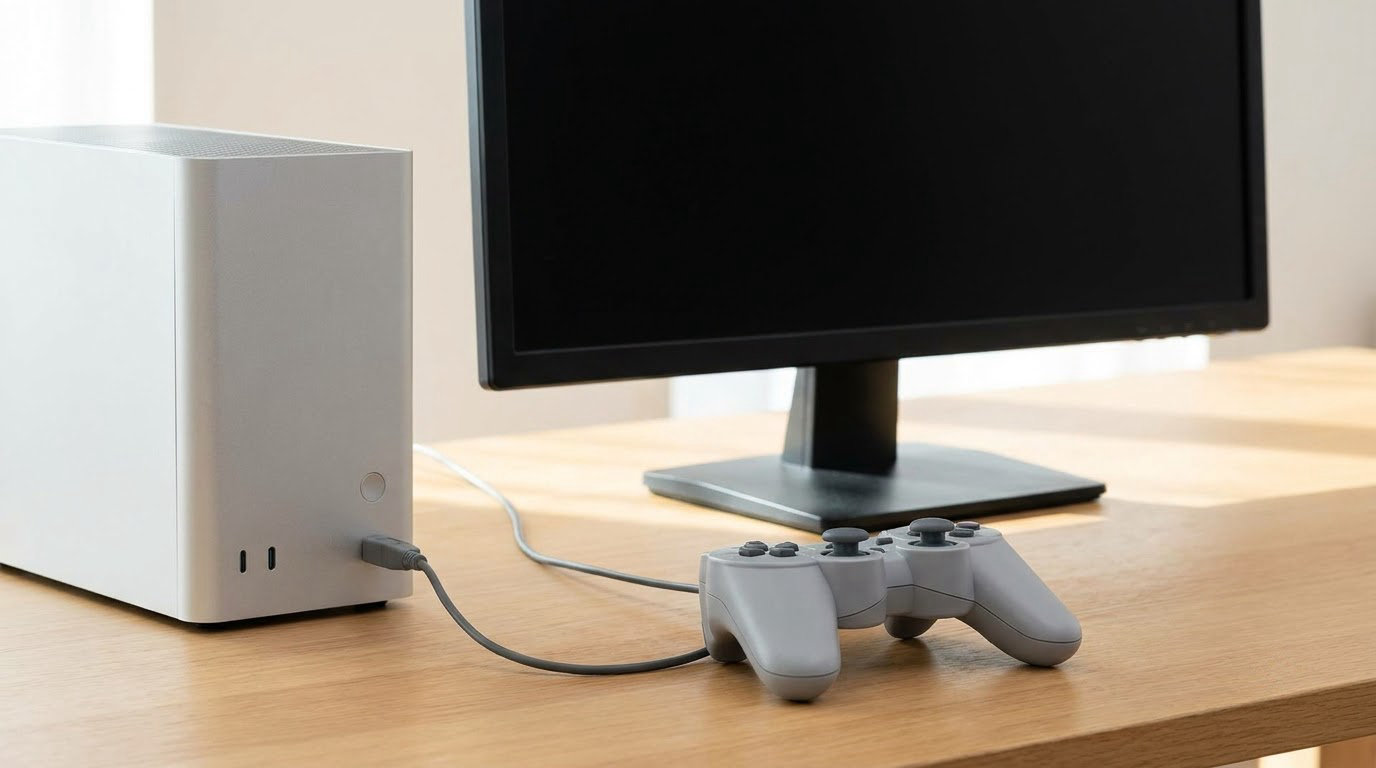
To use a controller on a PC, you connect it with a USB cable, over Bluetooth, or through a wireless USB adapter. Windows 10 and Windows 11 recognize most gamepads the moment you plug them in, and Bluetooth pads take about 30 seconds of pairing. From there you confirm the controller is detected, check its button layout, and launch your game.
That is genuinely all it takes for an Xbox controller, a DualSense, a DualShock 4, a Switch Pro pad, or most third-party gamepads. The setup is boring in the best way. The trouble starts when the pad connects and the game still ignores it, which usually traces back to two input layers in Windows that almost nobody explains: XInput and DInput. Get those straight and the rest is just button names.
This guide covers Windows 10 and Windows 11 on both desktops and laptops, and the menu paths are written out exactly as they appear on screen. Where the two versions differ, I say so. I’m assuming you are setting up a gamepad for gaming, not for accessibility tools, though the same steps apply either way.
Table of Contents
What You Need
You need four things, and three of them are probably already on your desk.
- Your controller. Xbox Series, Xbox One, PS5 DualSense, PS4 DualShock 4, Nintendo Switch Pro, or a third-party pad such as an 8BitDo, GameSir, or Logitech G-series controller.
- A PC or laptop running Windows 10 or Windows 11. Bluetooth pairing on Windows 10 needs the Anniversary Update or later, which covers every supported Windows 10 machine.
- One connection route: a USB cable, built-in Bluetooth, or a wireless USB receiver. Desktop PCs often lack Bluetooth, so check before you start.
- A game that accepts a gamepad. Most PC games built since 2015 do. Older strategy, simulation, and competitive shooters often do not.
Optional but useful: the Xbox Accessories app from the Microsoft Store (button mapping, battery level, firmware) and Steam Input, which Valve bundles with Steam and which translates almost any pad into an Xbox-style controller.
Step-by-Step: Connect, Configure, and Play
Step 1: Check That Your PC and Game Support the Controller
Before touching a cable, confirm the game will accept a controller at all. Open the game on Steam, Epic, or wherever it lives and read the settings page for Controller, Gamepad, or Input. If the only options are keyboard and mouse bindings, no amount of pairing will help.
Then work out what kind of pad you have. Xbox pads are the easy case because Windows speaks their language natively. PlayStation and Nintendo pads work, but they may show up as a different device type, and older or cheaper pads sometimes need a translator. Note the model name printed on the back; you will type it into the Bluetooth menu in Step 3.
Step 2: Connect the Controller by USB

Wired is the fastest and most reliable route, and it is the one I recommend people try first.
- Plug a compatible USB cable into the port on the top of your controller. On an Xbox Series controller that port sits below the Xbox button. On a DualSense it is on the front edge. On a Switch Pro pad it is on the top.
- Plug the other end into a USB-A or USB-C port on your PC.
- Wait a few seconds. Your PC recognizes the device instantly, with no install step and no prompt.
- Press a button on the controller. If a device-connect sound plays or an LED ring lights up in the pattern of your console’s logo, you are connected.
Two details catch people out. If you have the pad plugged in but it does nothing, try a different USB port, and skip unpowered hubs. Front-panel ports and some USB-C ports on cheap cases do not supply enough power to wake a controller. Also, a USB charge cable that is data-only will never work; you need one that carries data.
Step 3: Connect a Wireless Controller with Bluetooth

Bluetooth takes a few extra steps and gives you cable-free play at a range of roughly 19 to 28 feet. Put the controller in pairing mode first, then tell Windows to look for it.
- Put the controller in pairing mode. The buttons differ by brand:
- Xbox Series or Xbox One: hold the small pair button on the top edge for about three seconds, until the Xbox button flashes rapidly. (Just pressing the Xbox button powers the pad on; it only pairs when it flashes.)
- DualSense (PS5): hold Create plus PS until the light bar blinks twice.
- DualShock 4 (PS4): hold Share plus PS until the light bar flashes.
- Switch Pro: hold the Home button until the logo appears and stays lit.
- Click Start, then Settings. On Windows 11 the path is Settings > Bluetooth & devices; on Windows 10 it is Settings > Devices > Bluetooth & other devices.
- Turn the Bluetooth toggle on if it is off.
- Choose Add device (Windows 11) or Add a Bluetooth device (Windows 10).
- Select the controller from the list when it appears.
- Press any button to confirm. Windows shows the pad as connected and, on an Xbox controller, you can read its battery level right there.
No Bluetooth menu on your PC? Desktops usually need either built-in Bluetooth, a USB Bluetooth adapter, or the motherboard’s WiFi antenna cables actually screwed to the motherboard. That last one is the quiet cause of a lot of “my PC can’t see wireless devices” posts in r/pcmasterrace and r/buildapc, and no vendor documentation mentions it. Check those two little cables behind the case before you troubleshoot anything else.
Step 4: Use a Wireless Receiver
Some controllers skip Bluetooth entirely and ship with a small USB dongle. Plug the dongle into a free USB port on the PC, then turn the controller on. That is usually the whole procedure.
If the controller has a pair button, hold it for a few seconds until the controller’s light stops blinking and stays solid. Do the same for any second controller on the same dongle, one at a time, so each grabs its own slot. The receiver is doing the wireless work over its own 2.4 GHz link, so range and latency tend to sit between a cable and Bluetooth.
Step 5: Test and Configure the Controller in Windows
Confirm Windows sees it before you blame the game. The fastest check is a browser-based gamepad tester: open one, press buttons, and watch the on-screen readouts move. If anything registers there, your hardware and drivers are fine.
For deeper settings:
- Xbox Accessories (Microsoft Store) shows connected pads, their battery level, and lets you swap the A and B buttons or the triggers, adjust vibration strength, and update firmware.
- Device Manager (right-click Start, then Device Manager) shows the controller under Human Interface Devices or Controllers. A yellow triangle means a driver problem worth fixing before anything else.
- Gamepad testing in Steam is genuinely useful. Open Steam, go to Settings > Controller, and the detected pads appear with live button and stick indicators. Add the non-Xbox controller here to make Steam Input offer it as a layout option.
Analog sticks drift even on good hardware. Games usually handle that with a dead-zone setting, and the Xbox Accessories app exposes the same option for some pads. If a stick creeps in one direction on its own, raise the dead zone slightly before considering a replacement.
Step 6: Configure the Controller in the Game and Start Playing
Launch the game and open its controller settings. Choose your connected pad from the device list, then pick a preset layout or an assignment scheme such as Xbox-style or PlayStation-style. Most games default to the correct prompts for a pad they recognize, so this is usually one click.
Then check two things in game: press a movement key and confirm the character walks in the intended direction, and open the in-game control legend to see whether the displayed prompts match the buttons you are pressing. If a PlayStation pad shows Xbox prompts, or the face buttons feel crossed, that is a layout mismatch rather than broken hardware, and switching the preset fixes it.
For anything that is not an Xbox pad and behaves oddly in a non-Steam game, run it through Steam Input: right-click the game in your library, choose Properties > Controller, and set the drop-down to Enable Steam Input. Valve’s layer maps the pad’s real buttons to standard Xbox inputs and keeps that mapping per game, which fixes DualSense D-pad quirks and gives third-party pads a fighting-game-friendly face-button layout.
Common Mistakes and How to Fix Them
Almost every controller problem on PC falls into one of these patterns below. Work them in order, cheapest check first.
| Symptom | Likely cause | Fix |
|---|---|---|
| Pad connects but nothing happens in the game | The game speaks a different input layer than the pad, or a translator is off | Enable Steam Input for that game, or switch the game’s controller dropdown to the detected device and pick a default layout |
| Wrong buttons do the wrong things | Face buttons swapped or the game expects an Xbox prompt layout | Change the layout preset to Default or Xbox-style; in Xbox Accessories, restore the default A and B assignment |
| Controller never appears in the Bluetooth list | It is powered on but not in pairing mode, Bluetooth is off, or the motherboard antenna cables are loose | Hold the pair button until the light flashes rapidly, confirm the Bluetooth toggle is on, then check the WiFi antenna cables behind the case |
| It pairs, then drops out after a few minutes | Weak Bluetooth signal, a busy 2.4 GHz environment, or a dying battery | Move within about 20 feet of the PC, close to the antenna, charge the pad fully, or switch to a wired or dongle connection |
| Stick moves on its own or drifts | Worn potentiometer or uncalibrated dead zone | Raise the dead zone in the game or Xbox Accessories; recalibrate in the Steam controller test page |
| Two controllers, only one works | Windows has not assigned a second slot, or both pads paired to the same receiver channel | Pair the second pad separately, then confirm both appear on the Steam controller test page before starting the game |
| Worked yesterday, dead after a Windows update | A driver or the Xbox Accessories companion changed | Reinstall Xbox Accessories from the Microsoft Store, then unplug and replug the pad; if that fails, delete the device in Device Manager and rescan for hardware changes |
If you want the short version of the connection choices, here is how they stack up.
| Connection | Setup time | Latency | Battery | Best for |
|---|---|---|---|---|
| USB cable | About 5 seconds | Lowest | Not used while plugged in | Competitive shooters, desk setups, any controller |
| Bluetooth | About 30 seconds | Highest of the three | Yes, hours of play | Couch gaming, laptops, no cable across the room |
| Wireless USB receiver | About 15 seconds | Middle | Yes | Pads that ship with a dongle, desktops without Bluetooth |
Two habits save time. Plug the controller in before you open the game, so the game sees it during its first device scan. And when a game misbehaves, test the same pad on the Steam controller screen first, which tells you instantly whether the problem is Windows or the game.
One outdated warning worth stating plainly: DS4Windows is discontinued, and the old x360ce copy-into-the-game-folder trick is a legacy workaround that causes more problems than it solves today. Steam Input handles nearly all of those cases and is already on your machine if you own Steam.
Frequently Asked Questions
How do I connect my game controller to my PC?
Plug the controller into a USB port on your PC and it is connected, usually within seconds. For Bluetooth, hold the controller’s pair button until its light flashes rapidly, open Settings u0026gt; Bluetooth u0026amp; devices on Windows 11 (Devices u0026gt; Bluetooth on Windows 10), turn Bluetooth on, choose Add device, and pick the controller from the list. Confirm by pressing any button.
Do all controllers work on PC?
Most modern pads work without extra software. Xbox Series and Xbox One controllers are recognized natively by Windows and by most PC games. DualSense, DualShock 4, and Nintendo Switch Pro controllers also work, though some games expect an Xbox-style layout and need their preset changed. Older, no-name, and arcade sticks are the ones that usually require Steam Input or a translator.
Why can’t I play with my controller on PC?
The most common reason is an input-layer mismatch: the game expects XInput while the pad is presenting as DInput, or a translator such as Steam Input is set to Not Enabled for that game. Enable Steam Input from the game’s Properties u0026gt; Controller menu, or pick the detected controller and a Default layout in the game’s own settings. A game with no controller support at all is the other reason.
Is a wireless controller worse for PC gaming than a wired one?
Slightly, though far less than most people expect. Bluetooth adds a small amount of latency compared with a cable, and 2.4 GHz dongle connections sit between the two. In practice you will not notice in single-player games, and the trade is usually worth it on a couch setup where a cable across the floor is a trip hazard. Competitive shooters still have a reason to prefer a cable.
How do I tell if my controller is XInput or DInput?
Open Steam, go to Settings u0026gt; Controller, and the detected controller appears with a note about which driver it is using. Xbox-style pads such as Xbox One and Series controllers show as XInput devices. Most PlayStation, Nintendo, and third-party pads show as DInput or HID, which is normal. You can also check the Steam overlay’s controller settings while a game is running.
Can I use a controller to turn on and log into Windows?
Yes, on most desktops built in the last several years. An Xbox controller can send the power button if the motherboard or graphics card supports wake-on-controller, and paired Bluetooth pads can move around the Start menu and the lock screen once you are signed in. Support varies by hardware, so treat it as a nice extra rather than a guaranteed feature, especially on laptops.
How to Use a Controller on a PC: Start with the Connection
Start by plugging the controller into a USB port with a data cable. That single action answers most of the questions people search for, because it proves the pad, the driver, and the game all speak to each other. Only move to Bluetooth or a wireless receiver when you actually want cable-free play.
Then verify it in the Steam controller screen or a browser gamepad tester before you launch anything. If the buttons register there but not in your game, the problem is the game’s controller settings or an input-layer mismatch, not your hardware. Fix it there and you are playing in a couple of minutes.