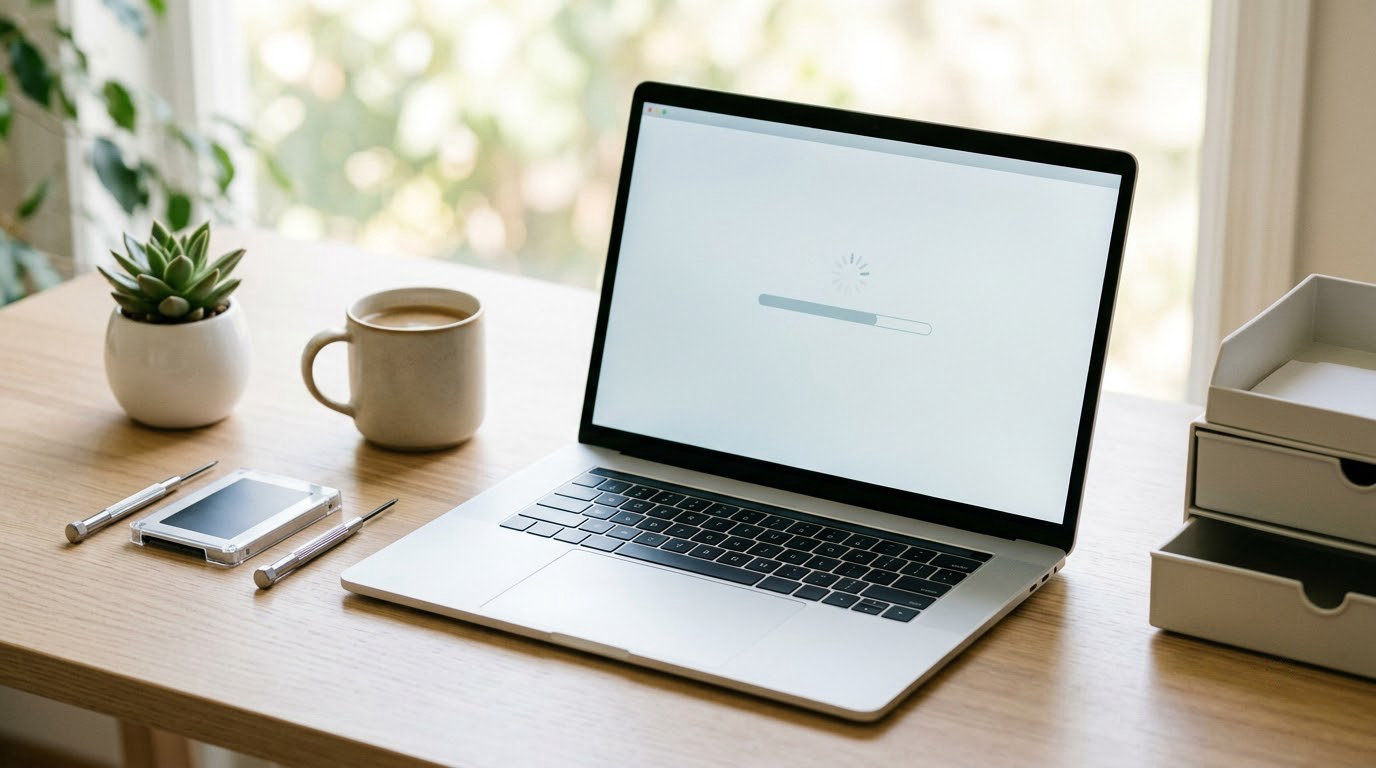
Most slow Windows laptops are slow for four ordinary reasons: too many programs launching at boot, a power plan that is saving battery instead of speed, a nearly full drive, or hardware that has simply aged out. How to speed up a slow Windows laptop starts with about twenty minutes of free cleanup, and only a small share of machines ever need an SSD, more RAM, or a replacement. Every path below works on Windows 11 and Windows 10, with the places the menu names differ called out as we go.
Most laptops end up needing three or four of the eight fixes below rather than all eight, so work down the page and stop when the machine feels right. Start with a restart, though. A laptop switched on for weeks is often slow for reasons that disappear after one clean boot, and finding that out costs you nothing.
Table of Contents
- What You Need
- How to Speed Up a Slow Windows Laptop: Step-by-Step Fixes
- 1. Check What Is Using CPU and Memory
- 2. Remove Startup Programs You Do Not Need
- 3. Free Up Storage Space
- 4. Install Pending Windows and Driver Updates
- 5. Adjust Power and Battery Settings
- 6. Reduce Visual Effects and Background Apps
- 7. Scan for Malware and Check for Unwanted Software
- 8. Decide Whether to Reset, Reinstall, or Replace the Laptop
- Common Mistakes
- Frequently Asked Questions
- How much RAM does my Windows laptop need to feel fast?
- Is it worth upgrading an old laptop to an SSD?
- How do I tell whether my laptop is slow because of hardware or software?
- Do PC optimizer programs and registry cleaners actually speed up a laptop?
- Is reinstalling Windows worth it on a slow laptop?
- Why did my Windows laptop suddenly get slow?
- Conclusion
What You Need
Four things, and none of them cost money: the laptop plugged into mains power, an administrator account, roughly thirty minutes, and access to Task Manager and Windows Update.
- A charger. Several steps restart the machine, and you do not want it shutting down halfway through.
- An administrator account. Startup apps, updates, visual effects and resets all need elevated permissions.
- A spare USB drive or external hard disk, plus your OneDrive or cloud account if you use one. This is what you back up to before step 8.
- Ten minutes of honest attention. The value is in doing the steps in order rather than opening three menus at once.
Backing up sounds obvious until you need it. Before you reset, reinstall, or uninstall anything substantial, copy your Desktop, Documents, Downloads and Pictures folders to the external drive and confirm the files are actually there.
A lot of readers ask whether the laptop is even fixable before they start. That is answerable: Task Manager tells you in about a minute whether your drive is an old hard disk or an SSD, and how much memory you have. Step 8 relies on those readings, so they are worth taking before you change anything.
How to Speed Up a Slow Windows Laptop: Step-by-Step Fixes
The order below runs from largest gain per minute of effort down to smallest. Work through it in sequence, and restart the laptop after each meaningful change so the next step starts from a clean state rather than from a machine still catching up on the last one.
1. Check What Is Using CPU and Memory
Open Task Manager with Ctrl+Shift+Esc, or search for it in the Start menu. On the Processes tab, sort by CPU, then by Disk, then by Memory, and watch which names stay at the top for more than a few seconds.
Something sitting permanently on high is your answer. Close it if you did not need it, or restart it if a single app has grown bloated after weeks of being open. On Windows 11 the Memory column reads In use (compressed), which tells you the machine is shuffling data to the drive when that number climbs.
Now switch to the Performance tab and read two lines. Memory shows total installed and in use, and Disk 0 tells you whether you have an SSD or an HDD. Almost everything later in this guide depends on those two readings, and skipping this step is why some people run half the fixes in this article and see no difference.
2. Remove Startup Programs You Do Not Need
In Windows 11, Task Manager has a Startup apps tab. In Windows 10 it is called the Startup tab. Both let you disable a program with one click, and the Startup impact column shows how much delay each one adds to your boot.
The longer path is Settings, Apps, Startup on Windows 11, where the same list appears with startup time in seconds. On Windows 10, press Windows key, type Startup, and open Startup apps, or use Control Panel, Hardware and Sound, Power Options, then Change which power buttons are on, and the adjacent Choose which programs to open at Startup link.
Safe to disable: chat apps, game launchers, cloud sync clients you do not use, third-party antivirus, and anything you installed from a disc you no longer have. Do not disable your audio driver, touchpad or keyboard drivers, Windows Security, or the vendor power and hotkey tools, because those tend to come back as strange behaviour rather than a clean failure. You can always re-enable one tomorrow.
3. Free Up Storage Space
A drive close to full makes everything slow, because Windows needs scratch space to work with. Check Settings, System, Storage for a usage bar, or right-click the C drive in File Explorer and open Properties.
Turn on Storage Sense in Settings, System, Storage, Advanced storage settings. It deletes temporary files on a schedule so you stop doing this by hand. Run Disk Cleanup from the Start menu too, tick the boxes for Temporary files, and if you have never clicked Clean up system files, do that once for a noticeably larger purge.
Then open Settings, Apps, Installed apps and sort by size. Anything you stopped using a year ago is a candidate for removal, which also clears its leftover background tasks. Empty the Recycle Bin and sort your Downloads folder by date; on most laptops that one folder is the biggest single win available.
4. Install Pending Windows and Driver Updates
Slowdowns that arrive out of nowhere are usually an update working in the background, or a driver that stopped matching your hardware. Open Settings, Windows Update and choose Check for updates.
Install everything offered, then choose Restart now. Behind the screen, Windows is also rebuilding its index and re-checking drivers, which is why a machine can feel worse for a day or two after a big update before it settles.
For device-specific drivers, go to your laptop manufacturer’s own support site and download the graphics, chipset and wireless drivers listed for your exact model. Windows Update often only supplies a generic display driver, and the manufacturer’s package is usually better. Device Manager, then right-click a device and choose Update driver, is a reasonable second option. Avoid driver sites that exist only to sell you something.
If an update lands mid-workday and grinds the machine to a halt, pause it from Windows Update, which offers a pause of up to five weeks. Forum regulars treat this as one of the cheapest wins there is.
5. Adjust Power and Battery Settings
Windows deliberately trades speed for battery life by default, which is the wrong trade on a laptop that spends its day plugged in. On Windows 11, open Settings, System, Power and battery and set Power mode to Best performance.
Windows 10 only got that page in version 22H2. On earlier builds, search for Power Options, click Change plan settings next to your active plan, and set Processor state to Maximum on both battery and plugged in. Users stuck on old Windows 10 builds follow guides written for the wrong system constantly, so this is the single most common reason a fix appears not to exist.
Best performance uses more power and generates more heat, which brings us to the honest part: it does not damage your battery. Heat does. Battery saver and the low-power slider settings do, slightly, over years of daily use, so turn them back on when you travel and leave Best performance for desk use.
6. Reduce Visual Effects and Background Apps
Search for Adjust the appearance and performance of Windows and open it, or press Windows key, press R, and run systempropertiesperformance.exe. On the Visual Effects tab, choose Adjust for best performance, then Apply. You lose rounded corners and animation, and you get back a little responsiveness on older hardware.
On Windows 11 you can do the same in smaller pieces. Settings, Personalization, Colors, then turn Transparency effects off. Settings, Accessibility, Visual effects, then Animation effects off. Some Windows 11 builds expose the transparency toggle on supported hardware only, which is why the Performance Options route is the one to keep as your fallback.
Then handle background apps: Settings, Apps, Advanced app settings, Background apps. In Windows 10 the equivalent sits under Privacy, Background apps, with per-app switches. Turning these off stops messaging apps syncing in the background and consuming memory you never see. Be fair with yourself here, though: on a laptop with recent processors the difference is small, and it is a bad trade if the app you disabled quietly handles your phone backup.
7. Scan for Malware and Check for Unwanted Software
Open Windows Security from the taskbar, choose Virus and threat protection, then Scan options. Update the definitions first under Protection history so the scan is comparing against current signatures, then run a Quick scan.
If the quick scan finds nothing, a Full scan is the more thorough option and takes considerably longer. Only reach for a second opinion scanner when a built-in scan actually reports a problem, since running several at once tends to cause more trouble than it finds.
While you are in there, open Settings, Apps, Installed apps and uninstall anything you do not recognise from a bundle: trial antivirus you never cancelled, three weather apps, a coupon toolbar. This is the part forum threads call de-bloating, and it works without any scripts.
8. Decide Whether to Reset, Reinstall, or Replace the Laptop
A reset is the honest last resort. Settings, System, Recovery, Reset this PC gives you two choices: Keep my files removes installed applications and settings but leaves your personal folders, and Remove everything takes the lot. Either way, you get a Windows install as clean as the day it shipped.
That helps a machine buried under years of software. It does nothing at all for a failing hard drive, insufficient memory, or a chip that is throttling itself to the point of uselessness. Three signals point to hardware rather than software: Disk 0 in Task Manager reads HDD, your memory holds 8 GB or less and sits above 90 percent in normal use, or the drive throws errors in Event Viewer.
Sometimes the machine has an SSD, a healthy drive and only 8 GB of memory, and it still crawls once the steps above are done. That is where software fixes run out. Many laptops also have soldered memory with no upgrade slot at all, and some thin models have one slot that was already filled at the factory, so check what your machine physically allows before you price parts.
Common Mistakes
The fastest way to make a slow laptop slower is to start deleting things you do not recognise.
- Deleting files inside C:WindowsSystem32. They are not junk. If a folder looks suspicious, verify it with Windows Security first.
- Disabling Windows Update or Defender services. You lose protection, and Windows may reinstall the setting on its own next month anyway.
- Running registry cleaners and PC optimizer suites. The registry does not need cleaning, and these tools exist to sell subscriptions. Several are harmful.
- Running unverified debloat PowerShell scripts. Forum threads are full of people who broke features they needed and had to reinstall because of it.
- Resetting without a backup. Keep my files is not a promise about everything, and it is not a backup.
- Installing drivers from file-sharing sites and driver download portals. Use the manufacturer’s support page or Windows Update.
- Expecting visual tweaks to repair a failing drive. Turning off animations cannot make bad storage faster. Watch for error messages, clicking noises and sudden slowness that no cleanup touches.
To check whether any of this worked, watch three numbers: seconds from pressing the power button to your desktop, the time it takes your slowest everyday app to open, and whether Task Manager memory sits under 80 percent during a normal working session. The Performance tab, App History and systempropertiesperformance.exe all report on the same thing from different angles.
Compare before and after rather than guessing. Users on forums who fix a laptop this way usually describe the same pattern: startup apps and bloatware removal gave the biggest immediate improvement, and anyone on a hard disk saw the largest single gain of all once they moved to an SSD.
Frequently Asked Questions
How much RAM does my Windows laptop need to feel fast?
Eight gigabytes is the floor for comfortable Windows 11 use, and it is tight. Browsers alone can eat half of it, so a few dozen tabs alongside Teams and Excel pushes you into swapping to the drive, which feels exactly like a freeze. Sixteen gigabytes removes that swapping almost entirely. Check what you have on Task Manager’s Performance tab under Memory before deciding anything.
Is it worth upgrading an old laptop to an SSD?
Usually yes, and it is the single largest improvement most laptops can get. Users on forums report boot times dropping from three to five minutes to under thirty seconds after moving from a hard disk to an SSD, with app launches going from hesitant to instant. Check Task Manager’s Performance tab under Disk 0: if it reads HDD, that swap is your answer.
How do I tell whether my laptop is slow because of hardware or software?
Watch the Performance tab while the machine is slow. Disk pinned at 100 percent for long stretches, or a Disk 0 entry reading HDD rather than SSD, points at hardware. Memory sitting above 90 percent on 8 GB points at too little memory. CPU spikes that come and go usually trace to a startup app, a background update, or malware rather than to the machine itself.
Do PC optimizer programs and registry cleaners actually speed up a laptop?
No. Registry cleaners, optimizer suites and booster software exist to sell you a subscription, and the changes they apply are either harmless no-ops or, in some cases, destructive. They also tend to disable security features to get their promised result. Disk Cleanup and Storage Sense are built into Windows, cost nothing, and do the same job honestly.
Is reinstalling Windows worth it on a slow laptop?
Rarely, and only after the clean-up steps. A fresh Windows install can rescue a machine carrying years of accumulated software, but it changes nothing about a failing drive, too little memory or an overheating chip. If you go this route, back up everything to an external drive first, then use Settings, System, Recovery, Reset this PC and choose Keep my files.
Why did my Windows laptop suddenly get slow?
Three causes account for most cases. A Windows update installs in the background and re-indexes files, which can take days to settle. A failing hard disk starts reporting read errors and everything crawls. Or a single program began launching itself at boot and quietly eats CPU. Task Manager’s Startup apps tab with its Startup impact column usually identifies the third one in under a minute.
Conclusion
That is how to speed up a slow Windows laptop properly: measure, change one thing, then measure again. Start with Task Manager, then the startup apps, then the space you have not looked at in a year, then the pending updates.
If the laptop is still slow after all eight steps, you are looking at storage or memory rather than settings. A reset, an SSD swap or a new machine is the honest next move from there.