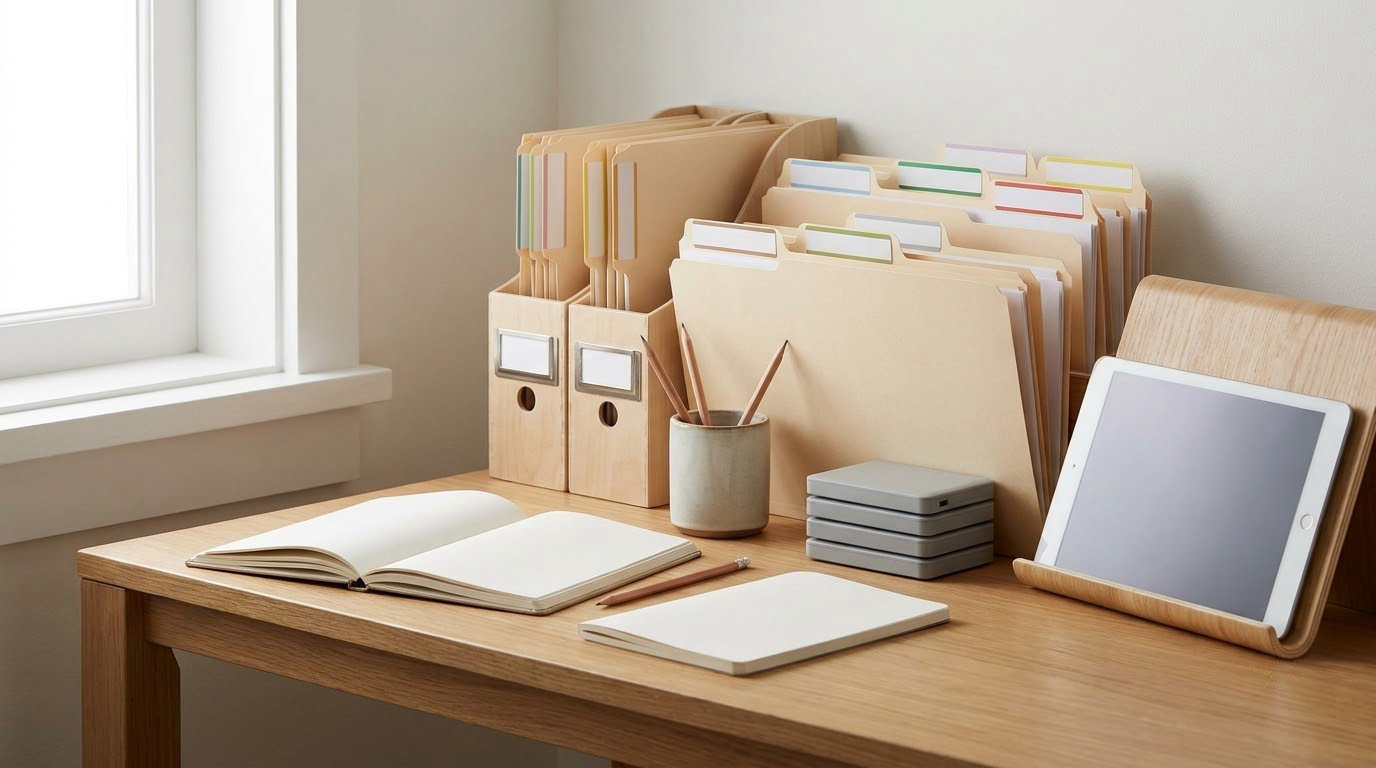
The best way to organize files and folders is to pick one home location, build a shallow hierarchy of five or six broad categories, name every file so its content is obvious without opening it, archive finished work instead of piling it up, and sweep your Downloads folder every week. Set aside 45 to 60 minutes for the first pass and you can do most of it without installing anything.
Most messy desktops are not caused by laziness. They happen because every file arrived somewhere different, got a name like final_v2_REALLY, and then got filed in a hurry. A structure only works if it is simple enough to remember a year from now, so the rules below stay deliberately small.
Everything here works on Windows 11 and on macOS Sonoma and later, using File Explorer and Finder. Where the two differ, you get both paths.
Table of Contents
- What You Need
- Step-by-Step: How to Organize Files and Folders on Any PC
- 1. Choose Where Your Organized Files Will Live
- 2. Create a Simple Folder Structure
- 3. Sort Files by Type and Active Project
- 4. Rename Files So You Can Find Anything Without Opening Them
- 5. Move Files Into Their Final Locations
- 6. Clean Up Downloads and the Desktop
- 7. Use Search Tools and Labels to Find Files Faster
- 8. Schedule a Monthly File Reset
- Common Mistakes
- Frequently Asked Questions
- Conclusion
What You Need
You need one drive to treat as home, a backup of anything you would be upset to lose, about an hour, and the file manager already on your machine.
- A destination folder. On Windows that is usually
C:UsersYourNameDocuments. On macOS it is/Users/YourName/Documents. Pick whichever exists on your machine and stop there. - A backup. Before you move anything, copy the folders you care about to an external drive or your cloud sync folder. Moving files is reversible; deleting them is not.
- File Explorer on Windows 11, opened from the taskbar, or Finder on macOS, opened from the Dock.
- A text editor, optional but handy, for writing down your naming rules so you can paste them back into any file.
Give yourself one uninterrupted block rather than fifteen minutes spread across a week. Half-finished reorganizing is how folders end up half-moved, which is worse than the starting mess.
Step-by-Step: How to Organize Files and Folders on Any PC
1. Choose Where Your Organized Files Will Live
Pick exactly one home location and route new files there. The trouble starts when work lives in Documents, scans live on the Desktop, and reference material sits on an external drive nobody remembers plugging in.
On Windows, open File Explorer, click Home in the left sidebar, and note the path shown in the address bar. On macOS, click Go in the menu bar and choose Home, which opens /Users/YourName.
Your check: open the location with two clicks from a fresh start, without hunting. If it takes more, pick a simpler folder.
2. Create a Simple Folder Structure
Create five or six broad folders at the top level and stop. Work, Personal, Projects, Finances, and Media covers most households and freelancers. Add a subfolder only when you can name the reason for it.

Keep folders three levels or fewer. Once you are four clicks deep, people stop looking and start guessing, and a deep tree is slower than no system at all. Two levels of subfolders inside a project is usually the practical limit.
On Windows, right-click in the folder, choose New, then Folder. On macOS, right-click the folder and choose New Folder, or press Command + Shift + N.
Give every folder a name you would recognize in a search result six months from now. Work and Finances 2026 work. New folder (3) does not.
3. Sort Files by Type and Active Project
Group by what you are actively working on first, then by type inside each project. Sorting everything into Documents, Images, Videos folders at the top level scatters each project’s pieces across three screens.
On Windows 11, open the folder, go to View in the ribbon, then Sort by to pick Name, Date modified, Type, or Size. Group by folds files into collapsible headings.
On macOS, open a folder and click View, Arrange By for sorting and Group By for headings. The View button also switches between as Icons, as List, as Columns, and as Gallery.
One warning: do not reorganize the project files of an app you do not understand. Design software, mail stores, and development tools often store absolute paths inside their settings. Copy those folders to a backup before you touch them.
4. Rename Files So You Can Find Anything Without Opening Them
A name should answer what this is, which project it belongs to, and when it last changed. One pattern handles all three: YYYY-MM-DD-topic-description, such as 2026-03-18-northside-invoice-draft.
Leading zeros matter. 2026-02-09 sorts correctly on its own; 2026-2-9 sorts as text and jumps to the wrong place. File Explorer and Finder both understand the four-digit-year, two-digit-month, two-digit-day order.
Rename one file by clicking it and pressing F2 on Windows, or clicking the name once and pressing Return on macOS. To rename several at once, select them, press F2, and the first name becomes a template for the rest in Windows. In Finder, select multiple files, press Return, and use the Find and Replace Text option to apply one number across the selection.
Your check: search for a word from the file’s contents and read the result list. If you cannot tell which result is which, the names need work.
5. Move Files Into Their Final Locations
Drag and drop works fine for a handful of files. For larger batches, open a second window at the destination, click the source files, and press Control + X and then Control + V on Windows. On macOS, use Command + C and Command + V.
Cutting moves. Copying leaves the original behind, and those leftover copies are how you end up with three invoices that disagree. When in doubt, cut; copying is the exception, not the default.
Open the destination window before you start anything large, then transfer in batches of a few hundred files so you can see failures. Afterwards, count what arrived against what you expected to move.
6. Clean Up Downloads and the Desktop
Ten minutes on Downloads and Desktop pays for itself. Installers you already used, screenshots, duplicate downloads, and stray PDFs are all safe to remove once you have checked.
On Windows, click Home and choose Downloads under Quick Access. Deleted items go to the Recycle Bin, where you can restore one until you empty it: right-click the bin in the left sidebar and choose Empty Recycle Bin.
On macOS, click the Downloads folder in the Dock. Deleted items move to the Trash, which you empty with Command + Shift + Delete or by right-clicking the Trash in the Dock.
Do not empty the bin or Trash on the first run. Delete, then browse what is on its way out, then empty. That review step is what turns a scary cleanup into a safe one.
7. Use Search Tools and Labels to Find Files Faster
Organizing is half the job. Retrieval is the half you use daily, and both systems have good search built in.
Press the Windows key and start typing to search across indexed files on Windows, including words inside documents. In File Explorer, the search box appears in the top right of the address bar; add kind:=pdf or modified:lastweek to narrow results, then right-click the search and choose Save search to pin a recurring query to Quick Access.
On macOS, Command + Space opens Spotlight, which indexes file names and contents. The Recents view under the filename in Finder lists what you worked on most recently, and tags turn any folder of loose files into a labeled collection.
Tags beat folders for anything that belongs to more than one project. A single file tagged invoices and northside stays findable from both, where copying it into two folders creates two files that drift apart.
8. Schedule a Monthly File Reset
A structure decays within weeks without a small recurring habit. Five minutes on the first Monday of each month is enough to keep it honest.
Empty Downloads after a look. Confirm each active project’s folder still holds what you are using. Move finished items into an Archive subfolder rather than deleting them. Check that your backup actually ran and finished. Then compare your folder list against what you did this month; a category you never touch can be flattened or archived.
The final check is simple: can you find a file you could not find before? If yes, the system is working and the month will hold.
Common Mistakes
Nesting too deep. Four or five clicks deep is slower than searching. Pull anything at level four back up to level two and name it well.
Vague names. doc1, new, and final_v2_FINAL3 force you to open files to identify them. Dates plus a topic plus a short description solve it.
Duplicate folders. Work and Work2 guarantee that one of them goes stale. Merge them, and keep exactly one live copy per file.
Mixing live and finished work. An Archive subfolder inside each project keeps active files scannable without deleting anything.
Renaming everything in one pass. Rename one folder’s worth, check that search still returns sensible results, then continue. Large batches hide broken shortcuts.
Deleting before backing up. Move questionable files to a folder called ToReview instead. Decide next month, when you are not in a hurry.
Relying on memory instead of search. If your only retrieval method is remembering the path, one mistyped folder sends you hunting. Saved searches and tags make the system work on your worst day.
Frequently Asked Questions
How many folders deep should a folder structure be?
Keep most folders three levels or fewer. That gives you a category, a project, and a file with room to spare, and it stays searchable in both File Explorer and Finder. If a folder needs a fourth level, ask whether the name at level three says anything the parent does not. If it does not, flatten it and move the files up.
What is the best file naming convention for work files?
Use YYYY-MM-DD-topic-description, written in lowercase with hyphens instead of spaces. An example is 2026-03-18-northside-invoice-draft. Dates first sort naturally, and leading zeros keep them in order. Keep a version suffix only when a file genuinely has siblings, and use v1, v2, v3 rather than words like final or new.
Should I organize files by date or by project?
By project, for anything you are actively working on, because finished work ends up in that project’s Archive folder and out of your way. By date works for records that are never revisited, such as tax receipts and old invoices, where a year folder is the only context that matters. Mixing the two in one folder is what causes the confusion, so pick one per folder and label it.
Is there an app that can organize my files automatically?
Yes, though the built-in tools handle most cases. Power Automate on Windows and Folder Actions on macOS can move files by rule, such as every new PDF into a folder named Invoices. Third-party tools like DropIt for Windows and Hazel for Mac go further. Set rules after your folders exist, never before, or they will organize files into a structure you did not choose.
How do I find a file when I forgot its name?
Search by content instead of name. On Windows, press the Windows key and type a phrase you remember from inside the document. On macOS, use Command + Space for Spotlight, which indexes text as well as file names. On a shared drive, check Recent or Shared With lists first, since those sort by last activity rather than by name.
How often should I reorganize my files?
Once at the start, then in small passes rather than big ones. Empty Downloads weekly, file new work as you create it, and do a five-minute monthly reset that archives finished items and checks your backup. A full reorganization twice a year is enough for most people. Reorganizing constantly costs more time than the searching it saves.
Conclusion
Start with one action: choose your home location, create five folders inside it, and move the highest-volume files, usually everything sitting on your Desktop. Give the names a date and a topic, then test the setup by searching for something you could not find before.
If that search works, everything after it is a five-minute monthly habit rather than a weekend project. That is the whole difference between a system you keep and one you abandon in a fortnight.