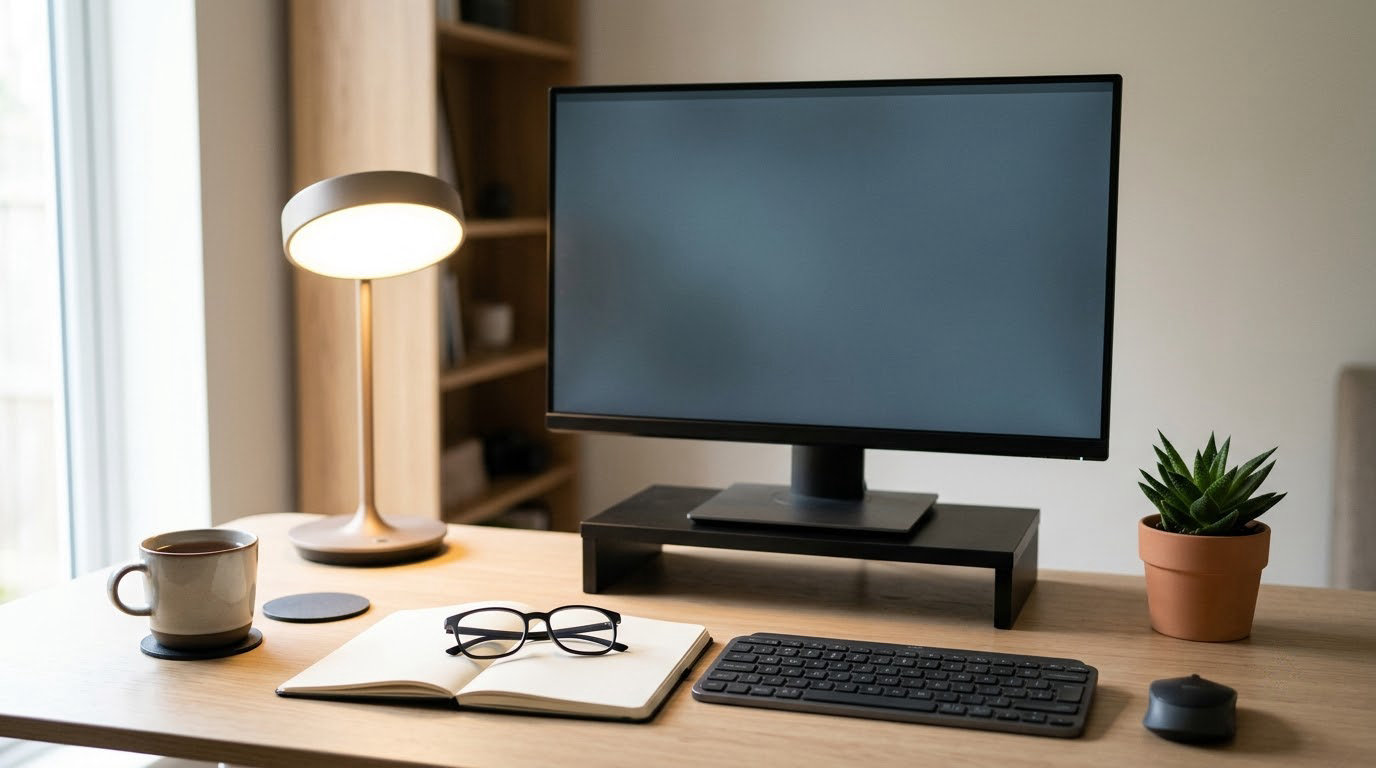
Spending eight hours in front of a computer leaves your eyes tired, dry, and sometimes aching, but most of that is fixable today without buying anything. If you know how to prevent eye strain from screens, you are really managing three things: how far away the display sits, how bright it is relative to the room, and how often you interrupt near-focus. This guide walks through each one as a concrete adjustment you can make in under two minutes, then covers when a symptom stops being a desk problem and becomes an appointment.
The average American employee spends roughly seven hours a day on a computer, according to the American Optometric Association, so this is a near-universal work problem rather than a personal weakness. Some dryness and fatigue after a long day is normal and clears overnight. Anything that keeps building for days, or that comes with flashes, floaters, or double vision, needs a professional. This article is general information and not medical advice.
Table of Contents
- What You Need
- Step-by-Step
- How to Prevent Eye Strain From Screens During Long Workdays
- Step 1: Set Your Screen Distance and Height
- Step 2: Match Screen Brightness to the Room
- Step 3: Reduce Glare and Improve Lighting
- Step 4: Use Regular Distance Breaks
- Step 5: Blink, Read, and Breathe More Deliberately
- Step 6: Take a Real Screen Break
- Step 7: Use Helpful Software Carefully
- Common Mistakes
- Frequently Asked Questions
- Start With One Change Tomorrow
What You Need
Almost everything required here is already in the room. You need a display you can push to roughly arm’s length away, some way to change brightness and text size, a chair that lets your feet sit flat and your forearms rest, and soft light in the room rather than darkness. That is the whole requirement list.
A few things are optional and useful:
- A laptop stand or stack of books, plus an external keyboard, so a laptop screen can reach eye level.
- An anti-glare filter or matte screen protector, if your display sits opposite a window or a bright wall.
- A break reminder that works without willpower, such as the one built into your phone or a free timer utility.
- A night-mode or blue-light-reduction setting, which your laptop already includes.
- Preservative-free lubricating eye drops, if dryness is your main symptom.
If you are starting from scratch, change the setup before you spend money. Distance, height, and lighting resolve most complaints in a few days.
Step-by-Step

How to Prevent Eye Strain From Screens During Long Workdays
One habit does more for a full workday than any other: interrupt near-focus every 20 minutes. Continuous focus at one fixed distance is what tires the focusing muscles, and 20 seconds of distance vision gives them a reset.
Around that anchor, vary the work. Reading a spreadsheet for an hour is harder on your eyes than the same hour split between writing, calls, and editing. Do not spend your break scrolling your phone, either, since another screen at six inches keeps the problem going. Stand up, get water, and let your eyes look past the room.
Step 1: Set Your Screen Distance and Height
Sit about an arm’s length away, which for most adults is 20 to 28 inches. The screen center should land roughly 4 to 5 inches below eye level, so you look slightly downward rather than up or straight ahead.
There is a cheap way to check. Hold a sheet of A4 paper at arm’s length and reach forward; if your knuckles just touch the screen, you are in the right zone. For a laptop, prop it on a stand or a stack of books and add an external keyboard, because raising the screen usually means pushing the keyboard out of reach. You will notice a difference within a couple of days, mainly because your neck stops tilting up.
Step 2: Match Screen Brightness to the Room
Brightness should look similar to the white of a page lit by the same room. Hold a sheet of white paper next to the display: if the screen is glaringly brighter or noticeably duller, adjust it.
The settings are easy to find. On Windows 11, open Settings, go to System, then Display, and use the brightness slider; Night Light sits under the same Display page. On macOS, brightness controls live in Control Center or Apple menu, System Settings, Displays, and Night Shift is under Displays as well, with True Tone in the same panel. On iPhone and iPad, use Control Center or Settings, Accessibility, Display and Text Size, and Night Shift. Android phones usually put a brightness slider in the pull-down shade, with a screen tint under Display or Eye comfort.
Keep it simple: if white text on a dark background makes your eyes ache, switch to light mode. If the room is dim at night, turn the brightness down rather than staring into a lamp-dark wall.
Step 3: Reduce Glare and Improve Lighting
Glare forces your pupils to shift constantly to get a usable image, and that shifting is tiring. Turn the screen 90 degrees away from any window, or angle blinds so daylight lands beside the display rather than across it. A white wall directly behind a monitor acts like a backlight and makes the panel look dim, so your brightness creeps up.
Light the room softly. Overhead fluorescent tubes with nothing else on are the worst case, because the contrast between a bright ceiling and a mid-bright screen keeps your eyes adjusting. A desk lamp pointed at your work surface, not at the screen, fixes that in seconds. If glare persists, a matte anti-glare film costs less than a pair of glasses and helps everyone working at that desk.
Step 4: Use Regular Distance Breaks
The 20-20-20 rule says every 20 minutes, look at something about 20 feet away for about 20 seconds. It works because your eye muscles are designed to shift focus, and hours of one fixed distance is what tires them.
Set it up so you do not have to remember. Your phone or watch has a timer built in; so does most macOS and Windows systems as an accessibility feature. Programs built around the same idea add a screen overlay that dims or blocks the display, which is a better route if you tend to ignore sounds. Look out a window or across the room, not at a second monitor.
Step 5: Blink, Read, and Breathe More Deliberately
Blink rate drops sharply on screens, sometimes by nearly half, and each blink is what re-wets the eye. That is the gritty, sandy feeling people describe, and it is why lubricating drops help more people than any lens accessory.
Set a small reminder to blink fully a few times when you switch tasks, and keep reading at the distance you set in Step 1 instead of leaning in for small text. Increase the text size instead of leaning forward. Slower breathing matters too, because people hold tension through the jaw and shoulders within a few minutes of hard focusing. These habits ease dryness and temporary fatigue; they do not replace an eye exam.
Step 6: Take a Real Screen Break
A break is only a break if your eyes change focus and your body moves. After a heavy stretch of reading, editing, gaming, or back-to-back video calls, stand up for two or three minutes. Walk, stretch your shoulders, refill water, and let your gaze settle on the far side of the room.
Looking at your phone during a break does not count, and neither does walking into another bright room for ten seconds. People on r/LifeProTips and other communities point this out constantly: the phone break is the most common way a rest break gets wasted.
Step 7: Use Helpful Software Carefully
Warm color settings, font scaling, and reminder apps can all make a long day more comfortable. They cannot rescue a screen that sits six inches from your face in a dark room, so treat them as the last step rather than the first.
- Windows: Night Light under Settings, System, Display. It schedules a warmer color by time of day.
- macOS: Night Shift and True Tone under System Settings, Displays. True Tone shifts color with ambient light.
- Both platforms: text scaling in Accessibility settings raises size across apps at once.
- Third-party option: f.lux runs on Windows, macOS, and Linux and shifts color temperature more gradually than the built-in settings, on a schedule you set.
Leave these off during color-critical work. Designers and photographers on r/graphic_design routinely note that a warm tint distorts color judgement, which matters when you are matching a brand color or grading footage.
Common Mistakes
Holding the phone too close. Most phones are about 6 inches tall, and holding one at reading distance puts it well inside the 20-inch range your eyes prefer. Move it up and back, or use the larger text setting instead of bringing it closer.
Working in a dark room. A bright screen against darkness makes pupils work overtime and often brings on a headache. Add soft ambient light, then turn the brightness down. This is the single most common setup mistake and the fastest one to fix.
Leaving a laptop flat on the desk. It forces a downward neck tilt and puts the screen roughly 15 inches away. A stand plus an external keyboard changes both numbers in a minute.
Taking phone breaks. You swap one screen for another at worse distance. Walk, stretch, or look out a window.
Buying glasses before getting an exam. People on r/glasses and r/eyestrain often spend money on lenses to fix what turns out to be an outdated prescription. If you have not had a check in more than a year, book that first.
Blaming blue light for everything. The American Academy of Ophthalmology notes there is no evidence that blue light from screens damages the eyes. Blue-light glasses may feel nice and might help some people sleep better, but they are not the fix for distance, glare, or brightness. What works reliably is a consistent routine: distance set once and not fiddled with, brightness matched to the room, a break every 20 minutes, and a real break every hour or two. Do the first three today, then let the timer take care of the rest.
Frequently Asked Questions
How often should I take a break from my screen?
Every 20 minutes, look roughly 20 feet away for about 20 seconds. Then take a longer break every hour or two where you stand up, move, and look into the distance. Short distance breaks relieve focusing fatigue, while longer movement breaks help your posture and neck. If your eyes still feel gritty by mid-afternoon, dryness is more likely the cause than focus strain.
Do blue-light glasses prevent eye strain?
There is no strong evidence that they do. The American Academy of Ophthalmology says screens do not emit enough blue light to damage eyes, and studies have not shown a clear benefit for digital eye strain. Some people genuinely feel better wearing them, which is a real experience even when the measurement is unclear. If you buy them, remove them for color-critical work and skip them if they make you headache-prone.
Why do my eyes get dry while using a computer?
You blink far less on a screen than on paper, often nearly half as often, so the tear film that normally coats the eye gets thin and breaks up. That produces the gritty, burning, tired feeling most people describe. Deliberate full blinks help, as does room humidity and taking breaks away from the screen. If you need drops more than four times a day, preservative-free lubricating drops are the better choice.
Can screen use cause headaches or blurred vision?
Yes, both are common symptoms of digital eye strain. A dull headache behind the eyes usually comes from bright or mismatched light and long near-focus, and it typically fades within hours of stopping. Blurred vision that clears after a rest is usually the focusing muscles tiring. Blurred vision that does not clear, or comes with flashes, floaters, or double vision, is a reason to see a professional.
When should I see a doctor about screen-related eye symptoms?
See an optometrist or ophthalmologist if symptoms persist for more than a few days despite breaks and setup changes, keep coming back, or come with pain, double vision, flashes, floaters, or a persistent headache. Anyone overdue for a routine eye exam should book one regardless of symptoms, and contact lens wearers should mention their lenses. Do not treat persistent discomfort as a desk problem.
Start With One Change Tomorrow
Push your screen back to arm’s length, turn the top of it slightly below eye level, and match brightness to a sheet of white paper. Those three adjustments take about two minutes and fix most of what people call eye strain. Then set a 20-minute timer and let it run.
Last reviewed: October 2026. General information only, not medical advice.