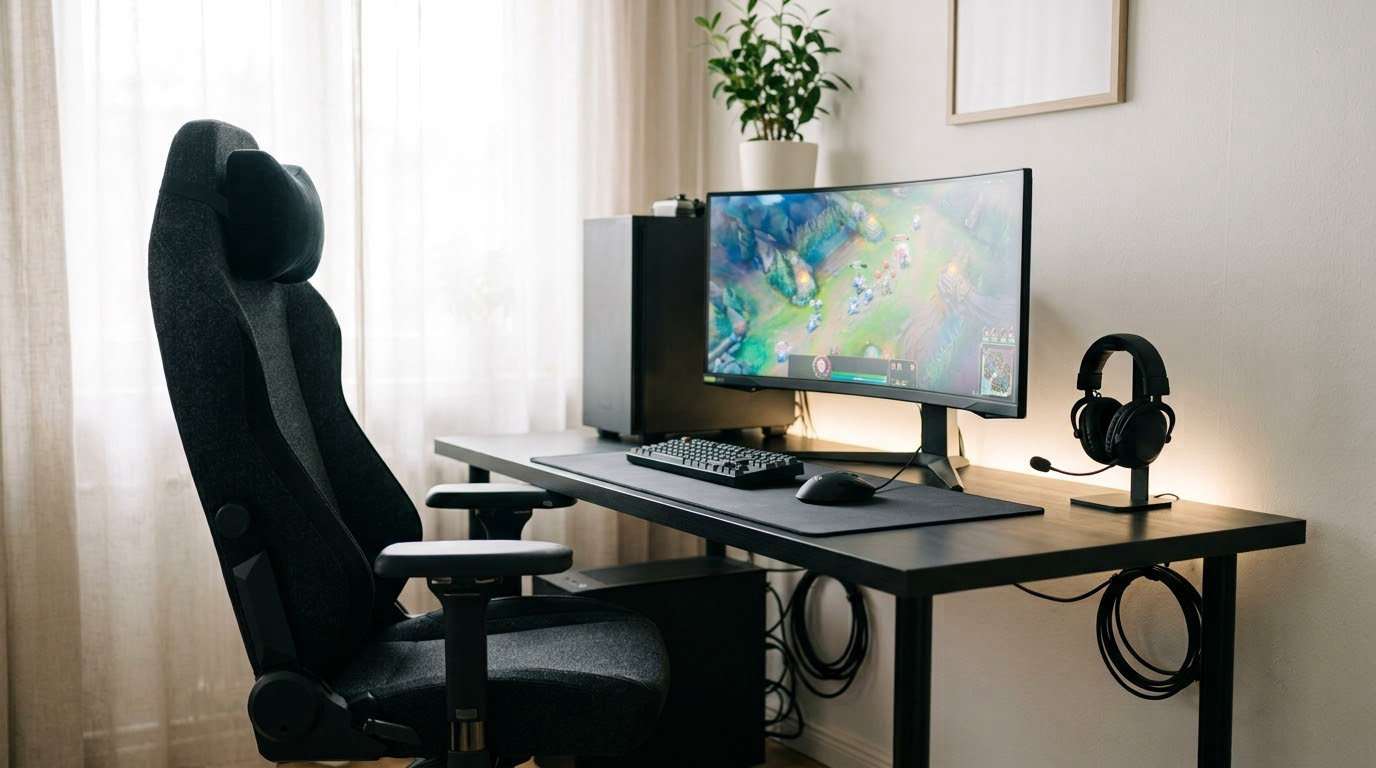
The way to set up a comfortable gaming chair and desk is to start with the desk, not the chair. Set your desk so your forearms rest level with shoulders relaxed, then raise or lower the chair until your feet are flat on the floor and your thighs run parallel to it.
Do it the other way round and you will spend an afternoon dialing in a chair that cannot work with the desk you already own. The order matters more than the gear. Most of the fix takes about 20 minutes plus a 45-minute test session to confirm it.
Table of Contents
What You Need

You can complete this setup with what most people already own. These are the pieces worth having on hand before you start.
A chair that adjusts in at least three ways: seat height, backrest recline or tilt, and armrest height. Fixed furniture cannot be corrected, and that is the single thing that determines whether a setup works for your body.
A desk that puts your forearms level when you type. Height-adjustable desks are ideal, but a fixed desk can work if you raise the seat to match rather than lowering yourself toward it.
A monitor stand or monitor arm. A laptop on a stand makes more difference than it sounds, because a laptop screen forces your neck to tip down and your forearms to rise at the same time.
A keyboard and mouse you can move freely, plus a desk lamp with an adjustable arm. A single overhead light that casts your own shadow across the screen is worse than no extra lamp at all.
A footrest if your chair cannot get low enough to flatten your feet, and a handful of cable clips for the back of the desk. That is the full list.
Step-by-Step: How to Set Up a Comfortable Gaming Chair and Desk

1. Choose the Right Desk Height
Set the desk so your elbows bend at 90 to 100 degrees, shoulders down, and wrists flat rather than bent upward. Most standard desks land around 28 to 30 inches, which suits most people. If yours is taller than that and you cannot lower it, raise the chair and add a footrest rather than shrugging your shoulders.
Depth matters too. You want 24 to 30 inches from front edge to where the monitor sits, so your forearms have room and you can pull the screen back an arm’s length away. Width follows your screens: 48 to 60 inches for a single monitor, 60 inches or wider for two.
If your elbows sit above the desk surface and your shoulders creep up within a few minutes, the desk is too high. If your wrists fold upward to reach the keys, it is too low.
2. Position the Chair
Sit back fully into the chair and lower the seat until your feet are flat on the floor or flat on a footrest. Your knees should sit level with or slightly above your hips, which takes pressure off the backs of your legs.
Check seat depth by sliding two or three fingers between the front edge of the cushion and the back of your knee. If you cannot fit them, the seat is too deep. If your knees are nowhere near the edge, it is too shallow and you lose lumbar support.
Then set the recline. For typing and general play, keep the backrest between 95 and 110 degrees. For a break between matches, push it to 110 to 120 degrees and let the tilt tension hold you. The knob under the seat controls how easily the backrest returns; set it so the chair does not drag you forward when you lean in.
3. Set Up the Monitor or Laptop
Put the top edge of the screen at or just below eye level, roughly 20 to 30 inches from your eyes, and centred on your body. Looking slightly down at the middle of the screen is normal and comfortable. Looking up at it is not.
The test is simple: close your eyes and level your gaze forward, then open them and check whether they land near the middle third of the display. If the screen is too low, raise it. If you have to crane your neck, drop it.
A monitor arm clamps to the desk rear and gives you that height without adding a riser to the stack. For a laptop, a stand plus an external keyboard and mouse is the fix, because the two cannot both sit at their correct heights on a bare desk.
4. Place the Keyboard and Mouse
Push the keyboard close enough that your elbows stay beside your torso, not out in front of it. Keep the mouse on the same plane, next to the keyboard, with enough desk depth to move it without lifting your arm.
Wrists should stay neutral: flat or slightly downward, never cocked up over the keys. A wrist rest pads the forearms in front of the desk edge, it does not prop your wrists up while you type. Use it during pauses, not as a surface to type into.
If your desk is too deep for both devices, pull them forward and let your forearms rest on the desk edge. If the mouse still feels like a reach, a keyboard tray frees up the space.
5. Improve Lighting and Reduce Glare
Aim for light coming from the side, never from directly behind or in front of the screen. A desk lamp on an arm placed to one side gives you control that a ceiling fixture never will.
Set screen brightness so white text on your game looks roughly as bright as a white wall in the room. If your screen is dimmer than the wall, you are straining; if it is brighter, your eyes keep dilating. Overhead ambient light is useful, glare on the panel is not.
If you get a reflection no matter where the lamp goes, tilt the screen a couple of degrees and close the blind behind it.
6. Organize Cables and Accessories
Run power and monitor cables down the back of the desk with clips or a sleeve, and keep the floor under the chair clear. Caster wheels roll over cable badly, and a chair that catches is a chair you stop swivelling.
Keep the items you use mid-session within forearm reach: mouse, headset, controller. Everything else lives on a shelf or below the desk. Leave enough knee clearance that you can cross your legs and shift position without kicking anything.
A chair mat helps if your casters chew carpet or drift on hard floors. It only helps posture if it lets you roll smoothly and sit closer to the desk.
7. Test the Setup
Sit for 45 minutes doing something real, not sitting still waiting to judge it. Then check four things: your feet are still flat, your shoulders are still down, your lower back is still supported, and your neck is not tilting forward.
Take a side-profile photo on your phone with a timer. If your ear, shoulder and hip do not stack roughly vertically with a slight curve through the lower back, something in the chain is off. Most often it is the seat height.
Make the smallest adjustment that fixes what you feel, then test again. Two or three small changes beat one large one, because you will know which one helped.
Common Mistakes
These seven errors account for most of the discomfort that shows up in gaming setups, and each has a straightforward fix.
- Monitor too high or too low. The top of the screen should meet your eyes, not hover above your head. Lower it until your gaze falls naturally.
- Sitting reclined while typing. A reclined backrest is for breaks. Return to 95 to 110 degrees for work and play, and save the lean-back for standing up.
- Feet dangling or heels lifting. Your seat is too high. Drop it, or add a footrest so the floor takes your full foot weight.
- Wrists bent upward. The keyboard is too high or too far forward. Lower the desk or the chair and move the keyboard closer until your forearms are level.
- Keyboard pushed back to clear the mouse. That pulls your shoulders forward. Put the two devices side by side instead and clear space in front of them, or add a tray.
- Lumbar pillow sitting in the small of your back. It belongs on the natural inward curve, roughly level with your belt line and a few inches wide, not tucked low.
- Staying in one position for hours. No setup fixes that. Stand or move every 30 to 45 minutes, even if it is only a two-minute stretch.
Tips
Give a new chair one to two weeks before judging it. Your body needs that long to stop guarding against the unfamiliar. Most people find the real problem in week one and then forget to re-tighten the fasteners, so check them after seven days.
If you work from the same desk you game on, settle that before buying anything. Gaming chairs usually get the look right and the head and neck support right. Mesh-backed ergonomic chairs breathe far better over a three to six hour session, which is the single most common complaint about faux leather seats. If the desk is shared, comfort usually wins.
If your desk is a sit-stand model, sit less than you think you need to and stand less than you think you should. Change position every half hour or so rather than committing to one height for hours, and keep the same foot support either way.
Short people under about five foot four often need a deeper seat and a footrest. Taller users tend to need a taller backrest and a seat that adjusts through a wider range. Buy for the measurement that is hardest to change later, which is usually seat depth.
Before you buy a replacement, print a checklist and score your current setup against it for a full week. Plenty of discomfort comes down to one lever nobody had adjusted.
Frequently Asked Questions
How do I make my gaming chair comfortable?
Start with seat height so your feet sit flat and your knees are level with your hips, then set seat depth to two or three fingers between your knee and the cushion edge. Recline the backrest to 95-110 degrees for play and add lumbar support at your natural lower back curve. Finish by levelling the armrests with your elbows so your shoulders stay down.
What is the best desk setup for gaming?
A desk around 28-30 inches high with 24-30 inches of depth and 48-60 inches of width suits a single monitor setup. Your forearms should rest level on it with elbows at 90 to 100 degrees, the keyboard close enough that your elbows stay at your sides, and the monitor centred an arm’s length away with its top edge at eye level.
What is the ideal monitor height for gaming?
Put the top edge of the screen at or just below eye level so your gaze falls slightly downward into the middle of the display. If you have to tip your head up or down to read the centre, the height is wrong. A monitor arm makes this far easier to dial in than stacking the screen on boxes.
How far should a gaming monitor be from my eyes?
About an arm’s length, which is usually 20 to 30 inches, measured from your eyes to the screen rather than from your nose. At that distance the whole screen is visible with slight eye movement and you do not have to lean forward to read small text. A larger or ultrawide panel usually needs a little more distance.
Should I use a footrest with a gaming chair?
Use one whenever your feet do not sit flat on the floor at your working seat height, which is common for shorter users and anyone at a standard-height desk. A firm angled footrest that supports the whole foot and lets your knees stay level takes pressure off the backs of your legs and stops your heels from lifting.
Are gaming chairs actually ergonomic?
They can be. Gaming chairs usually offer a headrest, generous lumbar support and a recline range that office task chairs often lack, and they suit long evening sessions. The weak points are breathability, since faux leather traps heat, and adjustability, since many fix the armrests. Judge yours by its adjustment range and seat depth, not its shape.
Conclusion
Set the desk first. Put your forearms level on it with elbows at 90 to 100 degrees, then bring the chair to that height so your feet are flat and thighs parallel to the floor. Everything after that, recline, lumbar, armrests, monitor, keyboard and lighting, is refinement.
Test the result with a real 45-minute session and a side-profile photo before you change anything. Most discomfort traces back to one lever nobody adjusted, and it is usually seat height.